
How to Run Gemma 4 E4B with Ollama and Set It Up as an MCP Server
Developer guide to pulling Gemma 4 E4B with Ollama, using the built-in OpenAI-compatible API on port 11434, and configuring it as an MCP server with filesystem, web search, and GitHub tools.
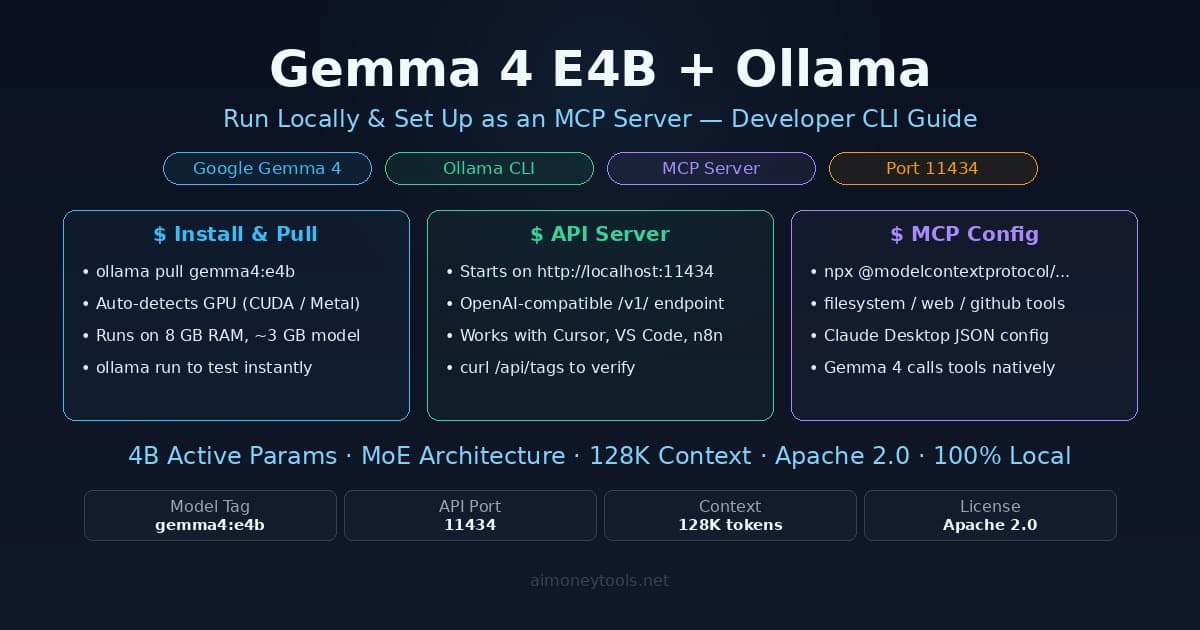
Ollama is the fastest CLI path to running Gemma 4 E4B locally. One command to pull the model, one to verify the API is running, and you have a fully local OpenAI-compatible inference server on port 11434. Add MCP tools on top and Gemma 4 can read files, search the web, and call external APIs — entirely offline, zero cost per token.
This guide covers the full developer setup: installing Ollama, pulling the right Gemma 4 variant, using the REST API in scripts and tools, and wiring it into an MCP configuration that Claude Desktop, Cursor, or any MCP-compatible client can use.
Prerequisites
Hardware:
| Minimum | Recommended | |
|---|---|---|
| RAM | 8 GB | 16 GB+ |
| Storage | 4 GB free | 10 GB free |
| GPU | Optional (CPU works) | NVIDIA 8 GB+ VRAM or Apple Silicon |
| OS | macOS 12, Ubuntu 20.04, Windows 11 | Latest stable |
Gemma 4 E4B uses a Mixture of Experts (MoE) architecture — 4 billion parameters are active per forward pass, which is why it runs comfortably on hardware that would choke on a traditional 7B model. Ollama handles GPU detection automatically: Metal on Mac, CUDA on NVIDIA, CPU fallback otherwise.
If you're not sure how much VRAM you have or whether your GPU is being used, check the VRAM guide. New to the terminal? The terminal beginner's guide covers the commands below.
Step 1: Install Ollama
macOS / Linux (one-liner):
curl -fsSL https://ollama.ai/install.sh | sh
Windows: Download the installer from ollama.ai and run it. Ollama runs natively on Windows 11; WSL2 is not required but works fine if you prefer it.
Verify the install:
ollama --version
# ollama version 0.6.x
Ollama installs as a background service and starts automatically. The API server launches on http://localhost:11434 as soon as any model is loaded.
Step 2: Pull Gemma 4 E4B
ollama pull gemma4:e4b
What e4b means:
e— "effective" parameters (not all weights are active per pass — it's MoE)4b— 4.5 billion effective parameters (8B total with embeddings)
This is the correct tag for the quantized E4B variant. Alternative tags you'll see in the Ollama library:
| Tag | Size | Notes |
|---|---|---|
gemma4:e4b |
~5 GB | Recommended. Official Gemma 4 E4B — 4.5B effective params. |
gemma4:e2b |
~3 GB | Lighter/faster, 2.3B effective params, less capable |
gemma4:26b |
~14 GB | 26B MoE (3.8B active params) — requires 16 GB+ RAM |
Pull time depends on your connection — typically 3–5 minutes on a standard broadband connection.
Test it immediately:
ollama run gemma4:e4b
>>> What is Mixture of Experts architecture?
Type /bye or press Ctrl+D to exit the interactive session.
Step 3: Use the REST API
Ollama exposes two API formats: its own native API and an OpenAI-compatible endpoint. For any tool that already supports OpenAI, use the /v1/ path — it's a drop-in replacement.
Check available models:
curl http://localhost:11434/api/tags
OpenAI-compatible chat completion:
curl http://localhost:11434/v1/chat/completions \
  -H "Content-Type: application/json" \
  -d '{
    "model": "gemma4:e4b",
    "messages": [{"role": "user", "content": "Explain MoE in two sentences."}]
  }'
Python (using the openai library):
from openai import OpenAI

client = OpenAI(
    base_url="http://localhost:11434/v1",
    api_key="ollama"  # required by the client library; value is ignored
)

response = client.chat.completions.create(
    model="gemma4:e4b",
    messages=[{"role": "user", "content": "Write a Python function to flatten a nested list."}]
)
print(response.choices[0].message.content)
Streaming responses:
stream = client.chat.completions.create(
    model="gemma4:e4b",
    messages=[{"role": "user", "content": "Explain Retrieval-Augmented Generation."}],
    stream=True
)
for chunk in stream:
    if chunk.choices[0].delta.content:
        print(chunk.choices[0].delta.content, end="", flush=True)
Connecting Cursor:
In Cursor → Settings → AI → Models → Add Custom Model:
- Base URL:
http://localhost:11434/v1 - API key:
ollama - Model:
gemma4:e4b
Cursor will use Gemma 4 for code completion and chat — local inference, no billing, nothing leaving your machine.
Step 4: Configure Ollama as an MCP Server
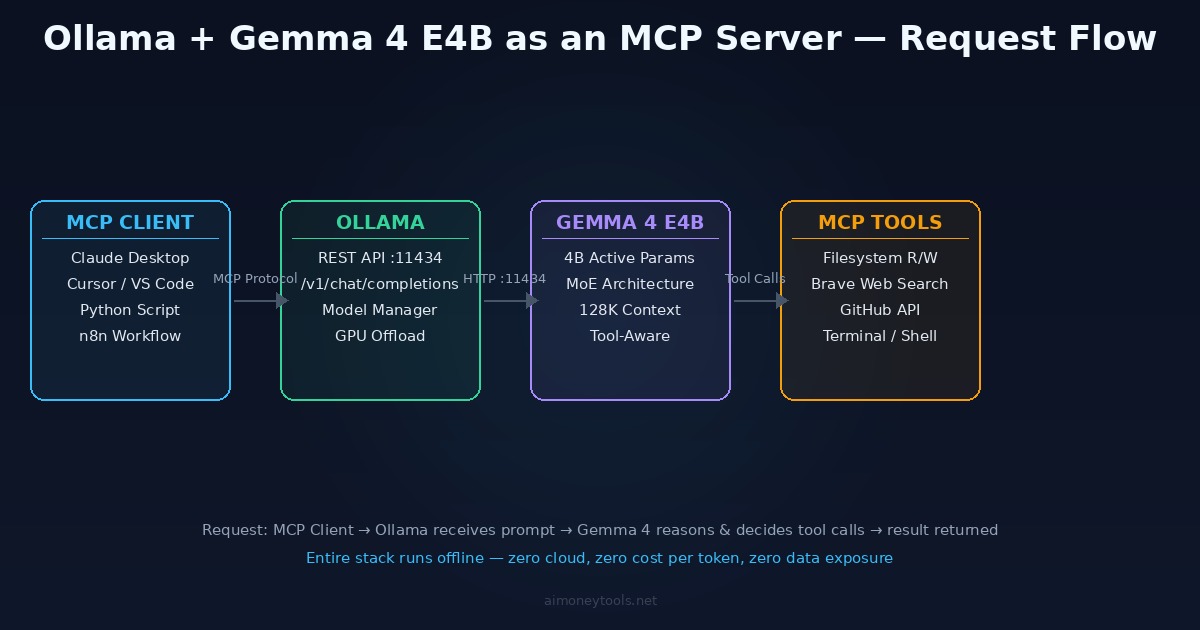
Model Context Protocol (MCP) lets Gemma 4 call tools — read files, search the web, run shell commands, query databases — during inference. Ollama supports MCP through two paths:
- Tool-calling via API — Gemma 4 receives tool definitions in the system prompt and returns structured tool calls, which your application executes
- MCP bridge — a small proxy connects an MCP client (Claude Desktop, Cursor) to Ollama's REST API
Adding MCP Tools to Ollama
The recommended approach is to run MCP servers alongside Ollama and expose them in a config file that MCP-aware clients read. The official MCP servers install via npx.
Install Node.js first (required for npx):
# macOS
brew install node

# Ubuntu / Debian
curl -fsSL https://deb.nodesource.com/setup_20.x | sudo -E bash -
sudo apt-get install -y nodejs
Available official MCP servers:
# Test any server locally:
npx -y @modelcontextprotocol/server-filesystem /path/to/directory
npx -y @modelcontextprotocol/server-fetch          # free, no API key
npx -y @modelcontextprotocol/server-github         # requires GITHUB_TOKEN
npx -y @modelcontextprotocol/server-postgres       # requires DB connection string
Claude Desktop Configuration
Claude Desktop reads MCP server configs from a JSON file. Add Ollama as the model backend and configure tool servers:
Config file location:
- macOS:
~/.config/Claude/claude_desktop_config.json - Windows:
%APPDATA%\Claude\claude_desktop_config.json
{
  "mcpServers": {
    "filesystem": {
      "command": "npx",
      "args": [
        "-y",
        "@modelcontextprotocol/server-filesystem",
        "/Users/yourname/Documents",
        "/Users/yourname/Projects"
      ]
    },
    "fetch": {
      "command": "npx",
      "args": ["-y", "@modelcontextprotocol/server-fetch"]
    }
  }
}
Save the file and restart Claude Desktop. The filesystem and fetch tools appear in Claude's MCP panel — Claude can read files in the listed directories and fetch any URL. Claude Desktop's AI model is still Claude; MCP servers add tools it can call, not alternative model backends. For using Ollama/Gemma 4 as the model in Cursor, use the direct API config in Step 3 above.
Need actual web search? Tavily (tavily.com) has a free tier (1,000 searches/month) and provides an MCP-compatible server. The
fetchserver above works for URL retrieval without any API key.
Direct Tool-Calling with the Ollama API
If you're building your own agent pipeline (without Claude Desktop), Ollama supports OpenAI-style tool definitions natively:
from openai import OpenAI
import json

client = OpenAI(base_url="http://localhost:11434/v1", api_key="ollama")

tools = [
    {
        "type": "function",
        "function": {
            "name": "read_file",
            "description": "Read the contents of a file from the filesystem",
            "parameters": {
                "type": "object",
                "properties": {
                    "path": {"type": "string", "description": "Absolute path to the file"}
                },
                "required": ["path"]
            }
        }
    }
]

response = client.chat.completions.create(
    model="gemma4:e4b",
    messages=[{"role": "user", "content": "Read /etc/hostname and tell me the machine name."}],
    tools=tools,
    tool_choice="auto"
)

# Check if Gemma 4 wants to call a tool
if response.choices[0].message.tool_calls:
    for call in response.choices[0].message.tool_calls:
        fn = call.function
        args = json.loads(fn.arguments)
        print(f"Tool call: {fn.name}({args})")
        # → execute the function, pass result back in messages
This pattern lets you build lightweight agents without a full MCP runtime — just the Ollama API, a tool registry, and a simple execution loop.
CLI Command Reference
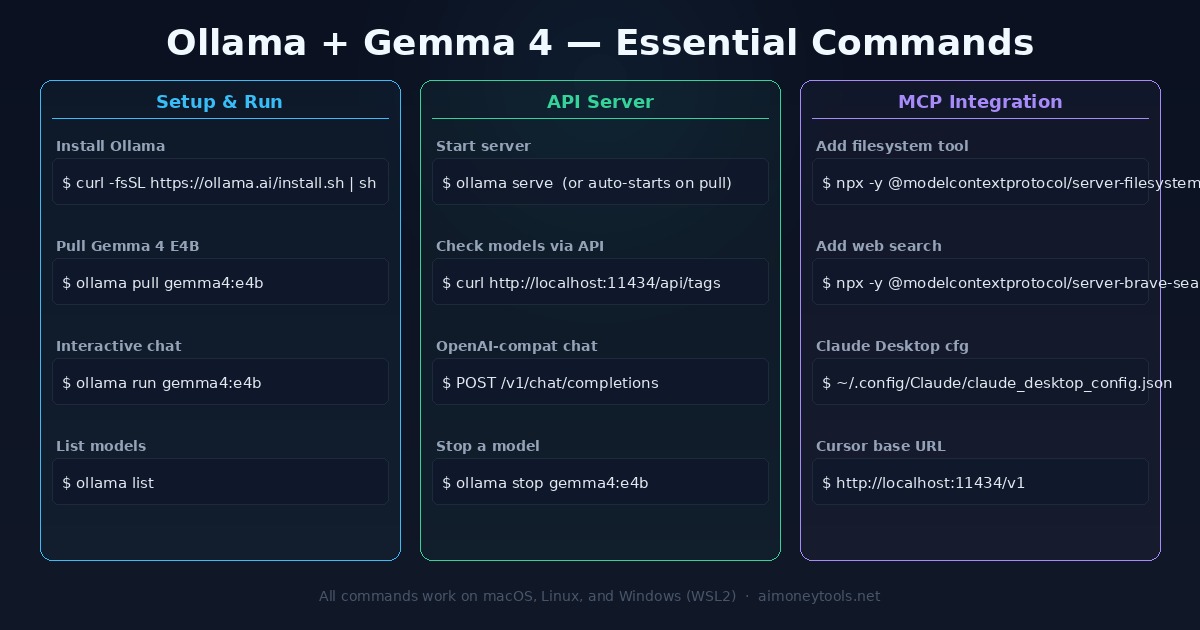
Quick reference:
# Install
curl -fsSL https://ollama.ai/install.sh | sh

# Pull model
ollama pull gemma4:e4b

# Interactive chat
ollama run gemma4:e4b

# List loaded models
ollama list

# API health check
curl http://localhost:11434/api/tags

# OpenAI-compatible chat
curl http://localhost:11434/v1/chat/completions \
  -H "Content-Type: application/json" \
  -d '{"model":"gemma4:e4b","messages":[{"role":"user","content":"hello"}]}'

# Stop a running model (frees VRAM)
ollama stop gemma4:e4b

# Remove a model
ollama rm gemma4:e4b
Troubleshooting
Error: model not found
Run ollama list to see what's loaded. If gemma4:e4b isn't there, run ollama pull gemma4:e4b again.
Slow responses on first query The model loads into memory on the first request — this takes 5–15 seconds. Subsequent queries are fast. Keep Ollama running between sessions to avoid cold starts.
connection refused on port 11434
Ollama's background service isn't running. Start it manually:
ollama serve
On macOS it should run as a menu bar app; on Linux it runs as a systemd service.
Tool calls returning malformed JSON Gemma 4 E4B handles tool calls well, but complex nested schemas can cause issues. Flatten your tool parameter schemas and avoid deeply nested objects.
CUDA not detected on Linux Ollama requires the NVIDIA CUDA toolkit. Install it:
sudo apt install nvidia-cuda-toolkit
Then verify: nvidia-smi should show your GPU. Restart the Ollama service after install.
High VRAM usage with multiple models
Each loaded model holds its weights in VRAM. Use ollama stop model_name to unload models you're not actively using.
LM Studio vs Ollama — Which Should You Use?
| Ollama | LM Studio | |
|---|---|---|
| Interface | CLI / REST API | GUI + REST API |
| Best for | Developers, scripts, CI pipelines | Non-technical users, quick testing |
| API port | 11434 | 1234 |
| Auto GPU detection | Yes | Yes |
| MCP support | Via config + API | Built-in GUI settings |
| Background service | Always-on daemon | Only while app is open |
| Config format | JSON / env vars | GUI-first |
If you want a GUI and don't mind a visual interface, see the LM Studio + Gemma 4 MCP guide. For scripts, automation, CI/CD pipelines, and anything headless, Ollama is the right tool.
What to Build With This Stack
Once Ollama is running with Gemma 4 and MCP tools configured:
- Private code assistant — Cursor pointing at local Gemma 4; no API cost, no code leaving the machine. Add the filesystem tool so it can read your entire project directory.
- Document processing pipeline — Python scripts hitting the Ollama API to summarize, extract, or classify files in bulk. Faster and cheaper than any cloud API for high-volume local processing.
- Offline RAG system — Combine Ollama (inference) with a local vector store like ChromaDB or Qdrant. Gemma 4 retrieves and reasons over your documents without any cloud dependency.
- Local agent loop — Use the tool-calling API pattern above to build a simple agent that decides which tools to call, executes them, and feeds results back. No framework required.
The stack is entirely local, entirely free to run, and ready to serve requests 24/7 without rate limits or subscription costs.
Related Guides
- Gemma 4 E4B + LM Studio MCP Guide — the GUI version of this setup, for non-technical users
- Gemma 4 on Mac: Full Setup Guide — original guide covering Ollama, LM Studio, and Jan
- Google LiteRT-LM: Gemma 4 On-Device — Google's own edge inference runtime
- What is RAG? — how to combine local models with your own knowledge base
- Terminal Beginner's Guide — if any commands above are unfamiliar
- How to Check VRAM for AI — verify your GPU is being fully utilized

Alex the Engineer
•Founder & AI ArchitectSenior software engineer turned AI Agency owner. I build massive, scalable AI workflows and share the exact blueprints, financial models, and code I use to generate automated revenue in 2026.
Related Articles
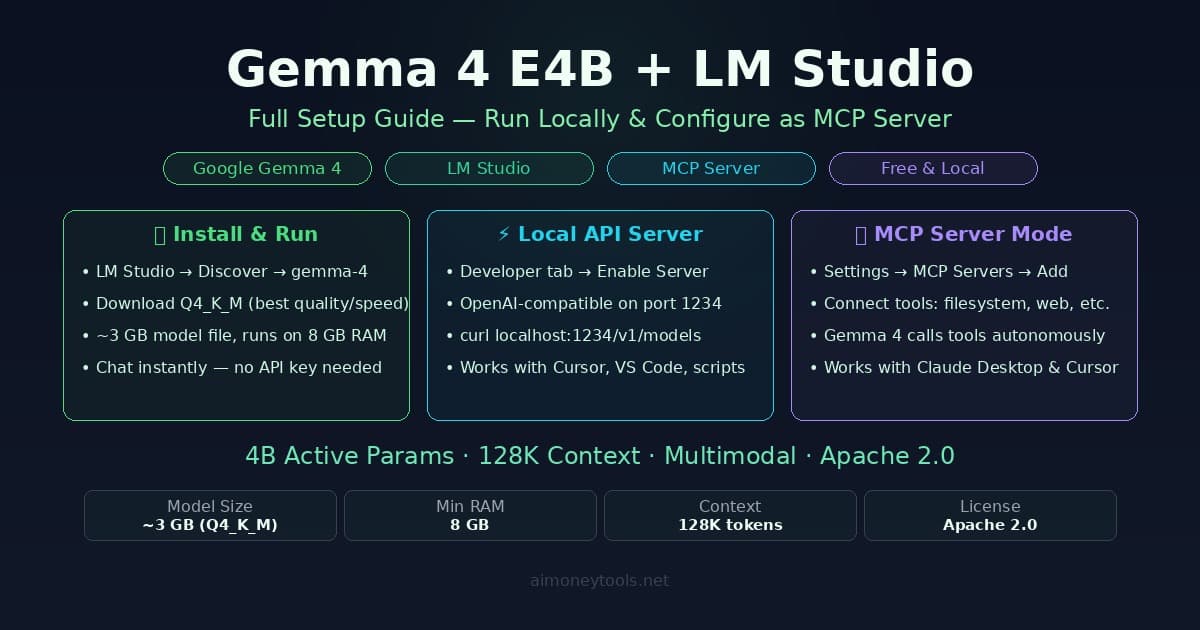
How to Run Gemma 4 E4B in LM Studio and Set It Up as an MCP Server
Step-by-step guide to running Gemma 4 E4B locally with LM Studio, enabling the OpenAI-compatible API server, and configuring it as an MCP server to use tools like filesystem, web search, and terminal.

Gemma 4 on Mac: MacBook Air, Mac Mini & Pro Setup Guide (2026)
Run Gemma 4 locally on MacBook Air, Mac Mini, or MacBook Pro — M1/M2/M3/M4. Free, offline, step-by-step. System requirements, RAM tips, and benchmarks included.

Google LiteRT-LM: Run Gemma 4 Locally on Any Device (2026 Setup Guide)
How to run Gemma 4 locally with Google's new LiteRT-LM framework. Works on Android, iOS, Raspberry Pi, desktop — one CLI command, no cloud, no API key.