
How to Run Gemma 4 E4B in LM Studio and Set It Up as an MCP Server
Step-by-step guide to running Gemma 4 E4B locally with LM Studio, enabling the OpenAI-compatible API server, and configuring it as an MCP server to use tools like filesystem, web search, and terminal.
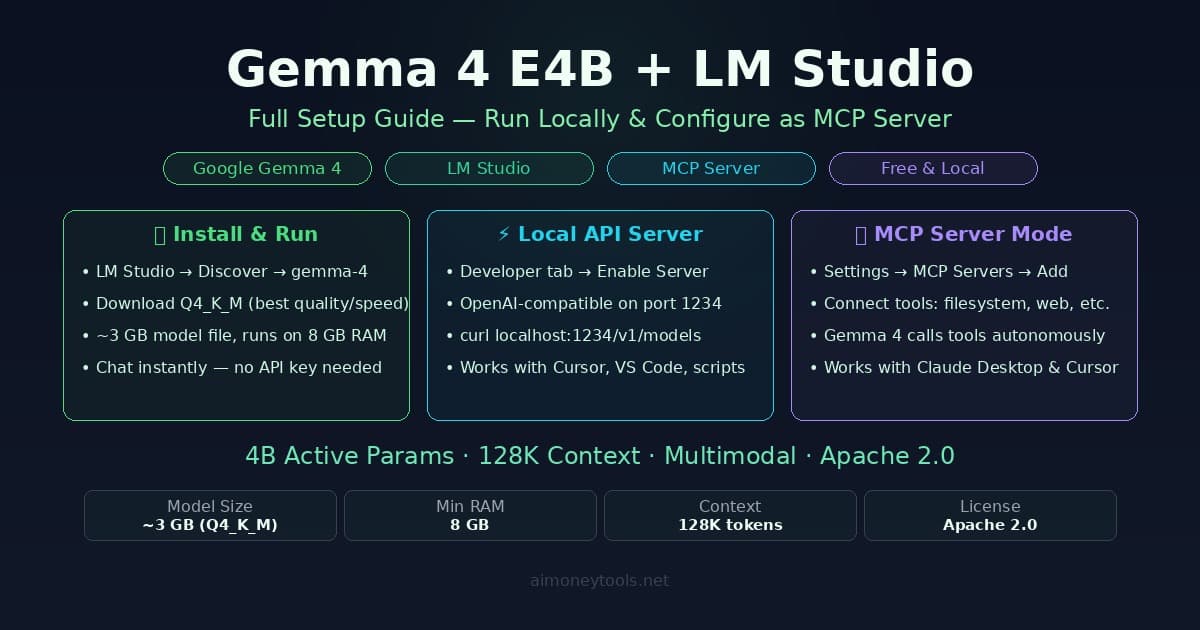
LM Studio is the fastest way to get Gemma 4 E4B running on your local machine — a clean GUI, built-in model library, and an API server that turns your laptop into a private AI backend. The MCP layer on top is what makes it genuinely useful as infrastructure: Gemma 4 can call tools, access files, run searches, and connect to external services, all while staying local.
This guide covers three things: downloading and running Gemma 4 E4B in LM Studio, enabling the local API server, and configuring LM Studio as an MCP server so other tools (Claude Desktop, Cursor, custom scripts) can connect to it.
What You'll Need
Hardware minimums:
| Spec | Minimum | Recommended |
|---|---|---|
| RAM | 8 GB | 16 GB+ |
| Storage | 4 GB free | 10 GB free (for multiple quants) |
| GPU | Optional | Apple Silicon or NVIDIA 8 GB+ VRAM |
| OS | Windows 10, macOS 12, Ubuntu 20.04 | Latest stable |
Gemma 4 E4B uses a Mixture of Experts architecture — only 4 billion parameters are active per inference pass, even though the full model has more. That's why it runs comfortably on hardware that would struggle with a traditional 7B model. On Apple Silicon (M1/M2/M3/M4), inference is fast and fully GPU-accelerated through Metal. On Windows with an NVIDIA GPU, LM Studio uses CUDA automatically.
If you're unsure what GPU you have or how much VRAM is available, check the VRAM guide before downloading. New to the terminal commands below? The terminal beginner's guide has you covered.
Step 1: Install LM Studio
Download LM Studio from lmstudio.ai — it's free and available for macOS, Windows, and Linux.
Mac: Download the .dmg, drag to Applications, open it.
Windows: Download the .exe installer, run it.
Linux: Download the AppImage, mark it executable (chmod +x), run it.
On first launch, LM Studio runs a quick hardware detection scan — it'll identify your GPU, VRAM, and whether Metal or CUDA is available. You don't need to configure anything here; it picks the right backend automatically.
Step 2: Download Gemma 4 E4B
- Click the Discover tab (magnifying glass icon in the left sidebar)
- In the search box, type
gemma-4 - You'll see the official Google Gemma 4 entry — click it
- Select the E4B variant (the 4B active-parameter model)
Choosing the right quantization:
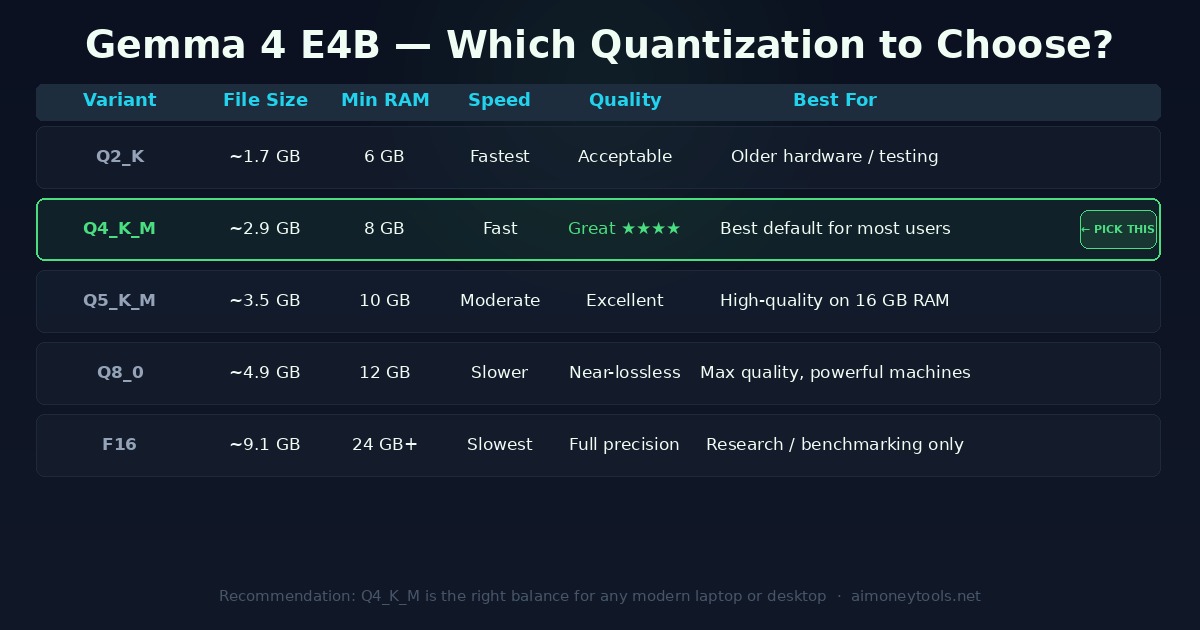
For almost everyone, Q4_K_M is the right choice. It's ~2.9 GB, runs on 8 GB RAM, and the quality difference from larger quantizations is marginal for everyday use. Download by clicking the cloud icon next to Q4_K_M.
The download will take a few minutes depending on your connection. LM Studio stores models in ~/.cache/lm-studio/models/ by default.
Step 3: Load the Model and Test It
Once downloaded:
- Switch to the Chat tab
- Click the model selector at the top of the screen
- Select Gemma 4 E4B from the list
- Wait for the model to load (typically 5–15 seconds)
- Type a prompt and verify it responds
You should get a response in under 2 seconds on any modern machine. If it's slow, the model is running in CPU-only mode — check the VRAM guide to ensure your GPU is being used.
Configuration tweaks worth knowing:
- Context length: Gemma 4 supports 128K tokens. LM Studio defaults to 4K for speed. Raise it in model settings if you need longer context.
- Temperature: Default (0.8) is fine for general use. Lower it to 0.3–0.5 for precise/factual tasks.
- GPU layers: Set to
-1to offload all layers to GPU. If you hit VRAM limits, reduce this number.
Step 4: Enable the Local API Server
LM Studio includes a built-in HTTP server that exposes Gemma 4 through an OpenAI-compatible API. Any tool that supports the OpenAI API format can talk to it — Cursor, VS Code extensions, n8n, custom Python scripts, anything.
To enable the server:
- Click the Developer tab (the
</>icon in the sidebar) - Toggle Enable Server to on
- The server starts on
http://localhost:1234by default
Verify it's running:
curl http://localhost:1234/v1/models
You should see a JSON response listing Gemma 4 E4B. If you get a connection refused error, check that the toggle is on and LM Studio is still open (the server only runs while LM Studio is active).
Using it with Cursor:
In Cursor settings → AI → Custom Models → add a custom model endpoint:
- Base URL:
http://localhost:1234/v1 - API key: leave blank or use
lm-studioas a placeholder - Model name:
gemma-4-e4b(match the model ID from the/v1/modelsresponse)
Cursor will now use your local Gemma 4 for code suggestions and chat — zero API cost, zero data leaving your machine.
Python integration:
from openai import OpenAI

client = OpenAI(
    base_url="http://localhost:1234/v1",
    api_key="lm-studio"  # required by the client, value doesn't matter
)

response = client.chat.completions.create(
    model="gemma-4-e4b",
    messages=[{"role": "user", "content": "Explain MoE architecture in two sentences."}]
)
print(response.choices[0].message.content)
Step 5: Configure LM Studio as an MCP Server
Model Context Protocol (MCP) is the standard that lets AI models call external tools — read files, run web searches, execute code, query databases. LM Studio supports MCP in two directions:
- LM Studio as MCP client — Gemma 4 can USE tools from MCP servers you add (filesystem access, web search, terminal, etc.)
- LM Studio as MCP server — expose your running Gemma 4 as an endpoint other apps can connect to
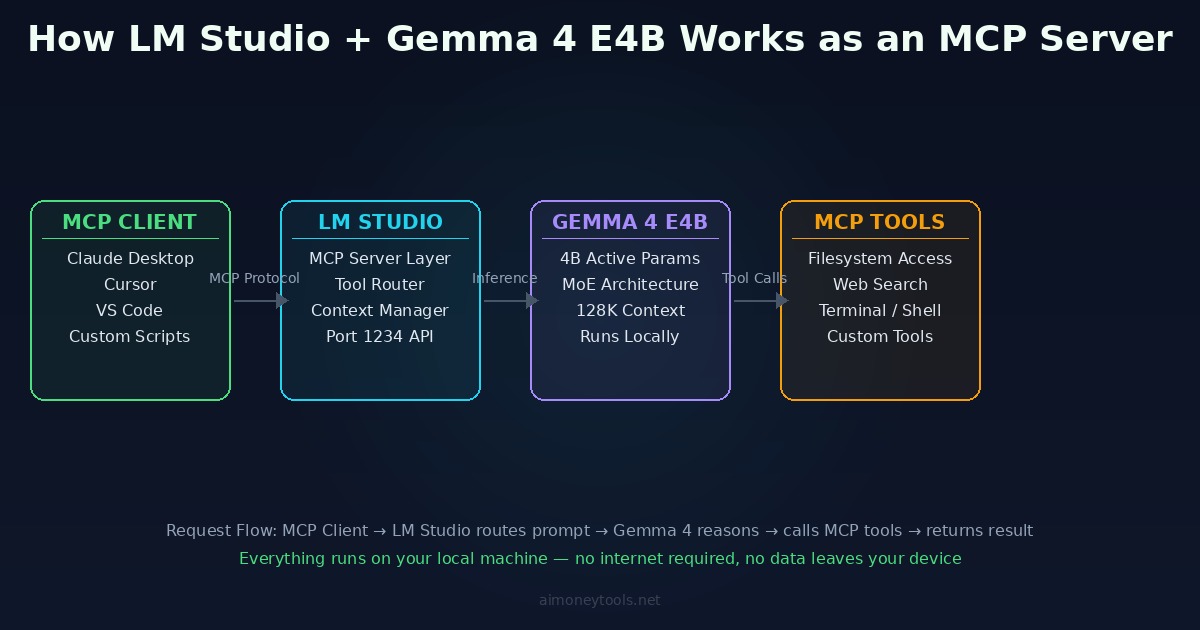
MCP Tools for Gemma 4 (LM Studio as MCP Client)
This is where Gemma 4 becomes genuinely agentic. Instead of just answering questions, it can read actual files from your machine, run web searches, and interact with your system.
Adding MCP servers in LM Studio:
- Go to Settings → MCP Servers
- Click Add Server
- Choose from the built-in options or add a custom server URL
Recommended MCP servers to add:
{
  "mcpServers": {
    "filesystem": {
      "command": "npx",
      "args": ["-y", "@modelcontextprotocol/server-filesystem", "/Users/yourname/Documents"]
    },
    "fetch": {
      "command": "npx",
      "args": ["-y", "@modelcontextprotocol/server-fetch"]
    }
  }
}
Once added, Gemma 4 can call these tools during any conversation in LM Studio. Ask it to "summarize all .md files in my Documents folder" — it'll use the filesystem tool to read them without you copying anything manually.
Available official MCP servers (install via npx -y @modelcontextprotocol/server-[name]):
filesystem— read/write local filesfetch— fetch any URL or page (free, no API key required)github— interact with GitHub repospostgres— query a PostgreSQL databasefetch— fetch any URL
Adding MCP Tools to Claude Desktop
Claude Desktop supports MCP servers and reads tool configs from a JSON file. Note: Claude Desktop's AI model is still Claude (Anthropic) — MCP servers add external tools Claude can call, not alternative model backends. This config adds filesystem and fetch tools that Claude can use directly.
Claude Desktop config file location:
- Mac:
~/Library/Application Support/Claude/claude_desktop_config.json - Windows:
%APPDATA%\Claude\claude_desktop_config.json
Add LM Studio as an MCP server:
{
  "mcpServers": {
    "filesystem": {
      "command": "npx",
      "args": ["-y", "@modelcontextprotocol/server-filesystem", "/Users/yourname/Documents"]
    },
    "fetch": {
      "command": "npx",
      "args": ["-y", "@modelcontextprotocol/server-fetch"]
    }
  }
}
Save the file and restart Claude Desktop. The filesystem and fetch tools appear in Claude's MCP tools panel — Claude can now read files from the specified directory and fetch any URL. Meanwhile, Cursor connects to your LM Studio API directly via the OpenAI-compatible endpoint (covered in Step 4 above) — no MCP config needed there.
Troubleshooting
Model loads but responds very slowly:
LM Studio is using CPU-only inference. Check the model settings panel for "GPU Layers" — set it to -1 to use the full GPU. On Mac, verify Metal is enabled in Settings → Performance.
Port 1234 already in use:
Another service is using that port. Change the LM Studio server port in Developer settings to 1235 or any available port, then update your client configs to match.
MCP tools not appearing in chat: LM Studio requires the model to be loaded (not just downloaded) when tools are registered. Reload the model after adding MCP servers.
Q4_K_M gives garbled output:
Rarely happens with corrupted downloads. Delete the model file from ~/.cache/lm-studio/models/ and re-download.
What to Use This Setup For
Once the full stack is running — Gemma 4 E4B in LM Studio, local API server active, MCP tools connected — it's a capable local AI backend for:
- Private document Q&A: point the filesystem tool at a folder of contracts, reports, or notes; query them directly without sending data anywhere
- Local coding assistant: Cursor using Gemma 4 as the model backend for a project that can't go to a cloud API
- Automated file workflows: scripts that call the LM Studio API to process, summarize, or categorize files in bulk
- MCP tool orchestration: Gemma 4 as the reasoning layer in a pipeline where it decides which MCP tools to call and in what order
The total hardware cost is zero beyond what you already own, the API cost is zero, and nothing leaves your machine.
Related Guides
- Gemma 4 on Mac: Full Setup Guide — the original local install walkthrough across Ollama, LM Studio, and Jan
- Google LiteRT-LM: Running Gemma 4 On-Device — Google's own inference runtime for edge deployment
- Terminal Beginner's Guide — if any commands above are unfamiliar
- How to Check VRAM for AI — verify your GPU is being fully utilized

Alex the Engineer
•Founder & AI ArchitectSenior software engineer turned AI Agency owner. I build massive, scalable AI workflows and share the exact blueprints, financial models, and code I use to generate automated revenue in 2026.
Related Articles

Gemma 4 on Mac: MacBook Air, Mac Mini & Pro Setup Guide (2026)
Run Gemma 4 locally on MacBook Air, Mac Mini, or MacBook Pro — M1/M2/M3/M4. Free, offline, step-by-step. System requirements, RAM tips, and benchmarks included.

Google LiteRT-LM: Run Gemma 4 Locally on Any Device (2026 Setup Guide)
How to run Gemma 4 locally with Google's new LiteRT-LM framework. Works on Android, iOS, Raspberry Pi, desktop — one CLI command, no cloud, no API key.

Obsidian Agent Skills 2026: Set Up Claude Code to Control Your Vault
Install the 5 official Obsidian agent skills from kepano and let Claude Code, Codex CLI, or OpenCode fully control your vault. Step-by-step setup guide with real commands.