
How to Use LM Studio: Complete Beginner's Guide to Local AI (2026)
LM Studio lets you run powerful AI models on your own computer — free, private, no cloud. This step-by-step guide covers setup, model selection, and tips for beginners.
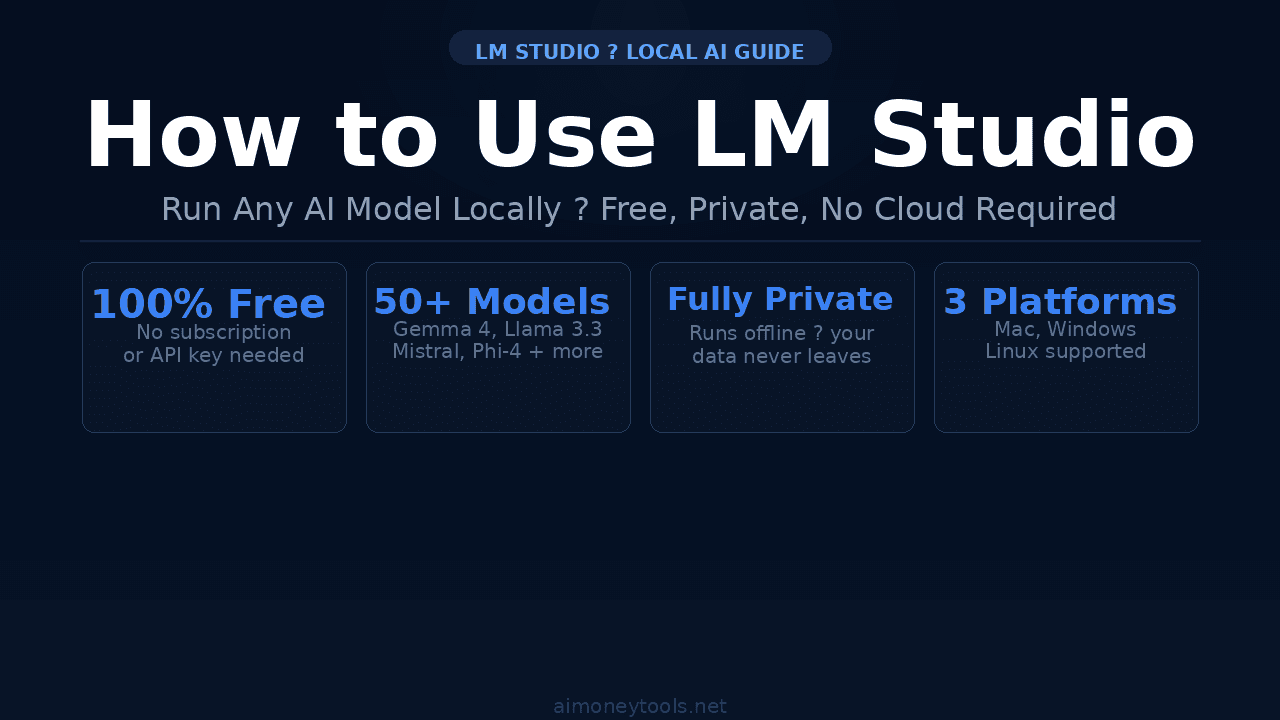
Running a powerful AI model on your own computer used to require a PhD in systems engineering. LM Studio changed that. It's a free desktop app that lets you download and chat with models like Gemma 4, Llama 3.3, and Mistral — with a clean UI, zero cloud subscriptions, and full privacy.
This guide walks you through the complete setup, from downloading LM Studio to picking the right model for your hardware.
What Is LM Studio?
LM Studio is a free desktop application for running large language models locally. You download it once, pick a model from its built-in model browser, and start chatting — no API keys, no subscriptions, no internet connection required after the initial model download.
It supports Mac (Apple Silicon + Intel), Windows, and Linux, and works with most open-weight models available on Hugging Face. The entire app runs on your machine, which means:
- Private: Your conversations never leave your device
- Free: No monthly fees — models are open-weight, hosted by Hugging Face
- Offline-capable: Once downloaded, models work without an internet connection
- Flexible: Swap between dozens of models from a single interface
Before you start, it's worth checking how much VRAM (or RAM on Apple Silicon) your machine has. This determines which models will run smoothly. See our VRAM guide for a quick check.
Step 1: Download and Install LM Studio
Go to lmstudio.ai and click Download. The installer is available for:
- Mac:
.dmgfor Apple Silicon (M1/M2/M3/M4) and Intel - Windows:
.exeinstaller - Linux:
.AppImage
Run the installer like any normal app. LM Studio installs to your Applications folder (Mac) or Program Files (Windows). Launch it — you'll see a clean chat interface with a sidebar for navigation.
No terminal required. If you're curious about terminal-based approaches (Ollama, llama.cpp), check our terminal beginner's guide — but for most users, LM Studio is the better starting point.
Step 2: Find and Download a Model
Click the Discover tab (magnifying glass icon in the left sidebar). This opens LM Studio's model browser — a curated list of popular open-weight models pulled from Hugging Face.
You can search by name or browse by category. For most beginners, these are reliable starting picks:
- Gemma 4 2B — Google's latest small model. Excellent quality for 5 GB of RAM. Great for writing, chat, and Q&A.
- Mistral 7B Instruct — Strong general-purpose model. Needs ~8 GB RAM. Fast and reliable.
- Llama 3.3 8B Instruct — Meta's best small model. ~10 GB RAM. Excellent for coding and reasoning.
Click a model to see its variants (different quantization levels). If you're unsure, pick the Q4_K_M variant — it's the best balance of size and quality. Click Download.
Downloads can take a few minutes depending on your connection — models range from 2 GB to 40+ GB. LM Studio shows download progress in the bottom bar.
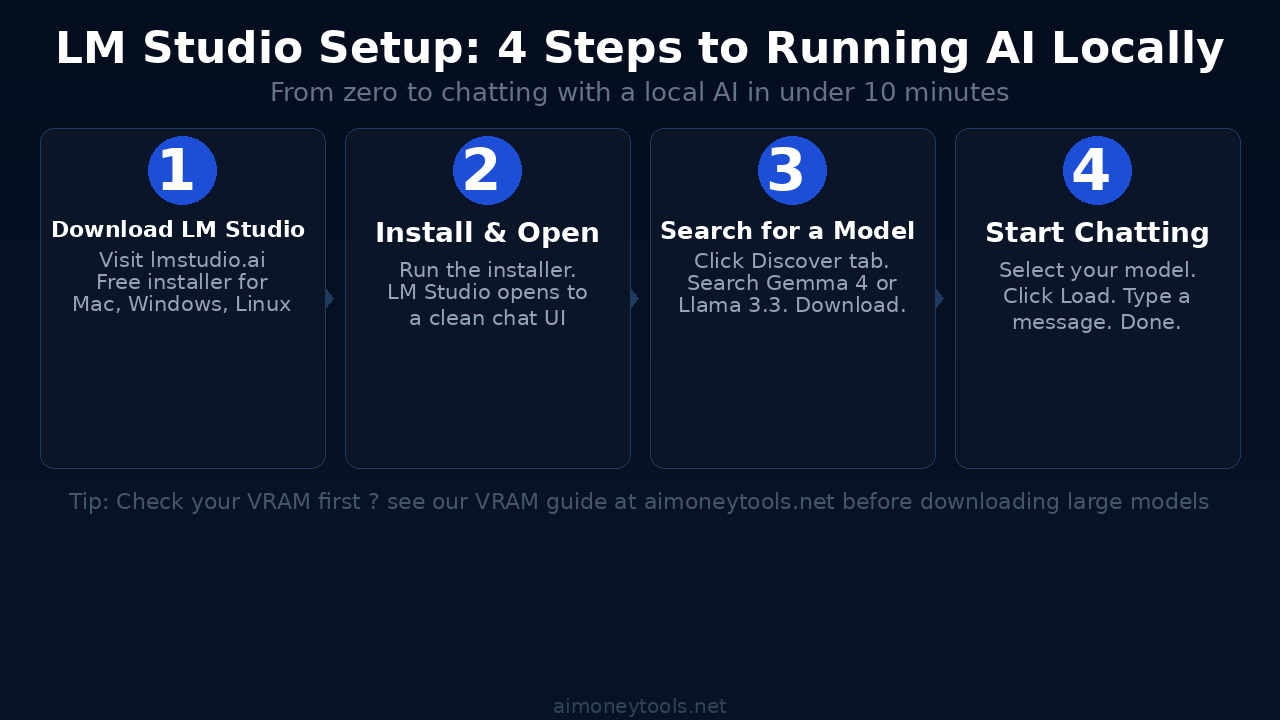
Step 3: Load a Model and Start Chatting
Once the download finishes:
- Click the Chat tab (speech bubble icon)
- Click Select a model to load at the top of the chat window
- Choose your downloaded model from the dropdown
- Click Load — the model loads into RAM (takes 5–30 seconds)
- Type a message and press Enter
That's it. You're running a local AI model with no external connections.
Tip: LM Studio shows GPU and RAM usage in the bottom bar while a model is loaded. If you see memory usage spike to 95%+, try a smaller model — your current one may be too large for smooth performance.
Choosing the Right Model for Your Hardware
This is where beginners get tripped up. Bigger models produce better output, but they need more RAM. Here's the practical guide:
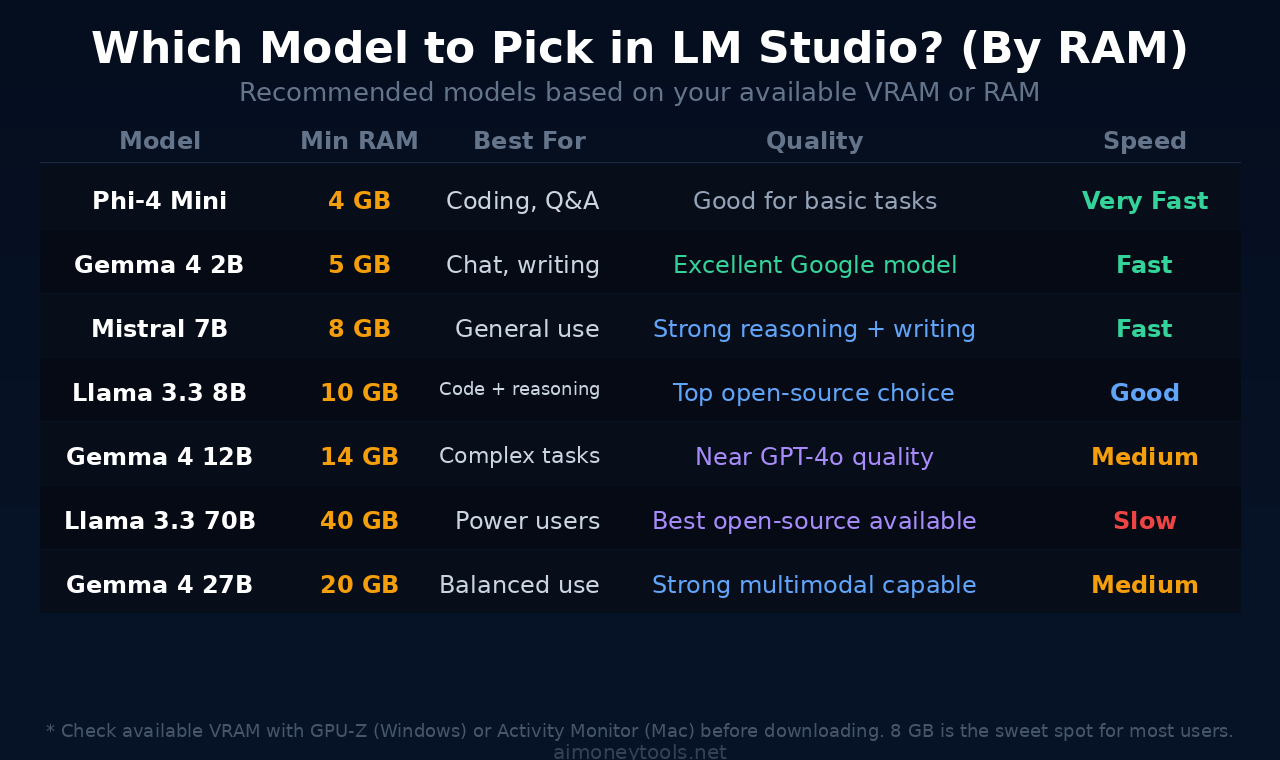
Under 8 GB RAM: Stick with Phi-4 Mini or Gemma 4 2B. They're surprisingly capable for chat, summarization, and light coding.
8–16 GB RAM (most laptops): Mistral 7B or Llama 3.3 8B. These are the sweet spot — strong reasoning, fast enough for real-time chat.
16–32 GB RAM (gaming PCs, M-series Mac): Gemma 4 12B or Llama 3.3 13B. Near GPT-4o quality on most tasks.
32 GB+ (workstations, M2/M3 Pro/Max): Llama 3.3 70B or Gemma 4 27B. Best open-source quality available. These run fully on-device on high-end Apple Silicon Macs.
For AI coding workflows, we've tested Gemma 4 in Codex CLI — if you want to go beyond chat into agentic coding, that guide covers the next step. For local model setup on Mac specifically, our Gemma 4 setup guide walks through the llama.cpp path.
Key LM Studio Features Worth Knowing
Local Server Mode: LM Studio can run as a local API server (OpenAI-compatible endpoint). This lets you connect local models to apps that support OpenAI's API — VS Code extensions, Open WebUI, or your own scripts. Go to Developer tab and click Start Server.
System Prompt: In the Chat settings panel (right sidebar), you can set a system prompt to customize model behavior — useful for giving the AI a persona or task focus.
Context Length: Adjustable in the model settings. Longer context = more conversation history, but uses more RAM. Start at 4096 tokens; increase if you need multi-turn conversations.
Model Parameters: Temperature (creativity), top-p, and repetition penalty are all adjustable in the right sidebar. Leave defaults for normal use; lower temperature (0.3–0.5) for precise tasks like coding.
LM Studio vs. Running AI in the Cloud
Local AI with LM Studio is unbeatable for privacy and cost. No per-token billing, no data leaving your machine. But there are real limits: your hardware caps what models you can run, and even a 70B model on a high-end Mac won't match GPT-5 or Claude Opus for complex reasoning.
For compute-heavy tasks — training, fine-tuning, or running larger models than your hardware supports — cloud GPU options like Ampere let you spin up high-memory GPU instances at competitive rates without a long-term contract.
Key Takeaways
- LM Studio is the easiest way to run AI locally — free, works on Mac/Windows/Linux, no terminal needed
- Check your VRAM or RAM before downloading — 8 GB gets you strong models; 16 GB+ unlocks near-GPT quality
- For most users, Mistral 7B or Llama 3.3 8B is the best starting point
- Use Q4_K_M quantization for the best quality-to-size ratio
- Local Server Mode lets you connect LM Studio to other apps via OpenAI-compatible API
- For compute beyond your hardware, cloud GPU options are worth knowing
FAQ
Is LM Studio completely free?
Yes. The app itself is free, and the models it uses are open-weight and hosted on Hugging Face at no cost.
Does LM Studio work without internet?
After the initial model download, yes — models run fully offline. Internet is only needed to browse and download new models.
How much storage do I need?
Models range from ~1.5 GB (Phi-4 Mini) to 40+ GB (70B models). A 7B–8B model needs about 5–7 GB of disk space in Q4 quantization.
Can I use LM Studio for coding?
Yes. Models like Llama 3.3 8B and Gemma 4 are solid for code generation. LM Studio's local server also lets you connect it to coding extensions in VS Code.
What's the difference between LM Studio and Ollama?
Both run local AI models, but LM Studio has a visual UI (no terminal needed) while Ollama is terminal-based. LM Studio is better for beginners; Ollama is better for automation and scripting. See our terminal guide if you want to explore the CLI path.

Alex the Engineer
•Founder & AI ArchitectSenior software engineer turned AI Agency owner. I build massive, scalable AI workflows and share the exact blueprints, financial models, and code I use to generate automated revenue in 2026.
Related Articles

How to Start an AI-Assisted Resume Writing Side Hustle in 2026 (Beginner's Guide)
A step-by-step guide to using AI resume tools to offer a paid resume and cover letter writing service — what to charge, which tools to use, and how to find your first clients.

How to Build and Sell AI Voice Receptionists to Local Businesses in 2026
A beginner's guide to building AI voice agents that answer business phone calls — the tools to use, what to charge, and how to find your first client.

How to Make Money on Fiverr with AI Tools in 2026: 7 Gigs You Can Start This Week
Discover 7 real Fiverr gigs you can launch using free and low-cost AI tools in 2026 — no experience required. Real pricing data, step-by-step setup, and tools that actually work.