
How to Run Llama 4 Locally with LM Studio (2026 Beginner's Guide)
A step-by-step guide to downloading and running Llama 4 locally on your PC or Mac using LM Studio 0.4.16 — no cloud, no API fees, complete privacy. Works on Windows, Mac, and Linux.
You can run Llama 4 — one of Meta's most capable open-source AI models — entirely on your own computer. No subscriptions, no API keys, no data leaving your machine.
The tool that makes this easy for beginners is LM Studio. It's a free desktop app that lets you browse, download, and run AI models locally through a simple interface. The latest version is LM Studio 0.4.16, released June 8, 2026, and it's the best version yet.
This guide walks you through the complete setup: installing LM Studio, downloading Llama 4, and having your first conversation — all in under 15 minutes.
What Is LM Studio?
LM Studio is a free, user-friendly desktop application for running AI language models locally on your computer. It works on Windows, Mac (both Apple Silicon and Intel), and Linux.
Unlike running models through a terminal with Ollama (which we covered in our Ollama + Open WebUI guide), LM Studio is entirely graphical. You point and click to download models, start them, and chat. There is no command line involved unless you choose to use it.
Under the hood, LM Studio uses llama.cpp on Windows and Linux, and MLX for Apple Silicon Macs — both optimized engines for running AI models efficiently on consumer hardware.
LM Studio 0.4.16 highlights (as of June 2026):
- Free for home and work use
- One-click model download from HuggingFace
- Built-in chat interface
- Local API server (OpenAI-compatible) for connecting other apps
- MTP Speculative Decoding for faster responses
- Multi-GPU support (tensor parallelism)
- New: "Locally" iPhone/iPad app via LM Link for mobile access
- MCP server support for tool use
What Is Llama 4?
Llama 4 is Meta's latest generation of open-source language models. Unlike earlier Llama versions, Llama 4 uses a Mixture of Experts (MoE) architecture — meaning not all model parameters activate for every token, making it more efficient to run than its parameter count suggests.
There are two main Llama 4 variants relevant for local use:
| Model | Active Params | Best For |
|---|---|---|
| Llama 4 Scout | Smaller, efficient | Laptops, 8–16 GB VRAM, fast responses |
| Llama 4 Maverick | Larger, more capable | Desktops with 16+ GB VRAM or 32+ GB RAM |
For most beginners starting out, Llama 4 Scout in a Q4 quantized format is the practical choice. It runs on modest hardware and still delivers strong results for writing, summarizing, coding help, and Q&A.
What You Need Before Starting
Minimum for Llama 4 Scout (Q4 quantized):
- 16 GB of system RAM (used when running on CPU)
- Or 8–12 GB of GPU VRAM (for GPU-accelerated inference)
- ~8 GB of free disk space for the model file
- Windows 10+, macOS 12+, or Ubuntu 20.04+
Recommended:
- 32 GB RAM or 16 GB VRAM for smooth performance
- NVMe SSD (speeds up model loading significantly)
- Apple Silicon Mac (M1/M2/M3/M4) — MLX gives excellent performance even on MacBook Air
Not sure how much VRAM your GPU has? Check our VRAM guide for AI before proceeding.
Step 1: Download and Install LM Studio

- Open your browser and go to lmstudio.ai
- Click the Download button for your operating system (Windows, Mac, or Linux)
- The current version is 0.4.16 — make sure you download this version or newer
- Run the installer and follow the prompts (no special settings needed during install)
LM Studio installs as a regular desktop application. On Mac it goes to your Applications folder; on Windows it installs under Program Files.
When you open LM Studio for the first time, you'll see the main screen with a search bar at the top, a model browser, and a left sidebar with tabs for Chat, Discover, My Models, and the Developer API server.
Step 2: Download Llama 4 Scout
- Click the Discover tab in the left sidebar (the grid icon)
- In the search bar, type "Llama 4 Scout"
- LM Studio pulls results directly from HuggingFace. Look for a Meta-Llama-4-Scout result
- Click on it to open the model page
- Under Quantization, select Q4_K_M — this is the best balance of quality and file size for most computers
- Click Download — the file is roughly 5–8 GB depending on the exact variant
The download runs in the background. You'll see progress in the bottom bar. On a decent internet connection this takes 5–15 minutes.
Not sure which quantization to pick? Q4_K_M is the standard recommendation: it reduces the model size by roughly 60% from the full-precision version with minimal quality loss. If you have plenty of VRAM (16 GB+), you can go up to Q6_K or Q8_0 for better quality. If you're on a laptop with limited RAM, Q3_K_M goes smaller but quality drops noticeably.
Step 3: Load and Start Chatting
- Once downloaded, click My Models in the left sidebar
- Find Llama 4 Scout in the list and click Load
- LM Studio will load the model into memory — this takes 10–60 seconds depending on your hardware
- When the status bar shows the model name in green, it's ready
- Click the Chat tab (the speech bubble icon)
- Type your first message in the chat box at the bottom and press Enter
That's it. You're now chatting with Llama 4 completely locally — no internet connection required after the initial download.
Step 4: Configure for Best Performance (Optional)
LM Studio works well out of the box, but a few settings help:
GPU offloading (if you have a GPU): When loading the model, look for the GPU Layers slider. Higher = more layers run on GPU = faster inference. Set this as high as your VRAM allows. LM Studio will warn you if you try to push too many layers and run out of memory.
Context length: The default is now 8,192 tokens (updated in 0.4.16). For most chat tasks this is fine. If you're working with long documents or code files, you can increase this in the model load settings — but larger context uses more memory.
System prompt: You can set a system prompt under Chat Settings to give Llama 4 a persistent instruction like "You are a helpful coding assistant" or "Keep all responses under 200 words."
Using LM Studio as a Local API Server
One of LM Studio's most useful features is its built-in OpenAI-compatible API server. This lets you connect other tools — like VS Code extensions, Python scripts, or n8n automations — to your locally running Llama 4 model.
To start the server:
- Click the Developer tab (the
</>icon in the left sidebar) - Toggle the server On
- The default address is
http://localhost:1234/v1
Any app that supports the OpenAI API can point to this address instead. For example, in Continue.dev (VS Code AI assistant), you would set the model endpoint to http://localhost:1234/v1 and it will use your local Llama 4 instead of a cloud model.
For building automations with AI locally, check our n8n tutorial for beginners — n8n can connect to a local LM Studio server for completely offline AI workflows.
LM Studio 0.4.16: New Mobile App
The most interesting new feature in the June 2026 release is Locally — LM Studio's official iPhone and iPad app. Using a feature called LM Link, your phone or tablet can connect to LM Studio running on your desktop and use your local models remotely.
This means the 70B model you run on your desktop is accessible from your iPhone while you're on the couch — without ever sending data to a cloud server. LM Link no longer requires a waitlist as of version 0.4.16 Build 2.
Frequently Asked Questions
Does LM Studio require a GPU? No. LM Studio can run models on CPU only using system RAM. It's slower — a typical response on CPU takes 2–5 seconds per token instead of milliseconds — but it works. For Llama 4 Scout, you need at least 16 GB of RAM to run it on CPU. GPU acceleration is optional but highly recommended if available.
Is LM Studio free? Yes, completely free for both personal and commercial use. There is no paid tier or subscription. You download the app, you download models from HuggingFace, and you run them.
Which Llama 4 model should I download for a laptop? Llama 4 Scout Q4_K_M. It's the smallest practical version of Llama 4 that still delivers strong results. Avoid Llama 4 Maverick on a laptop — it needs significantly more resources and will be very slow on anything under 32 GB RAM.
Can LM Studio run other models besides Llama 4? Yes. LM Studio supports any GGUF-format model from HuggingFace. Popular options available right now include Gemma 4, Qwen 3.5, DeepSeek-R1, and Mistral models. The Discover tab lets you browse and download all of them.
How is LM Studio different from Ollama?
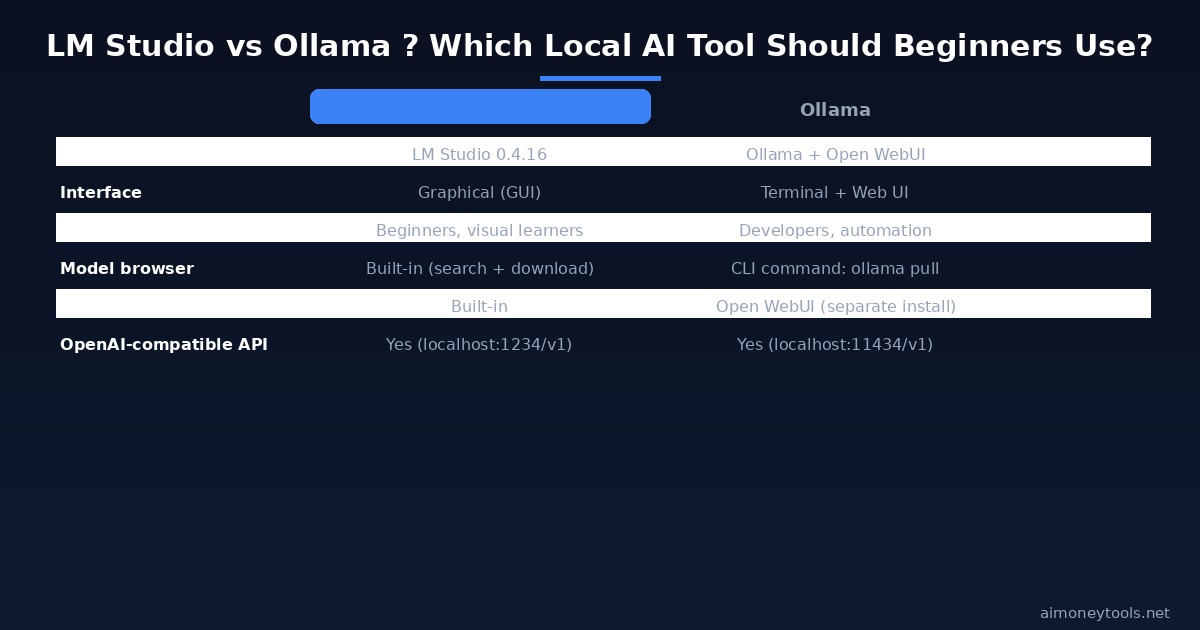
How is LM Studio different from Ollama? Both run AI models locally, but they serve different users. Ollama is terminal-based and better for developers who want to integrate local AI into scripts and automations. LM Studio is graphical and better for beginners who want a visual interface, a built-in chat window, and an easy model browser. Both support the OpenAI-compatible API. See our Ollama guide if you want the terminal-based approach.
My responses are very slow. What can I do? Three options: (1) Use a more aggressively quantized model — try Q3_K_M or Q2_K if you're on CPU with limited RAM. (2) Enable GPU offloading if you have any discrete GPU — even a modest gaming GPU speeds things up dramatically. (3) Try a smaller model entirely — Gemma 4 2B or Qwen 3.5 1.5B will be much faster than Llama 4 Scout on low-end hardware. Check our VRAM guide for help assessing your hardware.
Can I use Llama 4 locally for a side hustle or business? Yes. The Llama 4 models are released under Meta's Llama 4 Community License, which permits commercial use for most businesses (check the exact terms on Meta's GitHub if you're building a product for resale or SaaS). LM Studio itself is free for commercial use. If you want a simpler, cloud-hosted AI solution for client work that doesn't require running hardware, CustomGPT is worth considering — it lets you deploy custom AI assistants for clients without any server setup.
What if a model says it's already loaded but I get errors? Try unloading and reloading the model. If errors persist, reduce the number of GPU layers (bring the slider down to 0 first to confirm CPU-only works), then gradually increase. Memory fragmentation after multiple loads/unloads can cause instability — a full LM Studio restart usually fixes it.

Alex the Engineer
•Founder & AI ArchitectSenior software engineer turned AI Agency owner. I build massive, scalable AI workflows and share the exact blueprints, financial models, and code I use to generate automated revenue in 2026.
Related Articles

How to Start an AI-Assisted Resume Writing Side Hustle in 2026 (Beginner's Guide)
A step-by-step guide to using AI resume tools to offer a paid resume and cover letter writing service — what to charge, which tools to use, and how to find your first clients.

How to Build and Sell AI Voice Receptionists to Local Businesses in 2026
A beginner's guide to building AI voice agents that answer business phone calls — the tools to use, what to charge, and how to find your first client.

How to Make Money on Fiverr with AI Tools in 2026: 7 Gigs You Can Start This Week
Discover 7 real Fiverr gigs you can launch using free and low-cost AI tools in 2026 — no experience required. Real pricing data, step-by-step setup, and tools that actually work.