
How to Install Ollama and Open WebUI: Run AI Models Locally for Free (2026)
Install Ollama and Open WebUI in 20 minutes and run Llama 4, Gemma 3, or any open-source AI model on your own computer — free, private, and offline. Step-by-step guide for Mac and Windows.
Paying $20/month for ChatGPT is fine until you realize you just described a confidential business problem in detail to a third-party server. Or until your internet goes down and your workflow stops. Or until you hit a usage limit at 11 PM.
There is a better option: Ollama + Open WebUI — a free, open-source stack that lets you run powerful AI models directly on your own computer. No API keys, no monthly fees, no data leaving your machine.
This guide walks you through the full setup in about 20 minutes.
What You Need Before You Start
You do not need a powerful machine or a GPU to get started. Here is what the setup requires:
Minimum specs:
- 8 GB RAM (16 GB recommended for comfortable use)
- 10–20 GB free disk space (for model files)
- Mac (Apple Silicon or Intel), Windows 10/11, or Linux
Optional but speeds things up:
- NVIDIA or AMD GPU with 6+ GB VRAM (Ollama detects and uses it automatically)
- Apple Silicon chips (M1/M2/M3/M4) use unified memory and run local models very efficiently
If you only have 8 GB RAM and no GPU, you can still run lightweight 3B or 7B models — they just respond a bit slower than cloud AI.
What Is Ollama?
Ollama is an open-source tool that makes it easy to download and run large language models (LLMs) on your own computer. It handles model management, GPU/CPU routing, and exposes a local REST API. You can use it entirely from the terminal, or pair it with a graphical interface.
Think of Ollama as the engine — it runs the AI model. The interface is separate.
What Is Open WebUI?
Open WebUI (formerly Ollama WebUI) is a free, self-hosted chat interface that connects to your local Ollama installation. It looks and works like ChatGPT — you get a browser-based chat UI, conversation history, model switching, and more. It runs locally in Docker and never touches the internet.
Step 1: Install Ollama
Go to ollama.ai and download the installer for your operating system. The installer is straightforward — run it and Ollama installs as a background service.
To verify it worked, open a terminal (Terminal on Mac, Command Prompt or PowerShell on Windows) and type:
ollama --version
You should see a version number like ollama version 0.6.x. If you see that, Ollama is installed and running.
Step 2: Download Your First AI Model
Ollama uses a pull command to download models from its model library. The library includes Llama 4, Gemma 3, Qwen 3, Mistral, Phi-4, DeepSeek, and dozens more.
For a first model, Llama 3.2 (3B) is a good starting point — it is fast even on older hardware:
ollama pull llama3.2
For a more capable model on a newer machine with 16 GB+ RAM:
ollama pull llama4
Or try Google's Gemma 3:
ollama pull gemma3
The download will take a few minutes depending on the model size and your internet speed. A 7B model is typically 4–5 GB.
Step 3: Test It Works in the Terminal
Before setting up the UI, confirm the model runs:
ollama run llama3.2
You should see a >>> prompt. Type any question and press Enter. If the model responds, Ollama is working correctly. Type /bye to exit the chat.
You can also run a one-off command without entering interactive mode:
ollama run llama3.2 "What are 3 ways to make money with AI?"
Step 4: Install Docker Desktop
Open WebUI runs inside Docker, which provides a clean, isolated environment that works the same on any computer.
Download Docker Desktop from docker.com/products/docker-desktop for your OS and run the installer. After installation, launch Docker Desktop and wait until it shows "Docker Desktop is running" in the taskbar or menu bar.
On Mac (Apple Silicon), Docker Desktop runs natively — no compatibility issues. On Windows, Docker requires WSL 2 (Windows Subsystem for Linux 2), which the installer will prompt you to set up if it is not already installed.
Step 5: Launch Open WebUI with Docker

With Docker running, paste this command into your terminal:
docker run -d -p 3000:8080 \
  --add-host=host.docker.internal:host-gateway \
  -v open-webui:/app/backend/data \
  --name open-webui \
  --restart always \
  ghcr.io/open-webui/open-webui:main
On Windows (single line):
docker run -d -p 3000:8080 --add-host=host.docker.internal:host-gateway -v open-webui:/app/backend/data --name open-webui --restart always ghcr.io/open-webui/open-webui:main
This command:
- Downloads the Open WebUI container (first run only, about 300 MB)
- Maps port 3000 on your machine to the container
- Saves your chat history and settings in a persistent volume
- Sets it to restart automatically if you reboot
Step 6: Open the Interface and Start Chatting
Go to http://localhost:3000 in your browser. You will see the Open WebUI login screen.
The first user to sign up becomes the admin. Create an account with any email and password (this is stored locally — no verification email). Once you are in, you will see a chat interface that looks similar to ChatGPT.
Click the model selector at the top of the chat to choose which Ollama model to use. Any model you downloaded with ollama pull will appear here. Select one and start chatting.
Everything runs locally. Nothing is sent over the internet.
How to Add More Models
To download a new model, you do not need to use the terminal. Open WebUI has a built-in model manager:
- Click your profile icon → Admin Panel
- Go to Settings → Models
- Type a model name (e.g.,
mistral,phi4,deepseek-r1) and click Pull
Alternatively, run ollama pull <model-name> in your terminal and it will appear in Open WebUI automatically.
To see all available models: ollama.com/library
Local vs Cloud: Which Should You Use?
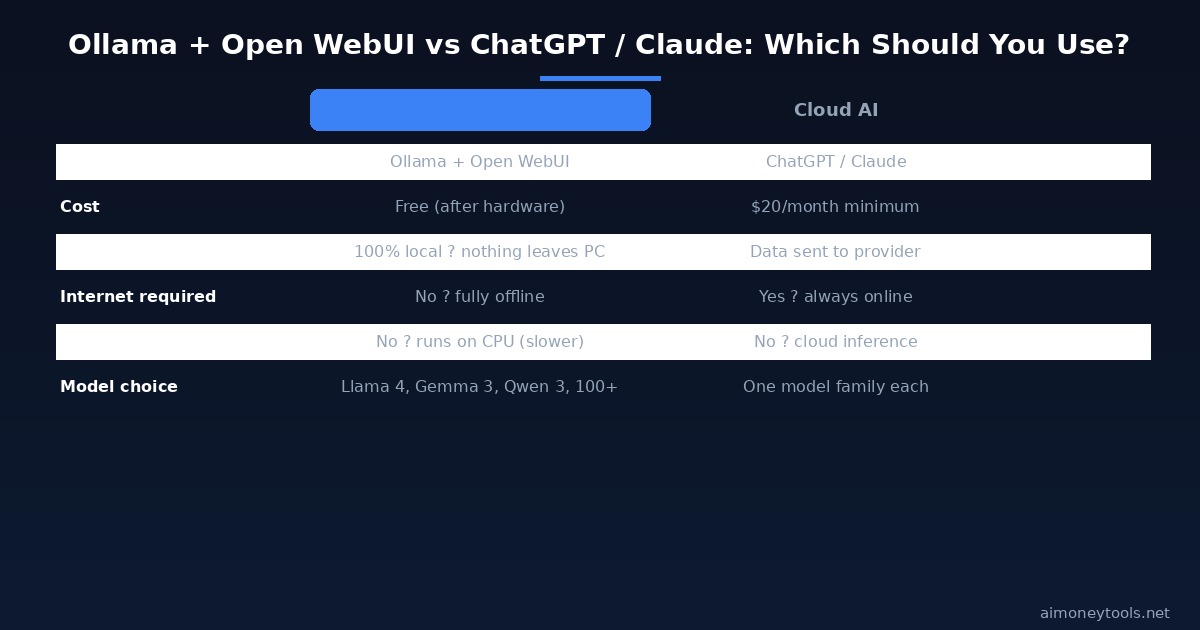
Local AI is not always better — it depends on what you are doing:
Use Ollama + Open WebUI when:
- You work with confidential data (client contracts, medical records, financial info)
- You need to work offline or have unreliable internet
- You are a developer who wants a free local API endpoint
- You want to experiment with multiple models without per-token costs
Stick with ChatGPT or Claude when:
- You need the absolute best reasoning quality for critical tasks
- You use plugins, code execution, or web browsing features
- You want instant setup with no maintenance
- You are on a low-RAM machine without GPU
For most workflows, running a 7B model locally gives about 70–80% of what ChatGPT 4o offers, at zero ongoing cost. For many everyday tasks — drafting, summarizing, Q&A — it is more than sufficient.
Tips for Better Performance
Use a quantized model. When Ollama lists models, Q4_K_M means 4-bit quantization — smaller file, faster inference, with minimal quality loss. For a 7B model, Q4_K_M requires about 4 GB of RAM vs 14 GB for the full precision version. Ollama selects the best quantization automatically based on your hardware.
GPU acceleration happens automatically. If you have a supported GPU, Ollama detects it and offloads layers to VRAM automatically. You can check how many layers are on GPU with ollama ps after starting a chat.
Apple Silicon users get excellent performance. M-series chips share CPU and GPU memory, so a 16 GB M3 MacBook can run 13B models at speeds that rival a mid-range dedicated GPU.
Keep Docker running for Open WebUI. If you restart your computer, open Docker Desktop first, then go to localhost:3000. The container auto-restarts once Docker is up.
Frequently Asked Questions
Do I need a GPU to run Ollama? No. Ollama runs on CPU by default. A GPU makes responses faster (especially on NVIDIA or AMD cards with 6+ GB VRAM), but 3B and 7B models run fine on CPU with 8–16 GB of RAM. Response times on CPU are typically 10–30 tokens per second — slower than cloud AI but usable.
Which model should a beginner start with?
Try llama3.2 (3B) first — it downloads fast and runs on almost any machine. Once you confirm the setup works, pull llama4 or qwen3 for better reasoning if your hardware supports it. The Ollama library page shows each model's RAM requirement.
Is Open WebUI the only interface option? No. Ollama also integrates with VS Code (via the Continue extension), Obsidian (via community plugins), and any app that connects to a local OpenAI-compatible API endpoint. Open WebUI is the easiest option for a ChatGPT-style experience. Check out our Claude Code + Obsidian guide for a similar workflow with local models.
Can I use Ollama with my own documents? Yes. Open WebUI has a built-in RAG (Retrieval-Augmented Generation) feature — upload PDFs, text files, or web URLs, and the model will answer questions based on that content. Enable it in Admin Panel → Documents.
How do I update Open WebUI? Run these two commands:
docker pull ghcr.io/open-webui/open-webui:main
docker restart open-webui
Is Ollama free to use commercially? Ollama itself is open-source (MIT license). The models have their own licenses — most popular models like Llama 4 and Gemma 3 allow commercial use, but check the specific model's license on the Ollama library page.
Can I run Ollama on a server or VPS? Yes. If you want more compute than your local machine provides, services like Ampere Cloud offer ARM-based cloud instances optimized for AI workloads at lower cost than traditional GPU VMs — a good middle ground between fully local and expensive managed AI APIs.
What is the difference between Ollama and LM Studio? Both run local LLMs, but they work differently. Ollama is terminal-first with an API server — better for developers and integrations. LM Studio has a native GUI and is easier for complete beginners. If you want a no-terminal experience, start with LM Studio. If you want integrations and API access, Ollama is the better choice.

Alex the Engineer
•Founder & AI ArchitectSenior software engineer turned AI Agency owner. I build massive, scalable AI workflows and share the exact blueprints, financial models, and code I use to generate automated revenue in 2026.
Related Articles

How to Start an AI-Assisted Resume Writing Side Hustle in 2026 (Beginner's Guide)
A step-by-step guide to using AI resume tools to offer a paid resume and cover letter writing service — what to charge, which tools to use, and how to find your first clients.

How to Build and Sell AI Voice Receptionists to Local Businesses in 2026
A beginner's guide to building AI voice agents that answer business phone calls — the tools to use, what to charge, and how to find your first client.

How to Make Money on Fiverr with AI Tools in 2026: 7 Gigs You Can Start This Week
Discover 7 real Fiverr gigs you can launch using free and low-cost AI tools in 2026 — no experience required. Real pricing data, step-by-step setup, and tools that actually work.