
How to Install Open WebUI: Beginner's Guide (2026)
Open WebUI gives you a free ChatGPT-like interface for any local AI model. This beginner's guide shows you how to install it with Docker or pip in under 10 minutes.
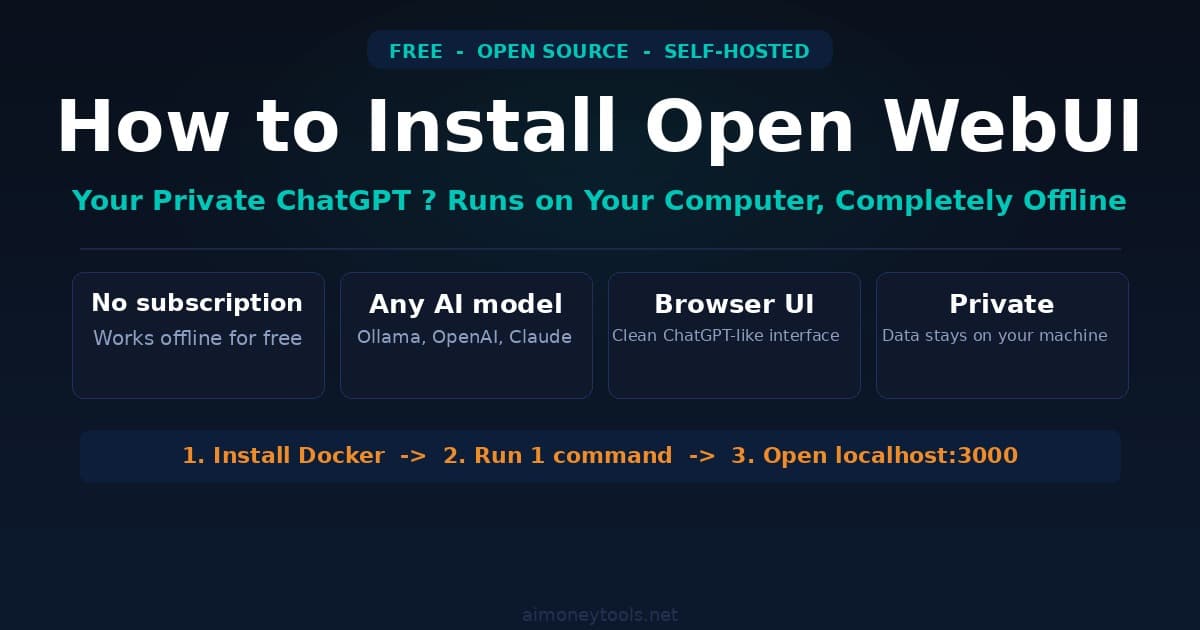
If you've installed Ollama to run local AI models but stared at a command-line prompt wondering "is this it?" — Open WebUI is the answer. It gives you a clean, browser-based chat interface — think ChatGPT but running entirely on your own computer, for free, with no usage limits.
This guide walks you through the full installation, step by step. No experience required.
What Is Open WebUI?
Open WebUI is a self-hosted interface for AI models. It runs in your browser, works completely offline, and connects to locally running models (via Ollama) or cloud APIs (OpenAI, Anthropic, and others). You install it once, and it works without a monthly subscription, usage caps, or data leaving your machine.
It's the most popular open-source AI chat interface available, with active development and a large community.
What it lets you do:
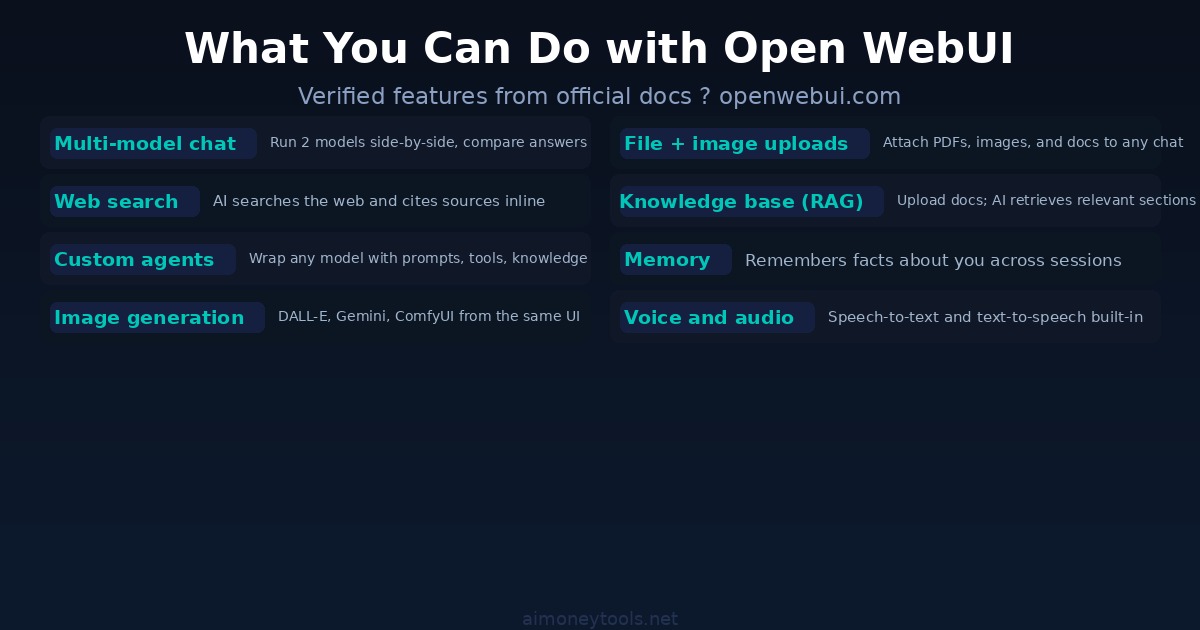
- Chat with local models (Llama 3, Gemma 4, Qwen 3, Mistral, and more) through a clean browser UI
- Attach files, images, and documents to conversations
- Use web search directly from the chat window
- Run two models side-by-side and compare their answers
- Build custom AI agents with specific instructions and knowledge bases
- Keep a persistent memory of facts about yourself across sessions
What You Need Before Installing
You have two main installation methods. Before you pick one, check which applies to you:
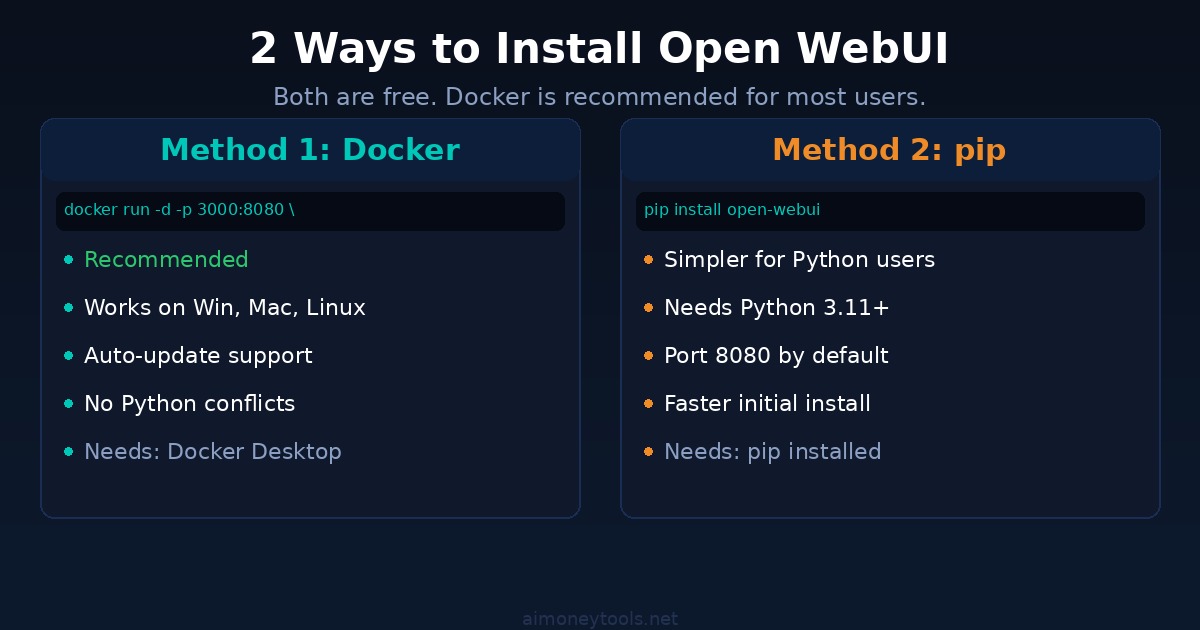
Method 1 — Docker (recommended): Docker is the easiest way to install Open WebUI. If you don't have Docker, download Docker Desktop for Windows or Mac first. It's free.
Method 2 — Python pip: If you already have Python 3.11 or later installed and prefer not to use Docker, pip works too. Check your Python version: open a terminal and type python3 --version. If you need help with that, the terminal beginner guide covers the basics.
Recommended: If you plan to use local models, install Ollama first. It handles downloading and running the actual AI models; Open WebUI is just the interface on top.
Method 1: Install with Docker (Recommended)
This is the cleanest option. Docker bundles everything Open WebUI needs into a container, so there's no risk of it conflicting with anything else on your computer.
Step 1: Open a terminal.
On Windows: press Win + R, type cmd, press Enter.
On Mac: press Cmd + Space, type Terminal, press Enter.
Step 2: Run this command:
docker run -d -p 3000:8080 --add-host=host.docker.internal:host-gateway \
  -v open-webui:/app/backend/data \
  --name open-webui --restart always \
  ghcr.io/open-webui/open-webui:main
This command:
- Downloads the Open WebUI image (about 1 GB — this takes a few minutes the first time)
- Starts it in the background (
-d) - Exposes it on port 3000 of your computer
- Saves your data persistently so nothing is lost when you restart (
-v open-webui:/app/backend/data) - Automatically restarts whenever your computer boots (
--restart always)
Step 3: Open your browser and go to:
http://localhost:3000
That's it. You'll see the Open WebUI welcome screen and be prompted to create an admin account (first sign-up is always the admin).
Nvidia GPU Support (Optional)
If you have an Nvidia GPU and want to use it for inference through Open WebUI, use this version of the command instead:
docker run -d -p 3000:8080 --gpus all \
  -v open-webui:/app/backend/data \
  --name open-webui ghcr.io/open-webui/open-webui:cuda
The :cuda image is larger but enables your GPU automatically. Check how much VRAM your GPU has before loading large models — the VRAM requirements guide explains what each model size needs.
Method 2: Install with pip (Python)
If you have Python 3.11+ and prefer not to use Docker:
pip install open-webui
open-webui serve
Then open http://localhost:8080 in your browser. Note: pip installs on port 8080 by default (Docker uses 3000).
This method is slightly faster to get started, but Docker is better for long-term use — it isolates the app cleanly and makes updates easier.
Connecting Open WebUI to Ollama
If you have Ollama installed and running on your computer, Open WebUI detects it automatically. No extra steps needed — your Ollama models appear in the model dropdown inside Open WebUI.
Pulling your first model:
You can do this directly from the Open WebUI interface. Go to Settings → Models and type any model name (e.g., llama3.2, gemma4, qwen3). Click Download. Open WebUI passes the request to Ollama in the background.
Or from the terminal:
ollama pull llama3.2
The model will then appear in Open WebUI's chat dropdown.
Connecting to OpenAI or Anthropic: Go to Settings → Connections and add your API key. All your ChatGPT and Claude models become available in the same interface alongside your local models. You can even run both at once and compare answers side-by-side.
Key Features Worth Knowing
Once you're inside Open WebUI, a few things are worth setting up right away:
Knowledge bases: Go to Workspace → Knowledge and upload a PDF, a text file, or a set of documents. Open WebUI indexes them using vector search. You can then ask questions about those documents in any chat, and the AI retrieves the relevant parts automatically.
Agents: Go to Workspace → Models and create a custom model — really a preset that wraps any base model with a specific system prompt, knowledge base, and tools. Useful for repeatable tasks like "always summarize in bullet points" or "always respond as a technical writer."
Web search: Enable it in Settings → Tools. When turned on, the AI can search the web during conversations and cite its sources.
Memory: Open WebUI can remember facts across sessions. Go to Settings → Memory to enable it and control what it stores about you.
How to Update Open WebUI
When a new version is available, use Watchtower to update automatically:
docker run --rm --volume /var/run/docker.sock:/var/run/docker.sock \
  nickfedor/watchtower --run-once open-webui
Or manually:
docker stop open-webui
docker rm open-webui
docker pull ghcr.io/open-webui/open-webui:main
docker run -d -p 3000:8080 --add-host=host.docker.internal:host-gateway \
  -v open-webui:/app/backend/data \
  -e WEBUI_SECRET_KEY="your-secret-key" \
  --name open-webui --restart always \
  ghcr.io/open-webui/open-webui:main
Important: Set a WEBUI_SECRET_KEY when you restart — without it, you'll be logged out every time the container is recreated. Generate one with: openssl rand -hex 32.
Your chat history and settings are stored in the volume (open-webui:/app/backend/data), so they survive updates.
FAQ
Is Open WebUI free?
Yes. Open WebUI itself is completely free and open source. The only costs come from what you connect it to — Ollama and local models are also free. If you connect it to OpenAI or Anthropic APIs, you pay those providers' standard token pricing.
Do I need the internet to use Open WebUI?
No. Once installed, Open WebUI works entirely offline when connected to local Ollama models. An internet connection is only needed if you use web search or cloud API models.
What's the difference between Open WebUI and Ollama?
Ollama runs the AI models on your machine. Open WebUI is the graphical front-end that makes interacting with those models feel like using ChatGPT. You need both for the full experience — Ollama handles the AI, Open WebUI handles the interface.
What port does Open WebUI use?
Docker installation runs on port 3000: http://localhost:3000. Pip installation uses port 8080 by default: http://localhost:8080.
Can Open WebUI connect to ChatGPT and Claude?
Yes. Go to Settings → Connections and add your OpenAI or Anthropic API key. Your cloud models appear alongside local models in the same chat interface.
How much storage does Open WebUI need?
The Docker image is about 1 GB. Your data (conversations, knowledge bases, settings) is stored in the open-webui volume, which grows depending on usage. The models themselves (stored separately in Ollama) are typically 2–8 GB each.
What AI models work with Open WebUI?
Any model that Ollama supports (Llama 3, Gemma 4, Qwen 3, Mistral, Phi, and dozens more), plus any OpenAI-compatible API. Current version supports Ollama, OpenAI, Anthropic, vLLM, and custom endpoints.

Alex the Engineer
•Founder & AI ArchitectSenior software engineer turned AI Agency owner. I build massive, scalable AI workflows and share the exact blueprints, financial models, and code I use to generate automated revenue in 2026.
Related Articles

How to Start an AI-Assisted Resume Writing Side Hustle in 2026 (Beginner's Guide)
A step-by-step guide to using AI resume tools to offer a paid resume and cover letter writing service — what to charge, which tools to use, and how to find your first clients.

How to Build and Sell AI Voice Receptionists to Local Businesses in 2026
A beginner's guide to building AI voice agents that answer business phone calls — the tools to use, what to charge, and how to find your first client.

How to Make Money on Fiverr with AI Tools in 2026: 7 Gigs You Can Start This Week
Discover 7 real Fiverr gigs you can launch using free and low-cost AI tools in 2026 — no experience required. Real pricing data, step-by-step setup, and tools that actually work.