
How to Run OpenAI Whisper Locally on Windows (Free Transcription Guide 2026)
Run OpenAI Whisper on your own Windows PC for free, unlimited transcription — no API key, no subscription, fully private. Step-by-step install guide for beginners.
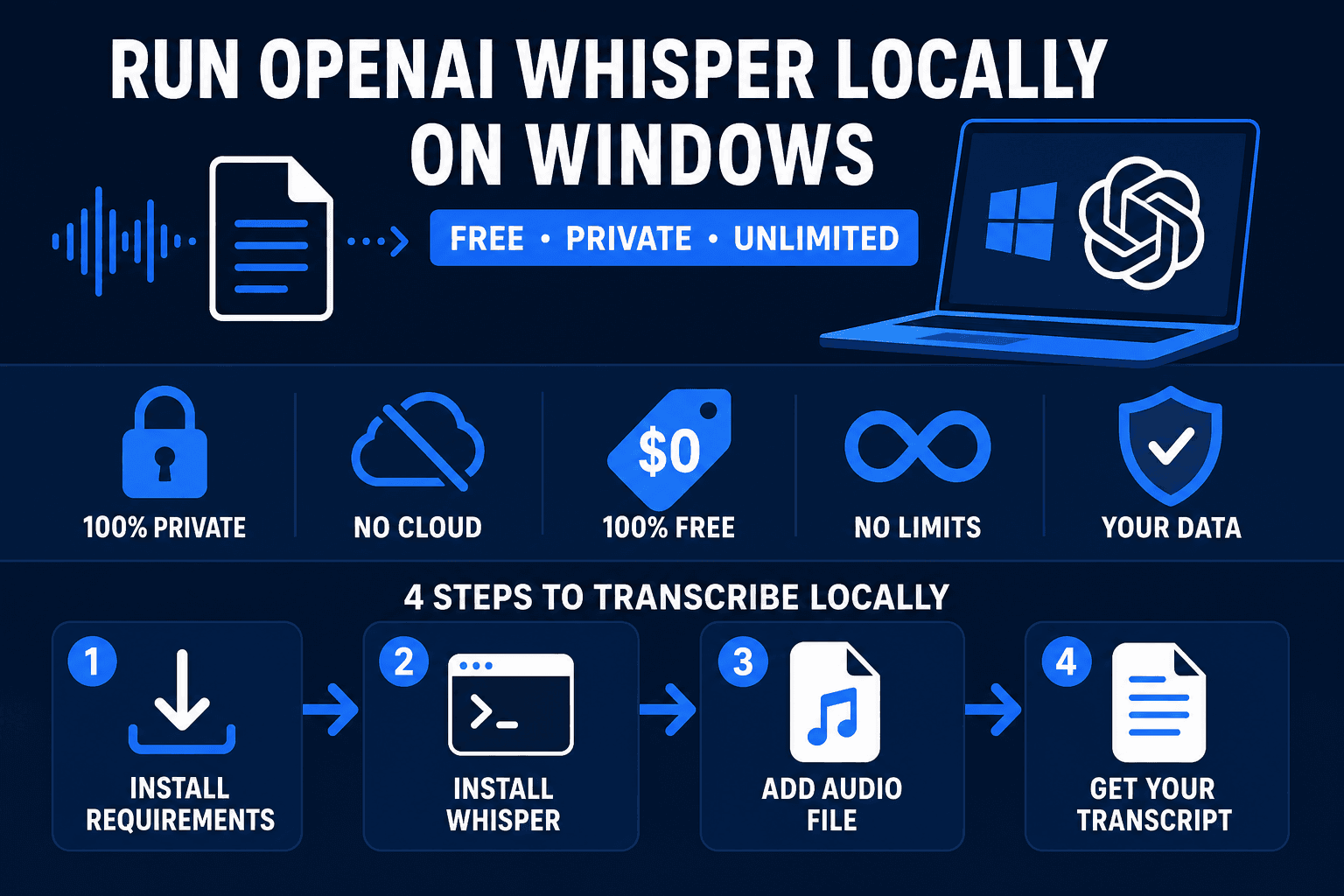
Most transcription tools charge by the minute, require an internet connection, and send your audio to someone else's server. OpenAI Whisper does the same job — often better — on your own Windows computer, for free, with no usage limit and no cloud required.
This guide shows you exactly how to install and run Whisper locally on Windows in 2026, even if you've never used Python or the command line before.
What Is OpenAI Whisper?
Whisper is an open-source speech recognition model released by OpenAI in 2022 and continuously improved since. It transcribes spoken audio into text, supports over 90 languages, and can translate foreign language audio into English automatically.
Unlike the transcription feature inside ChatGPT — which processes your audio on OpenAI's servers — the open-source Whisper model runs entirely on your machine. You download the model files once and they stay on your computer. Your audio never leaves your PC.
The accuracy is excellent. Whisper consistently outperforms most SaaS transcription tools, especially on technical vocabulary, names, and accented speech. And unlike those services, there's no monthly cap.
Who Should Use Whisper Locally?
Running Whisper locally is worth setting up if you:
- Transcribe podcasts, YouTube videos, meetings, or interviews regularly
- Have privacy concerns about sending audio to cloud services
- Want to avoid per-minute billing (Otter.ai, Rev, etc.)
- Are processing long files where cloud tools either truncate or charge heavily
- Want a free, permanent setup you control
If you only need to transcribe one file per month and don't care about privacy, a free tier on an online tool is simpler. But for any regular use, local Whisper wins on cost and control.
What You Need Before Starting
- Windows 10 or 11 (64-bit)
- Python 3.10 or 3.11 — we cover Python setup in our Python for AI Beginners guide
- ffmpeg — a free audio/video tool Whisper uses to read audio files (covered below)
- 4GB of disk space for the medium model (more for large)
- Optional: An NVIDIA GPU speeds up transcription significantly. Check our VRAM guide to see what you have. CPU-only works fine for shorter files.
Step-by-Step: Install Whisper on Windows
Step 1 — Install Python (if you haven't already)
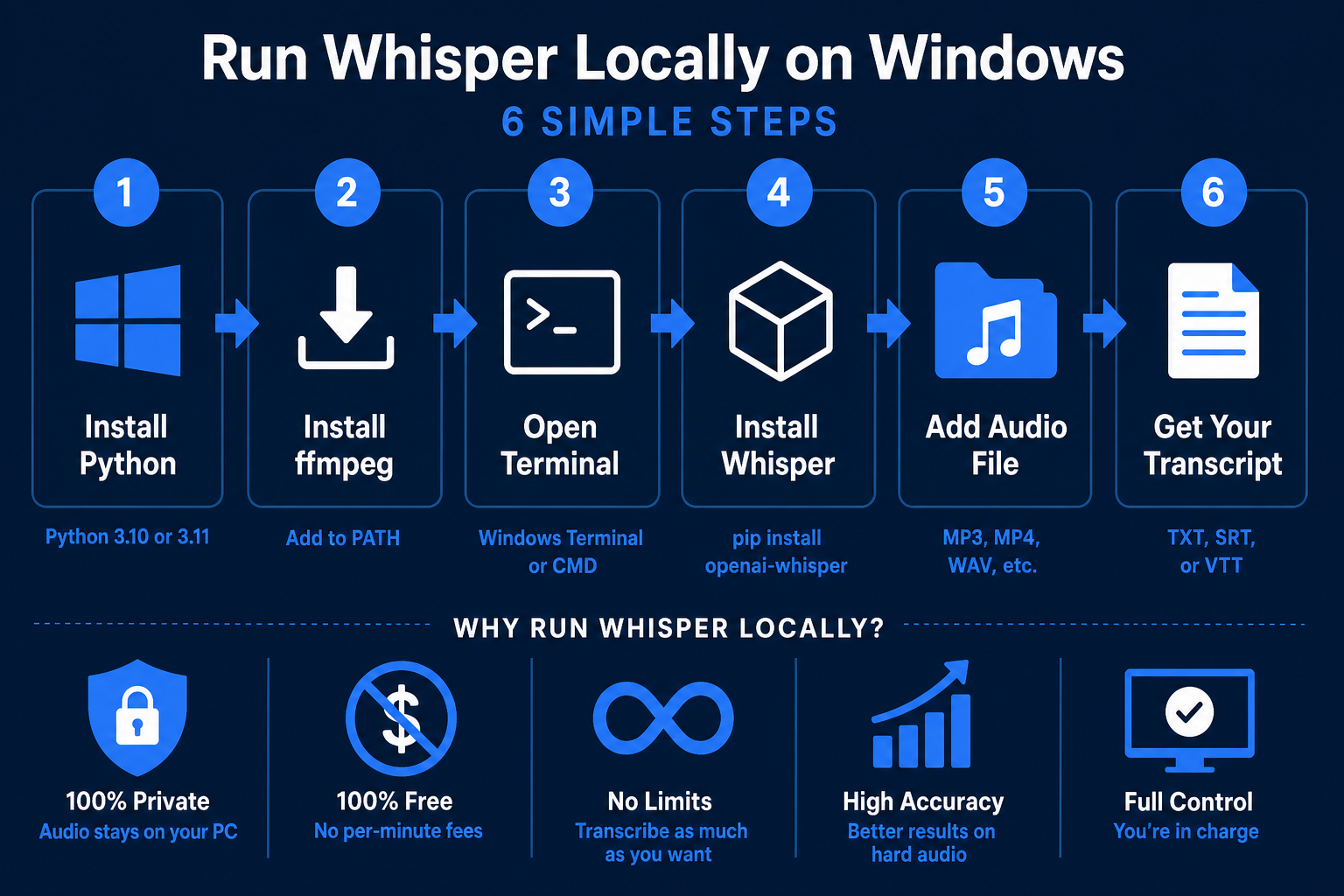
Go to python.org/downloads and download Python 3.11. During installation, check the box that says "Add python.exe to PATH" — this is essential and easy to miss.
Open the Windows terminal (search "cmd" or "PowerShell" in the Start menu — our terminal beginners guide covers this in detail) and verify:
python --version
You should see Python 3.11.x.
Step 2 — Install ffmpeg
ffmpeg is a tool that handles audio format conversion. Whisper uses it to process .mp3, .mp4, .m4a, .wav, and other formats.
- Go to ffmpeg.org/download.html → click "Windows builds from gyan.dev"
- Download the latest
ffmpeg-release-essentials.zip - Extract it to
C:\ffmpeg - Add it to your system PATH:
- Search "Environment Variables" in the Start menu
- Under System Variables, find "Path" and click Edit
- Add:
C:\ffmpeg\bin - Click OK, close and reopen your terminal
Verify with:
ffmpeg -version
If you see version info, it worked.
Step 3 — Install Whisper
With Python and ffmpeg working, install Whisper via pip:
pip install openai-whisper
If you have an NVIDIA GPU and want faster transcription, also install the GPU-accelerated version of PyTorch first. Check the PyTorch install page and select your CUDA version, then install Whisper after.
For CPU-only (no NVIDIA GPU), the standard pip install above is all you need.
Step 4 — Transcribe Your First File
Put an audio file somewhere accessible — your Desktop is fine. In the terminal, navigate to that folder and run:
whisper "my-recording.mp3" --model base
Whisper will download the base model (~142MB) on first run, then process your file. Output appears as a .txt file, a .srt subtitle file, and a .vtt caption file — all in the same folder.
That's it. Your audio is transcribed, entirely locally.
Choosing the Right Model Size
Whisper comes in five sizes. Bigger = more accurate but slower and uses more RAM/VRAM.
| Model | Size | VRAM Required | Speed | Best For |
|---|---|---|---|---|
| tiny | 75 MB | 1 GB | Very fast | Quick drafts, testing |
| base | 142 MB | 1 GB | Fast | Casual transcription |
| small | 466 MB | 2 GB | Good | Most beginner use cases |
| medium | 1.5 GB | 5 GB | Slower | Accurate, longer files |
| large-v3 | 3.1 GB | 10 GB | Slow | Professional accuracy |
For most beginners, small is the sweet spot — meaningfully better than base, fast enough on CPU, fits in any system that can run Windows 11. Use medium if you're transcribing long meetings or podcasts where accuracy matters. Reserve large-v3 for GPU systems with 10GB+ VRAM.
Check your available VRAM first with our VRAM guide if you plan to use GPU acceleration.
Useful Whisper Commands
Switch models by changing the --model flag:
# Use the small model
whisper "recording.mp3" --model small

# Specify the output folder
whisper "recording.mp3" --model small --output_dir C:\Transcripts

# Translate from another language into English
whisper "german-meeting.mp3" --model medium --task translate

# Transcribe a specific language (faster + more accurate)
whisper "french-podcast.mp3" --model medium --language French

# Output only a .txt file (no srt/vtt)
whisper "recording.mp3" --output_format txt
Whisper vs. Online Transcription Services
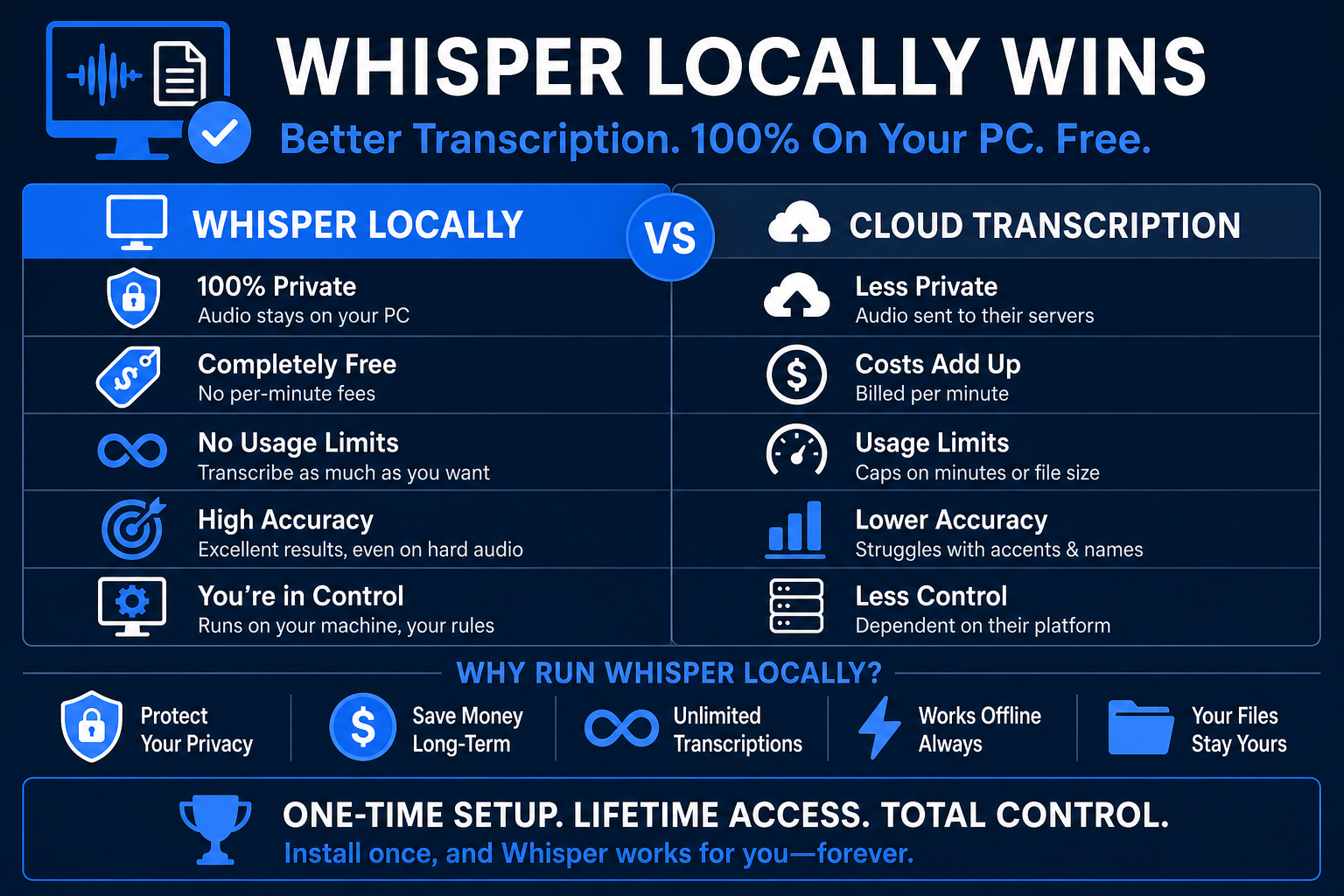
Running Whisper locally is meaningfully different from using SaaS tools:
Otter.ai — good for real-time meeting transcription; 300 minutes/month free. Sends audio to Otter's servers. Paid plans start at $17/month.
Rev.com — human or AI transcription; $0.25/minute for AI. Accurate, but costs add up fast for regular users.
Descript — popular with podcasters; $12/month for the AI transcription tier. Sends audio to Descript's cloud.
Local Whisper — unlimited, free, private. Setup takes 20 minutes. Doesn't require internet after model download. Accuracy matches or beats most mid-tier SaaS tools, especially for non-US accents and technical content.
The only case where online tools clearly win is real-time live transcription — Whisper processes files but isn't designed for real-time streaming without additional setup.
Practical Use Cases
Content creators: Transcribe your YouTube videos and use the output as a blog post draft, show notes, or auto-captions. The .srt file Whisper generates can be uploaded directly to YouTube Studio.
Meeting notes: Record Zoom/Teams calls with a screen recorder, then run Whisper on the .mp4 to get a full transcript. Pair with an AI like Claude or ChatGPT to summarize it.
Podcast producers: Transcribe full episodes for SEO-optimized show notes or searchable archives. No per-minute billing, no privacy risk for guest audio.
Language learners: Use the --task translate flag to get English transcripts of foreign-language videos for study.
Researchers and journalists: Transcribe interviews reliably without sending sensitive audio to a third-party service.
FAQ
Q: Is OpenAI Whisper completely free?
A: Yes. The open-source Whisper model is free to download and use locally. There are no usage limits, no API key required, and no subscription. You only pay for electricity.
Q: Do I need an NVIDIA GPU to run Whisper?
A: No — Whisper runs on CPU. It's slower without a GPU, but the small model will transcribe a 60-minute file in around 15–20 minutes on a modern CPU. With a GPU it's 3–5x faster. Check our VRAM guide to see what acceleration you have available.
Q: What audio formats does Whisper support?
A: Any format ffmpeg can read — mp3, mp4, m4a, wav, flac, ogg, webm, and more. Basically anything you'd record or download.
Q: How accurate is Whisper compared to paid tools?
A: On clean audio, Whisper large-v3 matches professional-grade services and beats most SaaS tools. On noisy audio or strong accents, medium or large models perform significantly better than smaller ones. Base is fine for casual use; use medium or large for anything important.
Q: Can Whisper transcribe in real time (live)?
A: Not out of the box — it's designed for file processing. There are community projects (like whisper-streaming) that adapt it for live use, but they require additional setup beyond this guide.
Q: My transcription is slow. How do I speed it up?
A: Three options: (1) use a smaller model (tiny or base), (2) use a GPU if you have one, (3) trim the audio file to remove silence before transcribing. If you need faster large-model transcription regularly, Ampere Cloud rents GPU compute by the hour — cheaper than buying hardware for occasional heavy workloads.
Q: Does Whisper work on non-English audio?
A: Yes. Whisper supports 90+ languages natively. Add --language [language] to specify the language for better accuracy, or --task translate to transcribe and translate into English simultaneously.

Alex the Engineer
•Founder & AI ArchitectSenior software engineer turned AI Agency owner. I build massive, scalable AI workflows and share the exact blueprints, financial models, and code I use to generate automated revenue in 2026.
Related Articles

How to Start an AI-Assisted Resume Writing Side Hustle in 2026 (Beginner's Guide)
A step-by-step guide to using AI resume tools to offer a paid resume and cover letter writing service — what to charge, which tools to use, and how to find your first clients.

How to Build and Sell AI Voice Receptionists to Local Businesses in 2026
A beginner's guide to building AI voice agents that answer business phone calls — the tools to use, what to charge, and how to find your first client.

How to Make Money on Fiverr with AI Tools in 2026: 7 Gigs You Can Start This Week
Discover 7 real Fiverr gigs you can launch using free and low-cost AI tools in 2026 — no experience required. Real pricing data, step-by-step setup, and tools that actually work.