
MLX-VLM on Mac: Run Vision AI Models on Apple Silicon (2026 Setup Guide)
Install MLX-VLM on Apple Silicon and run Qwen2-VL, Gemma 4, Phi-4, and 20+ vision AI models locally — free, offline, no API key. Includes CLI, Chat UI, and Python usage.
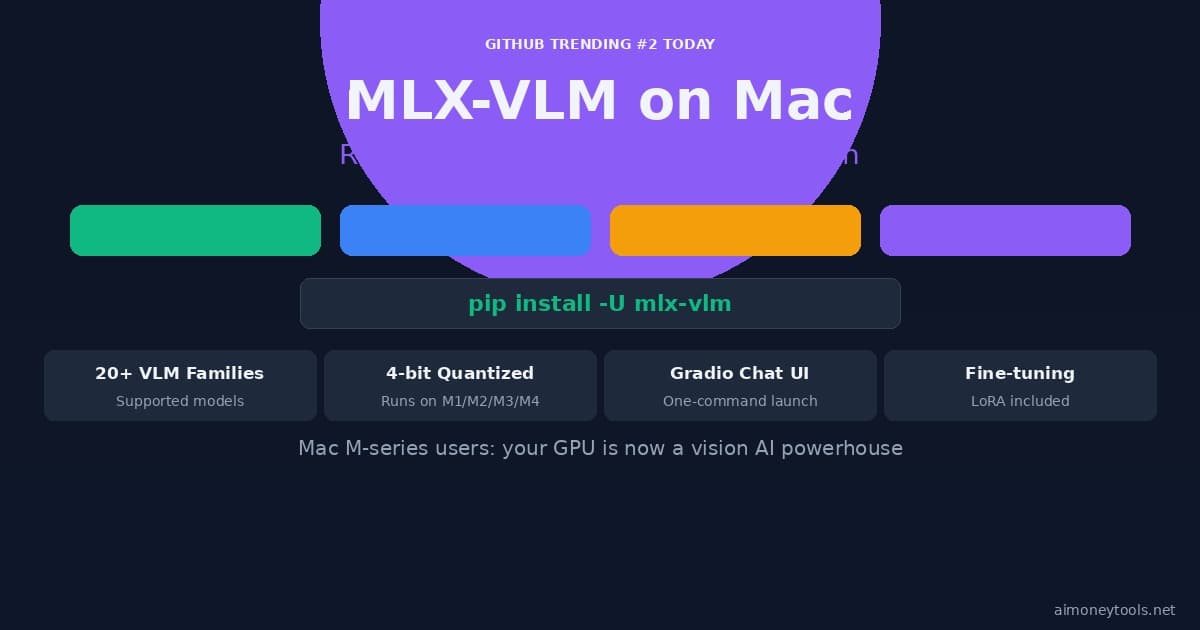
If you have an M-series Mac, you're sitting on a surprisingly capable vision AI workstation — and most people have no idea.
MLX-VLM is the library that unlocks it. It lets you run vision language models (VLMs) locally — models that can look at an image and answer questions, read text from screenshots, describe what's in a photo, or analyze documents — all without sending anything to the cloud. No API key, no subscription, no data leaving your machine.
This guide covers installation, the full model list, CLI usage, the Chat UI, common errors, and performance tips for M1 through M4 Macs.
What Is MLX-VLM?
MLX-VLM is an open-source Python package built on Apple's MLX framework. MLX is Apple's own array framework for machine learning, designed specifically to take full advantage of Apple Silicon's unified memory architecture (where the CPU and GPU share the same RAM pool).
Because Apple Silicon has unified memory, a 16 GB Mac Mini M4 can load the same model that would need a discrete GPU with 16 GB VRAM on a PC. This makes Macs genuinely competitive for local AI inference — and MLX-VLM is the package that makes vision models work on that hardware.
What vision models can do:
- Describe images in natural language
- Answer questions about photos, charts, or diagrams
- Extract text from screenshots (OCR)
- Read PDFs or scanned documents
- Analyze medical or scientific images
- Process multiple images in one conversation
System Requirements
| Component | Minimum | Recommended |
|---|---|---|
| Chip | Apple Silicon (M1) | M2 Pro / M3 / M4 |
| RAM | 8 GB | 16 GB+ |
| macOS | 13.3 Ventura | macOS 14+ Sonoma |
| Python | 3.10 | 3.11 |
| Storage | 5 GB free | 15 GB+ free (models are large) |
RAM reality check: 8 GB works for 2B–4B quantized models. For 7B+ models (better quality), 16 GB is the practical minimum. 32 GB unlocks the full range including Qwen2-VL-7B and Phi-4 Multimodal.
Not sure how much RAM your Mac has? Check Apple menu → About This Mac → More Info.
How to Install MLX-VLM
Step 1: Check your Python version
Open Terminal (press Cmd + Space, type terminal, press Enter):
python3 --version
You need Python 3.10 or higher. If you don't have Python installed or need a newer version, see our Python installation guide.
Step 2: Create a virtual environment (recommended)
python3 -m venv mlx-env
source mlx-env/bin/activate
This keeps your MLX-VLM installation clean and separate from other Python projects.
Step 3: Install MLX-VLM
pip install mlx-vlm
That's it. The package installs MLX, the VLM inference engine, and all dependencies automatically.
Verify the install worked:
python3 -c "import mlx_vlm; print('MLX-VLM ready')"
If you see MLX-VLM ready, you're set.
Supported Models (Full List)
MLX-VLM supports 20+ models from the mlx-community on Hugging Face. Quantized versions (4-bit) run on 8–16 GB Macs. Here are the main options:
| Model | Size | RAM Needed | Best For |
|---|---|---|---|
| Qwen2-VL-2B (4-bit) | 2B | 8 GB | Fast, general vision tasks |
| Qwen2-VL-7B (4-bit) | 7B | 16 GB | High accuracy, complex images |
| Gemma 4 (4-bit) | 12B | 16–24 GB | Multimodal + text reasoning |
| Phi-4 Multimodal (4-bit) | 14B | 24 GB | Documents, OCR, structured data |
| MiniCPM-o | 3B | 8 GB | Audio + vision (omni model) |
| DeepSeek-OCR | 7B | 16 GB | Document and text extraction |
| Moondream3 | 2B | 6 GB | Lightweight, extremely fast |
| GLM-OCR | 9B | 16 GB | Chinese document parsing |
| Phi-4 Reasoning Vision | 14B | 24 GB | Scientific and technical analysis |
The full model list is available at mlx-community on Hugging Face.
Best model for most users: Qwen2-VL-2B-Instruct-4bit — fast, capable, works on any M1+ Mac with 8 GB RAM.
Running Your First Vision Query (CLI)
The quickest way to test MLX-VLM is through the command line.
Describe an image
python3 -m mlx_vlm.generate \
  --model mlx-community/Qwen2-VL-2B-Instruct-4bit \
  --max-tokens 200 \
  --prompt "What is in this image?" \
  --image /path/to/your-photo.jpg
Replace /path/to/your-photo.jpg with an actual image path on your Mac.
Ask a question about an image
python3 -m mlx_vlm.generate \
  --model mlx-community/Qwen2-VL-2B-Instruct-4bit \
  --max-tokens 300 \
  --prompt "What does the text in this image say?" \
  --image /path/to/screenshot.png
Text-only chat (no image)
python3 -m mlx_vlm.generate \
  --model mlx-community/Qwen2-VL-2B-Instruct-4bit \
  --max-tokens 100 \
  --prompt "Explain what a vision language model does."
First run note: The model downloads automatically from Hugging Face on first use (~1–5 GB depending on model size). Subsequent runs load from disk instantly.
Chat UI (Gradio Interface)
If you prefer a browser-based chat instead of the command line, MLX-VLM includes a Gradio UI:
python3 -m mlx_vlm.chat_ui --model mlx-community/Qwen2-VL-2B-Instruct-4bit
After running, open your browser to http://localhost:7860. You'll get a full chat interface where you can upload images and have a multi-turn conversation with the model.
The UI supports:
- Image uploads (drag and drop)
- Multi-turn conversation history
- Temperature and max-token controls
- Model switching without restarting
This is the easiest way to demo the model for others or experiment without memorizing CLI flags.
Audio + Vision (Omni Models)
Newer models support audio alongside images. This lets you ask the model to "describe what you see and hear" from a video frame + audio clip:
python3 -m mlx_vlm.generate \
  --model mlx-community/gemma-3n-E2B-it-4bit \
  --max-tokens 200 \
  --prompt "Describe what you see and hear" \
  --image /path/to/frame.jpg \
  --audio /path/to/clip.wav
Models with audio support: MiniCPM-o, Gemma 3n. Note these require more RAM (~16 GB minimum).
Python Script Usage
For automating image analysis or building your own tools:
import mlx.core as mx
from mlx_vlm import load, generate
from mlx_vlm.prompt_utils import apply_chat_template
from mlx_vlm.utils import load_config

# Load model
model_path = "mlx-community/Qwen2-VL-2B-Instruct-4bit"
model, processor = load(model_path)
config = load_config(model_path)

# Analyze an image
image = ["path/to/photo.jpg"]
prompt = apply_chat_template(processor, config, "Describe this image in detail.", num_images=1)
output = generate(model, processor, image, prompt, max_tokens=200, verbose=False)
print(output)
This is useful for batch image processing — for example, automatically captioning a folder of photos or running OCR on a set of screenshots.
Performance Tips
1. Use 4-bit quantized models
Always pick the -4bit version. Quality is nearly identical to full precision, but speed is 3–4× faster and RAM usage drops 70%.
2. Enable speculative decoding for 2–3× speed boost
python3 -m mlx_vlm.generate \
  --model Qwen/Qwen3.5-4B \
  --draft-model z-lab/Qwen3.5-4B-DFlash \
  --prompt "Describe this image." \
  --image photo.jpg \
  --max-tokens 256
Speculative decoding uses a lightweight draft model to predict multiple tokens at once, then verifies them in parallel. Real-world speedup: 2–3×.
3. Limit max-tokens
Set --max-tokens to what you actually need. 100–300 covers most descriptions. More tokens = more time.
4. Close other apps MLX-VLM uses the Mac's unified memory. Safari tabs, Slack, or Xcode running simultaneously reduce available memory and slow inference.
Common Errors and Fixes
ModuleNotFoundError: No module named 'mlx_vlm'
The package isn't installed or you're not in the right Python environment. Run pip install mlx-vlm and confirm you're in the virtual environment where it was installed.
mlx.core.metal.MTLCommandBuffer error
Usually a model loading error on a system with insufficient RAM. Try a smaller model (Qwen2-VL-2B instead of 7B) or close other applications.
Model downloads very slowly
Hugging Face has geographic throttling. If downloads are painfully slow, try huggingface-cli download instead of the CLI generate command, which gives a progress bar and resumes interrupted downloads.
AttributeError on first import
Usually means the installed version of MLX-VLM is outdated. Run pip install --upgrade mlx-vlm.
Practical Use Cases
Screenshot-to-text (OCR): Take a screenshot of a PDF or image with text → pass to MLX-VLM → extract the text without any subscription tool.
Photo cataloging: Batch-process a folder of photos and generate captions or tags automatically.
Chart interpretation: Upload a screenshot of a graph and ask the model to explain the trend.
Document analysis: Photograph a handwritten note, a whiteboard, or a printed form → extract and structure the content.
Code review from screenshots: Paste a screenshot of code and ask for a review.
What to Run Next
Once MLX-VLM is working, a natural next step is combining it with other local AI tools:
- Gemma 4 setup guide — run Google's best open model on your Mac
- How to check your Mac's VRAM and RAM for AI — understand what models your hardware can handle
The models download to ~/.cache/huggingface — the first load is slow, every run after is instant.

Alex the Engineer
•Founder & AI ArchitectSenior software engineer turned AI Agency owner. I build massive, scalable AI workflows and share the exact blueprints, financial models, and code I use to generate automated revenue in 2026.
Related Articles

Gemma 4 on Mac: MacBook Air, Mac Mini & Pro Setup Guide (2026)
Run Gemma 4 locally on MacBook Air, Mac Mini, or MacBook Pro — M1/M2/M3/M4. Free, offline, step-by-step. System requirements, RAM tips, and benchmarks included.

How to Check Your VRAM for AI (Windows & Mac)
Before running Ollama or Llama 4 locally, you need to know your VRAM. Here's a simple, visual guide to finding your GPU's VRAM on Windows and macOS.
Terminal for Beginners: No-Jargon Guide (Mac & Windows)
Never used a terminal? This guide explains what the command line is, how to open it on Mac and Windows, and the 10 essential commands every beginner needs.