
How to Use LM Studio: Run AI Locally for Free (2026 Beginner Guide)
Learn how to download, install, and run AI models locally with LM Studio — no API key, no subscription, no cloud. Step-by-step guide for complete beginners.
ChatGPT costs money. Claude costs money. Gemini has usage limits. But there is a completely free way to run powerful AI models on your own computer — with no API key, no subscription, and no internet connection required once you're set up.
It's called LM Studio.
This guide walks you through everything you need to know to get LM Studio running on your machine in under 15 minutes. No coding required.
What Is LM Studio?
LM Studio is a free desktop application that lets you download and run large language models (LLMs) directly on your own hardware. It works on Windows, Mac (including Apple Silicon), and Linux.
Think of it as the iTunes of AI models — a clean visual interface where you can browse, download, and chat with hundreds of AI models without writing a single line of code or signing up for anything.
It was built by a company called LM Studio (formerly known as the team behind LM Studio Inc.) and is widely considered the most beginner-friendly way to run local AI in 2026.
What you can do with LM Studio:
- Chat with AI models privately — nothing leaves your computer
- Run models with no internet after the initial download
- Set up a local API server compatible with OpenAI's API format
- Use models like Llama 3.3, Phi-4, Gemma 3, Mistral, and hundreds more
- Connect local models to apps like Cursor, Open WebUI, or your own scripts
Why Run AI Locally?
Before we get into the setup, it is worth understanding why you would want to do this in the first place.
Privacy: When you use ChatGPT or Claude, your prompts are sent to a server. For sensitive work — medical records, legal documents, business strategy — that might not be acceptable. Local AI stays on your machine.
Cost: Running your own model is free after the hardware investment. No monthly subscription, no per-token charges. If you use AI heavily, this can save hundreds of dollars per year.
No rate limits: Cloud AI tools throttle heavy users. Local models run as fast as your hardware allows, with no artificial limits.
Offline access: Remote location, poor internet, corporate network restrictions — local models keep working when cloud access fails.
Customization: You can fine-tune local models on your own data, something cloud services do not allow for most users.
What You Need to Run LM Studio
You do not need a powerful gaming PC to get started. Here is what different hardware can realistically run:
| Hardware | What you can run |
|---|---|
| Any modern CPU (no GPU) | Small models: Phi-4 Mini (3.8B), Llama 3.2 3B, Qwen2.5 3B |
| GPU with 6GB VRAM | Medium models: Gemma 3 9B, Llama 3.2 8B, Mistral 7B |
| GPU with 12GB VRAM | Larger models: Llama 3.1 13B, Phi-4 14B, Qwen2.5 14B |
| GPU with 24GB VRAM | Large models: Llama 3.3 70B Q4, Qwen2.5 32B |
| Apple Silicon (M1–M5) | All of the above — Apple Silicon's unified memory is ideal for local AI |
Not sure what GPU you have or how much VRAM? Check our VRAM guide for AI beginners before choosing a model.
The key number is VRAM (for NVIDIA/AMD GPUs) or unified memory (for Apple Silicon). The model must fit in memory to run at a usable speed. Models that do not fit run on CPU, which is slower but still functional for small models.
Step 1: Download and Install LM Studio
Go to lmstudio.ai and click the download button for your operating system.
- Windows:
.exeinstaller — run it and follow the prompts - macOS (Apple Silicon or Intel):
.dmgfile — drag to Applications - Linux:
.AppImageor.deb— follow the instructions on the site
LM Studio is free to download. There is a paid tier (LM Studio Pro) for teams, but everything in this guide works on the free version.
Once installed, open the app. You will see a sidebar on the left with icons for Discover, Chat, Developer, and Settings.
Step 2: Find and Download a Model
Click the Discover icon (magnifying glass) in the left sidebar. This opens the model browser, which is a searchable catalog of models hosted on Hugging Face.
Which model should beginners start with?
If you are new to local AI, start here:
| Model | Size | Best for |
|---|---|---|
| Phi-4 Mini (Microsoft) | ~2.5GB | Fast CPU-only chat, general use |
| Llama 3.2 3B (Meta) | ~2GB | Quick responses, low-end hardware |
| Gemma 3 9B (Google) | ~5.5GB | Better quality, needs 8GB+ VRAM |
| Qwen2.5 7B (Alibaba) | ~4.5GB | Strong multilingual support |
| Mistral 7B | ~4.5GB | Good balance of speed and quality |
Type the model name into the search bar, click the result, and then click Download. LM Studio downloads the GGUF-format model file directly from Hugging Face.
GGUF is a compressed model format — it makes models smaller and faster to run on consumer hardware without requiring the full precision used in research settings. Most models in the LM Studio browser are already in GGUF format.
Download speed depends on your internet connection. A 4.5GB model on a fast connection takes a few minutes. The model is stored locally after download — you never need to download it again.
Step 3: Start Chatting
Once the model is downloaded, click the Chat icon (speech bubble) in the sidebar.
At the top of the screen, click the model selector dropdown and choose the model you just downloaded. Click Load Model — this takes 5 to 30 seconds depending on your hardware and model size.
Once loaded, type in the chat box and hit Enter. The model generates a response entirely on your machine. No internet connection is used for inference.
Tips for better results:
- Use the System Prompt box to give the model a persona or set of rules before your first message
- Adjust Context Length in the settings — higher values let the model remember more of the conversation but use more memory
- Try different Temperature values — lower (0.3) gives more predictable, factual responses; higher (0.8) gives more creative ones
Step 4: Enable the Local API Server
This is where LM Studio becomes genuinely powerful for technical users.
Click the Developer icon (the </> icon) in the sidebar. You will see a button to Start Server. Click it.
LM Studio starts a local REST API server on http://localhost:1234. This API is fully compatible with the OpenAI API format — which means any application that works with OpenAI's ChatGPT API can be pointed at your local LM Studio server instead.

What you can connect to your local LM Studio server:
- Open WebUI — a browser-based chat interface (more advanced than the built-in one)
- Cursor — point it at your local model instead of paying for GPT or Claude
- Obsidian AI plugins — link your notes to a local model
- Custom Python scripts — use the
openaiPython library pointed athttp://localhost:1234 - n8n — add local AI to your automations (see our n8n beginner guide)
This makes LM Studio an excellent free backend for local AI experimentation.
LM Studio vs Ollama: Which Is Better for Beginners?
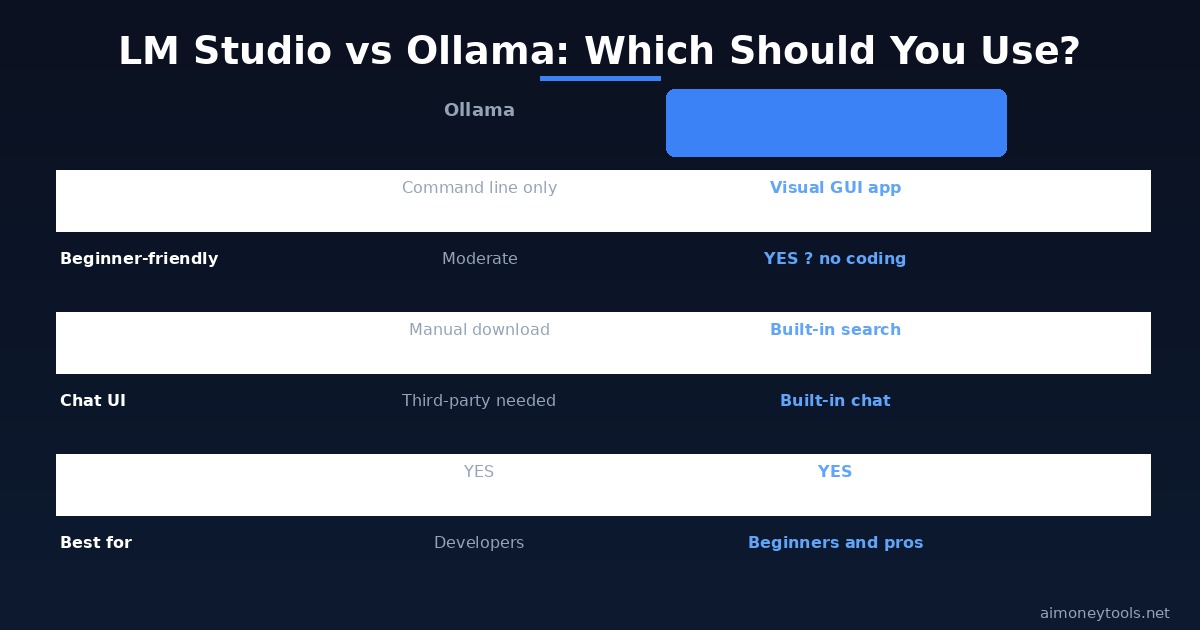
Both LM Studio and Ollama are excellent tools for running AI locally. The choice comes down to your preference for GUI vs command line.
LM Studio is better for beginners because everything is visual. You can browse models, download them, chat, and set up the server without touching the terminal. If the word "terminal" makes you nervous, use LM Studio.
Ollama is better for developers who are comfortable with the command line and want a lighter-weight, scriptable tool. It has a large ecosystem of integrations and is easier to automate.
Both expose an OpenAI-compatible local API. You can actually run both side by side — many people use Ollama for scripts and LM Studio for visual chat.
If you want to try Ollama, our Open WebUI + Ollama guide covers the full setup.
System Requirements and Performance Tips
Minimum specs to get started:
- Windows 10 64-bit, macOS 12+, or Ubuntu 20.04+
- 8GB system RAM (16GB recommended)
- 10GB free disk space (for LM Studio + at least one model)
Performance tips:
- GPU acceleration: LM Studio auto-detects your GPU. On NVIDIA GPUs it uses CUDA; on Apple Silicon it uses Metal. Both dramatically speed up inference. Make sure your GPU drivers are up to date.
- VRAM offloading: In the model settings, you can control how many model layers are offloaded to GPU. More layers on GPU = faster but uses more VRAM. Adjust until the model loads without errors.
- Model quantization: Models labeled Q4_K_M are a good balance of speed and quality for most hardware. Q8 is higher quality but needs more memory. Q2 is smallest but noticeably worse.
- Context length: Lower context = less memory use and faster generation. Start with 4096 and increase only if you need long conversations.
Not sure if your computer can handle local AI? Start with a Q4 3B model on CPU — you might be surprised how capable a 3-billion parameter model is in 2026.
Privacy and Security
One of the main reasons to use LM Studio is privacy. Once a model is downloaded, all inference happens locally. Your prompts, responses, and documents never leave your machine.
LM Studio itself does collect basic usage analytics (which models you use, how often you start the app). You can disable this in Settings > Privacy.
The models themselves are open-weight — their weights are public on Hugging Face, audited by the community, and do not phone home.
What to Read Next
Before running LM Studio, make sure your hardware is ready:
- How to Check Your VRAM for AI — know your limits before choosing a model
- Do You Need a GPU for AI? — CPU vs GPU for local AI explained
- Terminal Beginners Guide — useful if you want to automate LM Studio via the API
- Open WebUI + Ollama Install Guide — the command-line alternative to LM Studio
- n8n Beginner Tutorial 2026 — automate tasks using your local LM Studio API
Frequently Asked Questions
Is LM Studio free?
Yes. LM Studio's core features — model browser, chat, and local API server — are completely free for personal use. There is a paid LM Studio Pro tier aimed at teams and enterprise users, but everything in this guide is available on the free plan.
What models does LM Studio support?
LM Studio supports any GGUF-format model from Hugging Face. That includes Meta's Llama series, Google's Gemma, Microsoft's Phi-4, Mistral, Qwen, and hundreds of fine-tuned community models. As of 2026, the model catalog contains thousands of options.
Does LM Studio require an internet connection?
Only for downloading models and browsing the catalog. Once a model is downloaded, the chat and API server work entirely offline.
How do I know which model to choose?
Start with a model that fits comfortably in your available memory. Rule of thumb: a 7B Q4 model needs roughly 5GB of VRAM. For general use, Phi-4 Mini (CPU-friendly) or Gemma 3 9B (GPU) are excellent starting points in 2026. See the table in Step 2 above.
Can I use LM Studio on a Mac?
Yes. LM Studio supports both Apple Silicon (M1/M2/M3/M4/M5) and Intel Macs. Apple Silicon is particularly strong for local AI because the unified memory architecture lets models access large amounts of memory at GPU speeds. An M2 Mac with 16GB of RAM can comfortably run a 13B parameter model.
Is LM Studio safe to use?
Yes. LM Studio itself is a well-known, widely used application. The models it downloads come from Hugging Face, which has community-verified checksums. Your data stays local. As with any software, download it from the official site (lmstudio.ai) only.
Can I connect LM Studio to other apps?
Yes. When you start the Developer server, LM Studio exposes a local API on port 1234 that is compatible with the OpenAI API format. You can connect it to Open WebUI for a better chat UI, to Cursor for local AI coding assistance, to n8n for automation, or to any custom script using the openai Python library.
Does LM Studio work without a GPU?
Yes. LM Studio runs on CPU-only machines. You will be limited to smaller models (3B–7B parameters) and inference will be slower — but for casual use, it works. A Phi-4 Mini model on a modern CPU gives usable responses in a few seconds per paragraph.

Alex the Engineer
•Founder & AI ArchitectSenior software engineer turned AI Agency owner. I build massive, scalable AI workflows and share the exact blueprints, financial models, and code I use to generate automated revenue in 2026.
Related Articles

How to Start an AI-Assisted Resume Writing Side Hustle in 2026 (Beginner's Guide)
A step-by-step guide to using AI resume tools to offer a paid resume and cover letter writing service — what to charge, which tools to use, and how to find your first clients.

How to Build and Sell AI Voice Receptionists to Local Businesses in 2026
A beginner's guide to building AI voice agents that answer business phone calls — the tools to use, what to charge, and how to find your first client.

How to Make Money on Fiverr with AI Tools in 2026: 7 Gigs You Can Start This Week
Discover 7 real Fiverr gigs you can launch using free and low-cost AI tools in 2026 — no experience required. Real pricing data, step-by-step setup, and tools that actually work.