
How to Install LM Studio and Run Gemma 4 on Your Mac (No Terminal Required)
A beginner-friendly step-by-step guide to installing LM Studio on Mac and running Google Gemma 4 locally. No coding, no command line — just clicks.
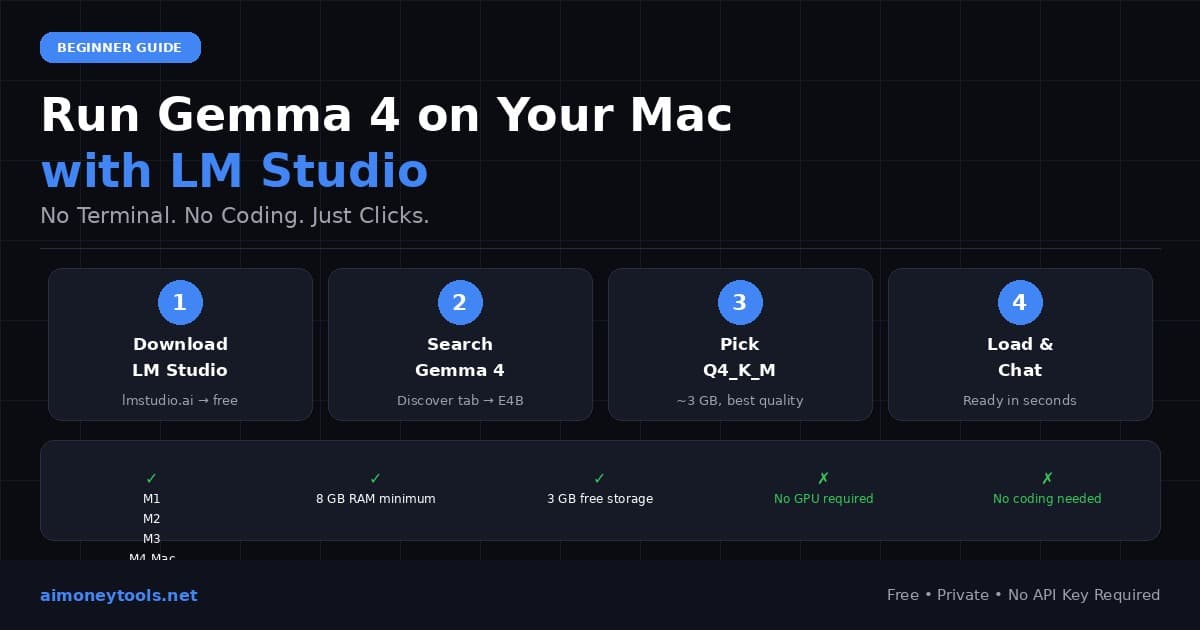
If you've heard about running AI models locally on your Mac but thought it required coding or a tech background — it doesn't. LM Studio is a free app that handles everything through a regular graphical interface, the same way you'd use any other Mac app. This guide walks you through the entire process: installing LM Studio, finding Gemma 4, downloading it, and having a real conversation with it — no Terminal, no command line, no technical setup.
The whole thing takes under 10 minutes.
What You Need Before Starting
You don't need much:
- A Mac with Apple Silicon — that's any Mac with an M1, M2, M3, or M4 chip. If you bought a Mac in late 2020 or later, you almost certainly have this. (Not sure? Click the Apple menu → About This Mac — if it says "Apple M1" through "M4", you're good.)
- At least 8 GB of RAM — the base MacBook Air and base Mac Mini both work fine.
- About 3–4 GB of free storage for the model file.
- A working internet connection for the downloads.
That's it. No NVIDIA GPU. No Python. No accounts to create.
Step 1: Download and Install LM Studio
Open Safari (or any browser) and go to lmstudio.ai.

Click the download button for Mac. LM Studio will download as a standard .dmg installer file. Once downloaded, open it from your Downloads folder — you'll see the LM Studio app icon with an arrow pointing to the Applications folder.
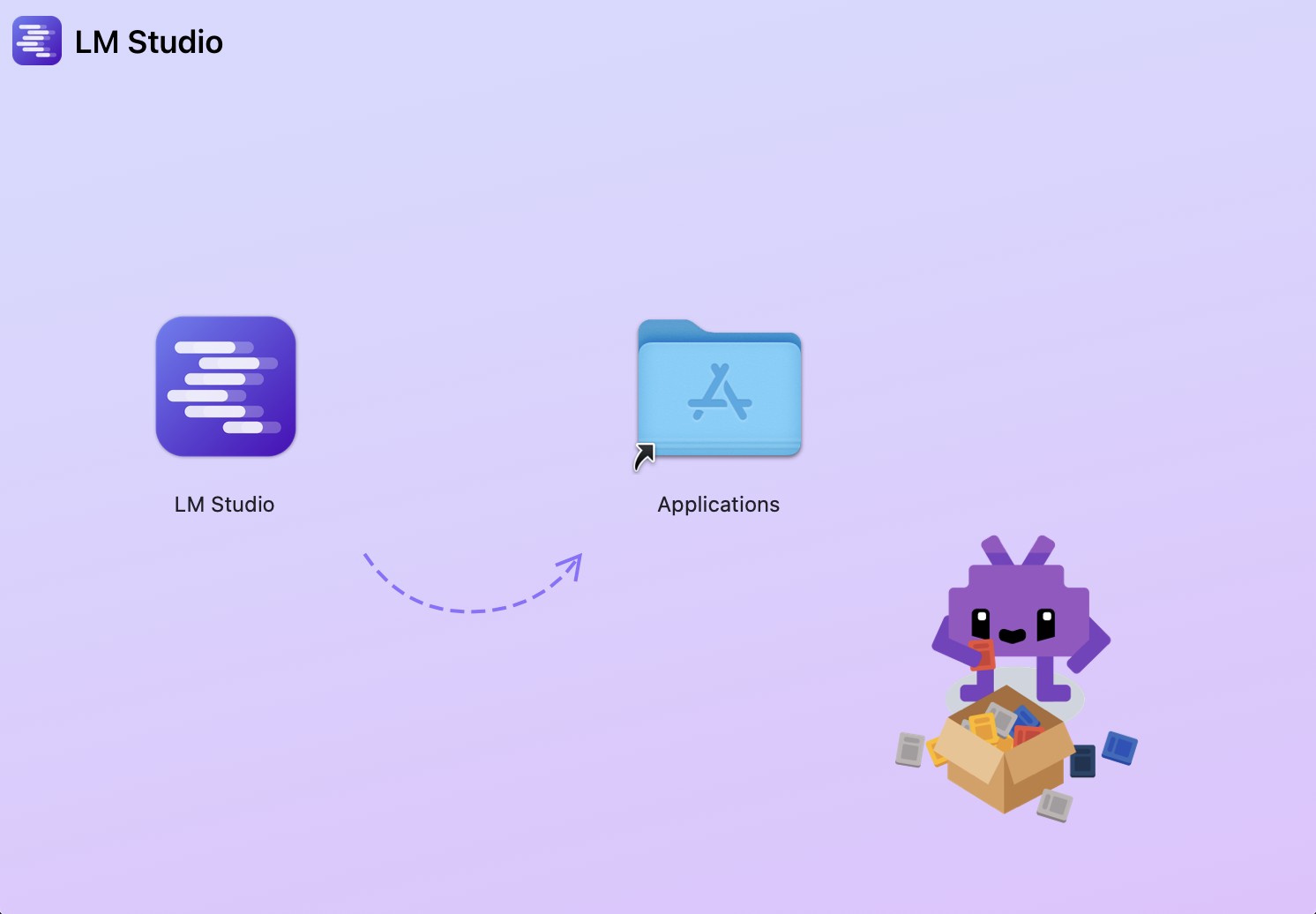
Drag the LM Studio icon into the Applications folder. That's the entire installation. No license wizard, no admin password — just drag and drop.
Open LM Studio from your Applications folder or Launchpad. The first time it launches, it runs a quick hardware scan to detect your GPU and available memory. This takes about 10 seconds and is completely normal.
First launch tip: macOS may show a security warning the first time you open an app downloaded from the internet. If that happens, go to System Settings → Privacy & Security → scroll down and click Open Anyway.
Step 2: Search for Gemma 4
Once LM Studio is open, look at the left sidebar. Click the magnifying glass icon to open the model search (also called the Discover tab).
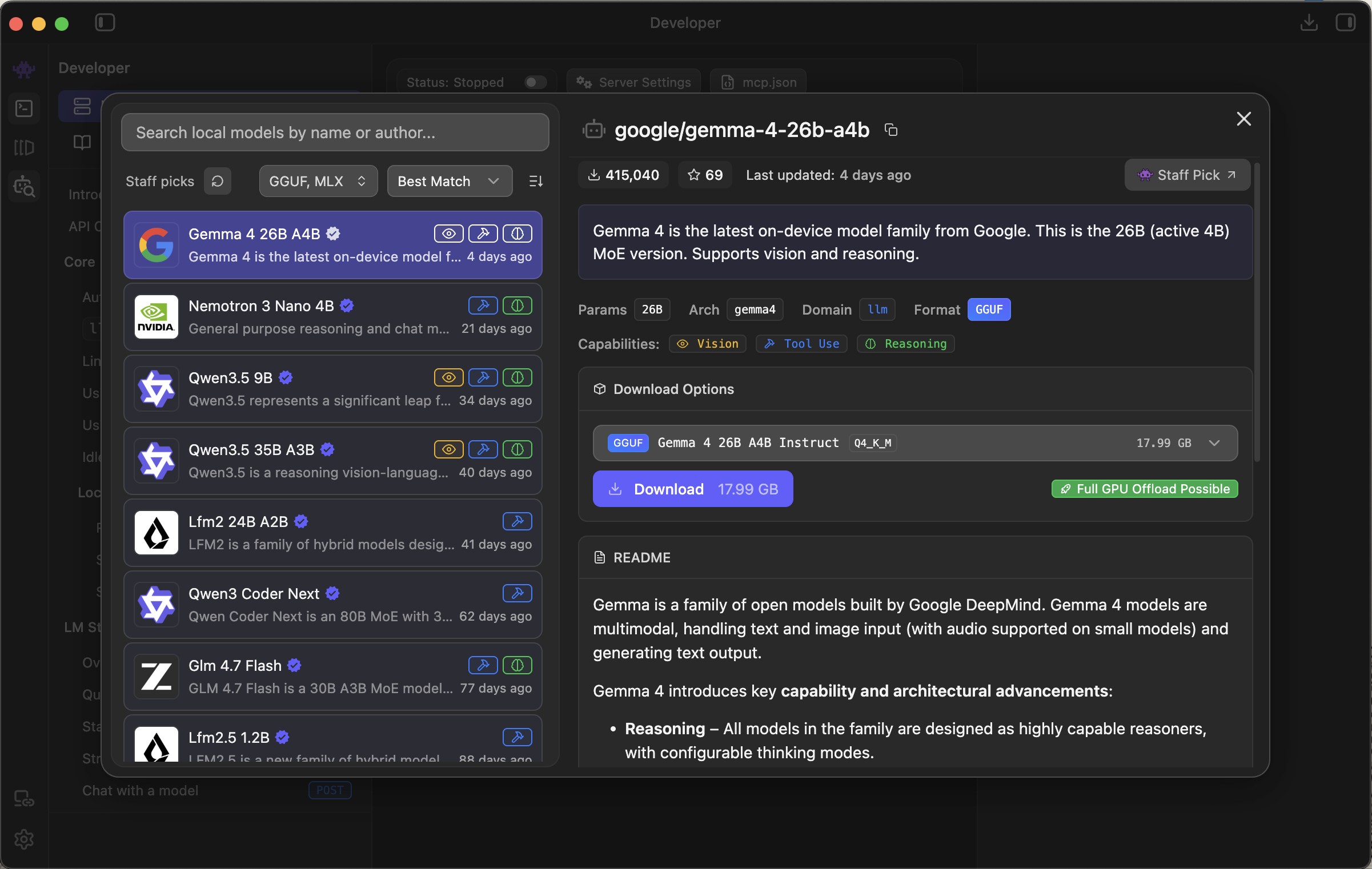
Type gemma-4 in the search box and press Enter. You'll see several Gemma 4 models appear. Here's how to pick the right one:
Which model should you choose?
| Your Mac | Which Gemma 4 to pick |
|---|---|
| 8 GB RAM (base MacBook Air, base Mac Mini) | Gemma 4 E4B |
| 16 GB RAM | Gemma 4 E4B (fast) or Gemma 4 26B A4B (higher quality) |
| 32 GB+ RAM (M3 Pro/Max, M4 Pro/Max) | Gemma 4 26B A4B |
For most people: start with Gemma 4 E4B. It's fast, capable, and runs well on any Apple Silicon Mac.
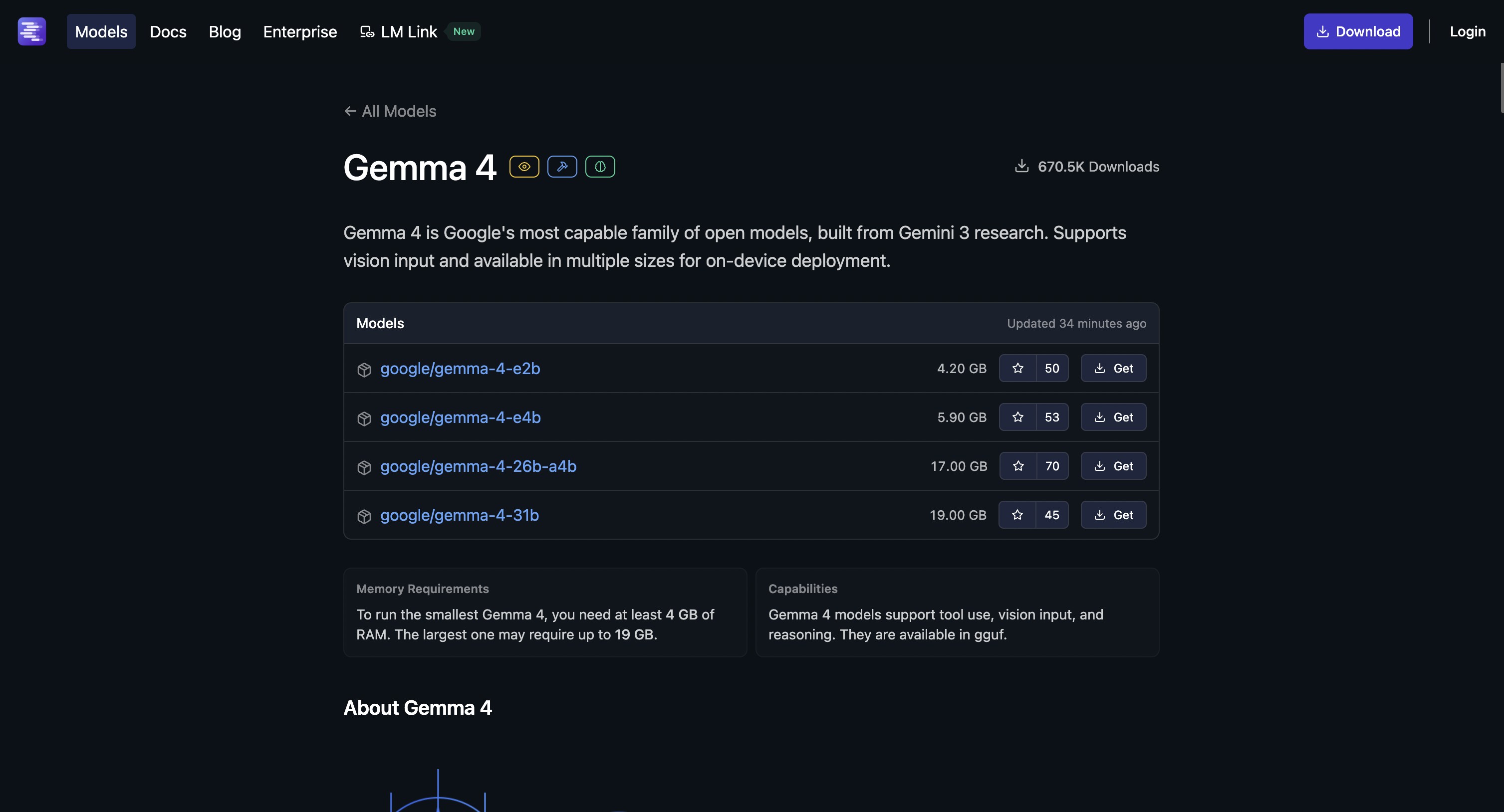
Tip: You can also browse Gemma 4 models directly on the LM Studio website — it has a full model browser where you can explore options and compare sizes before downloading.
Step 3: Download the Model
After clicking on your chosen model, you'll see a list of file variants. These are different quality levels — the letters and numbers describe how compressed the file is.
Just pick Q4_K_M. It's around 3 GB, loads quickly, and gives excellent results for everyday use. Click the download icon (the cloud with a down arrow) next to it.
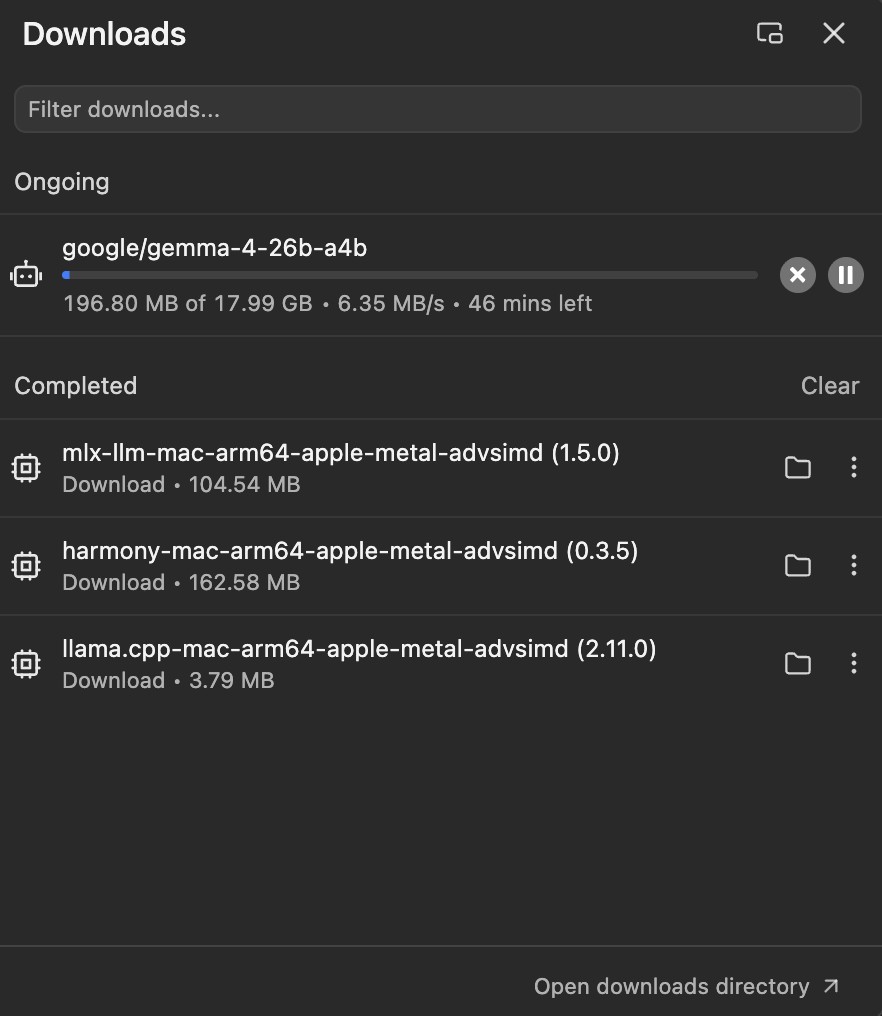
You'll see a progress bar directly inside LM Studio. No need to go to your Downloads folder or move anything. The download takes a few minutes depending on your internet connection — just leave it running.
Why so many file options? AI model files come in different sizes to suit different hardware. Q4_K_M is a reliable middle ground — not too compressed to hurt quality, not too big to slow your Mac down. Curious about the details? The VRAM guide explains it in plain language.
Step 4: Load the Model and Start Chatting
Once the download finishes:
- Click the Chat icon in the left sidebar (it looks like a speech bubble)
- At the top of the chat window, click the model selector — it might say "Select a model"
- Choose your Gemma 4 model from the list
- Wait a few seconds while it loads
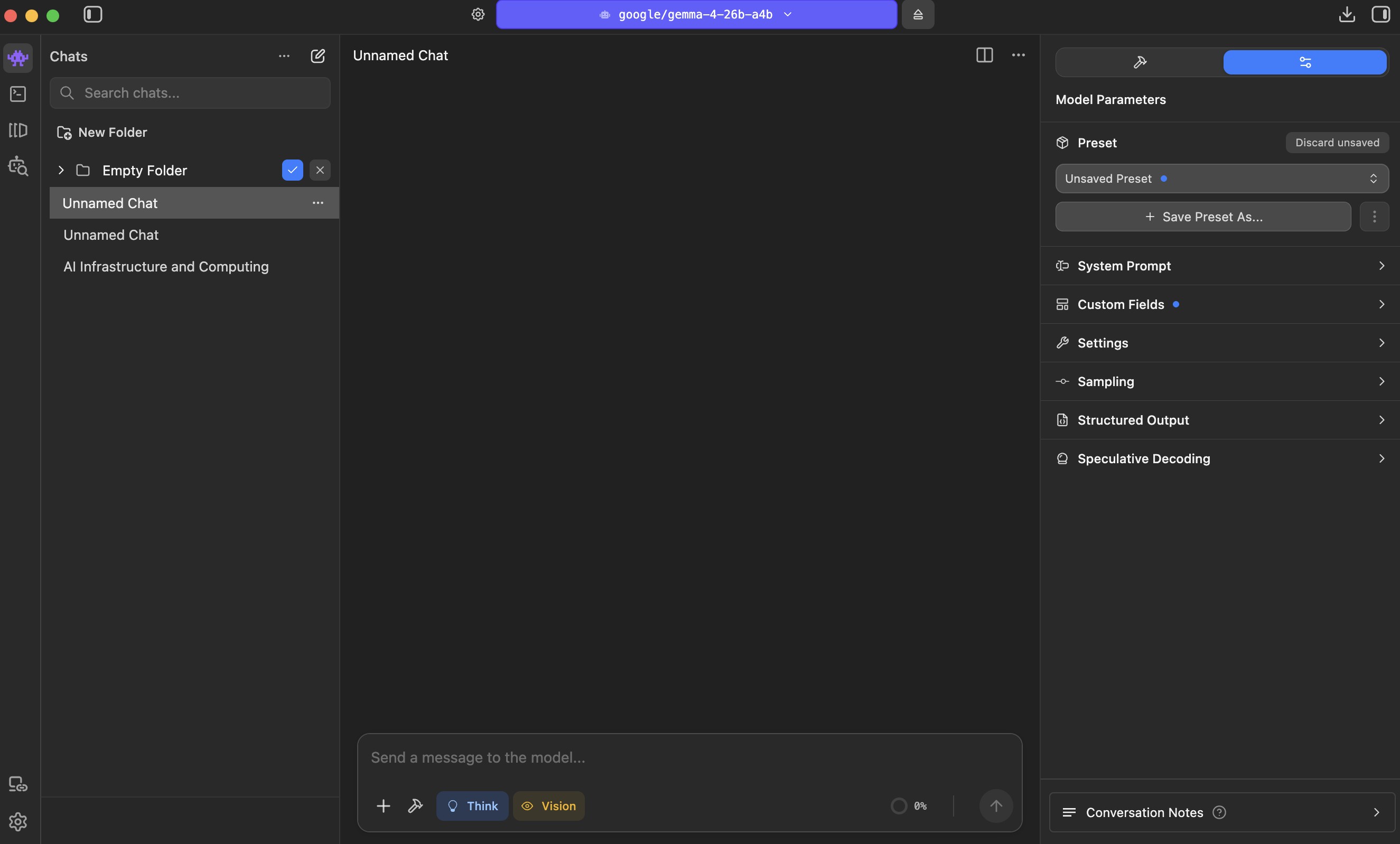
When it's ready, a text box appears at the bottom. Type anything and press Enter.
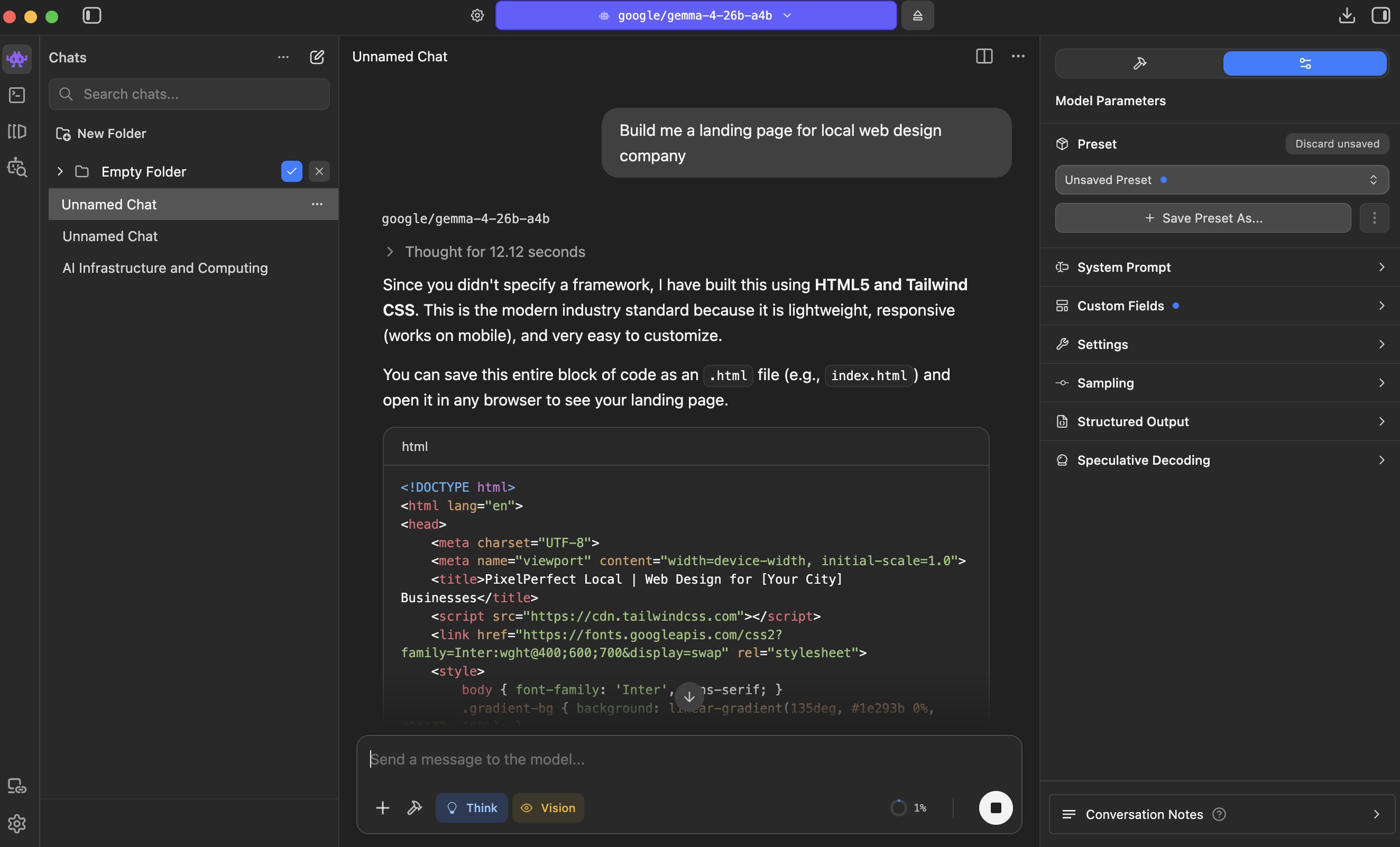
The model responds immediately, streaming the text word by word. On an M1 MacBook Air, expect around 15–20 words per second. On an M4 Max, it's closer to 80.
Things to try:
- "Explain machine learning to me like I'm 10 years old"
- "Write a short email declining a meeting politely"
- "Give me a workout plan for someone with 30 minutes a day"
- "Help me write a landing page headline for my bakery"
Everything runs locally. Nothing leaves your Mac.
Optional Settings Worth Knowing
LM Studio works fine with defaults, but two settings are worth knowing about:
Context Length controls how much the model can hold in memory at once. Gemma 4 supports up to 128,000 tokens (roughly 100,000 words), but LM Studio defaults to 4,096 to save RAM. For most conversations that's enough. If you want to paste in a long document, raise it in the model settings panel on the right side.
LM Studio automatically uses your Apple Silicon GPU — no manual configuration needed.
Troubleshooting
The model won't load / shows an error: LM Studio needs to be version 0.4.9 or later to run Gemma 4. Click Help → Check for Updates, install any available update, then try again.
Responses are very slow: LM Studio may be running on CPU only. Open the model settings panel (the slider icon on the right side) and confirm GPU acceleration is enabled, then reload the model.
Free up memory when you're done: Gemma 4 stays loaded in RAM the entire time LM Studio is open. To reclaim that memory, click the model name at the top of the chat window and select Eject. This unloads the model without closing the app. Reload it the next time you need it.
macOS security warning when opening LM Studio: Go to System Settings → Privacy & Security → Open Anyway. Standard macOS behavior for apps downloaded outside the App Store — LM Studio is safe.
Download stopped or failed: Click the download button again. LM Studio resumes interrupted downloads automatically.
What to Try Next
Once you're chatting with Gemma 4 locally, a few things worth exploring:
- Try the 26B model if you have 16 GB+ RAM — the quality difference is noticeable, especially for writing and reasoning
- Connect it to external tools — LM Studio has a built-in API server that lets apps like Cursor use your local Gemma 4 instead of a paid API. The LM Studio MCP guide covers this
- Compare it to ChatGPT on your real daily tasks — for private documents, offline use, and no per-message cost, local models often win
Everything runs on your hardware. No subscription. No data leaving your Mac. No API key required.
Related Guides
- Gemma 4 Complete Setup Guide — all platforms including iPhone and Android
- How to Check Your VRAM for AI Models — understanding GPU memory and which models fit your hardware
- LM Studio + Gemma 4 MCP Setup — the advanced guide for connecting tools and external apps

Alex the Engineer
•Founder & AI ArchitectSenior software engineer turned AI Agency owner. I build massive, scalable AI workflows and share the exact blueprints, financial models, and code I use to generate automated revenue in 2026.
Related Articles

Gemma 4 on Mac: MacBook Air, Mac Mini & Pro Setup Guide (2026)
Run Gemma 4 locally on MacBook Air, Mac Mini, or MacBook Pro — M1/M2/M3/M4. Free, offline, step-by-step. System requirements, RAM tips, and benchmarks included.

How to Check Your VRAM for AI (Windows & Mac)
Before running Ollama or Llama 4 locally, you need to know your VRAM. Here's a simple, visual guide to finding your GPU's VRAM on Windows and macOS.
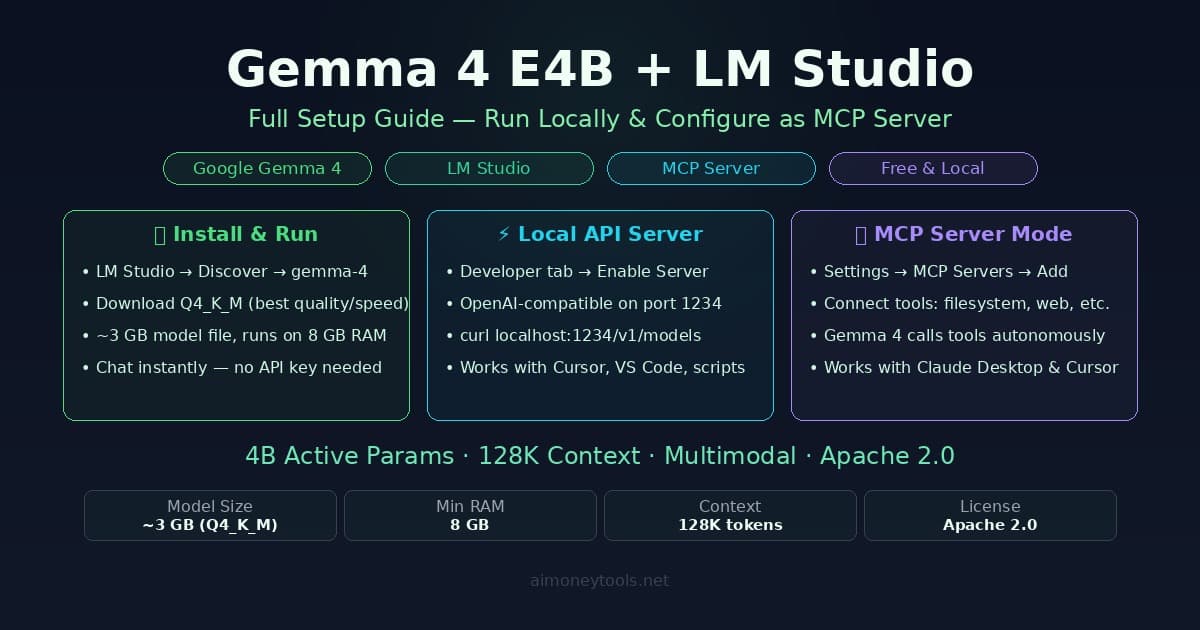
How to Run Gemma 4 E4B in LM Studio and Set It Up as an MCP Server
Step-by-step guide to running Gemma 4 E4B locally with LM Studio, enabling the OpenAI-compatible API server, and configuring it as an MCP server to use tools like filesystem, web search, and terminal.