
How to Connect to the OpenAI API: A 2026 No-Code Guide
Learn how to connect to the OpenAI API without writing code. Set up automated AI workflows and scale your side hustle using Make.com and API keys.
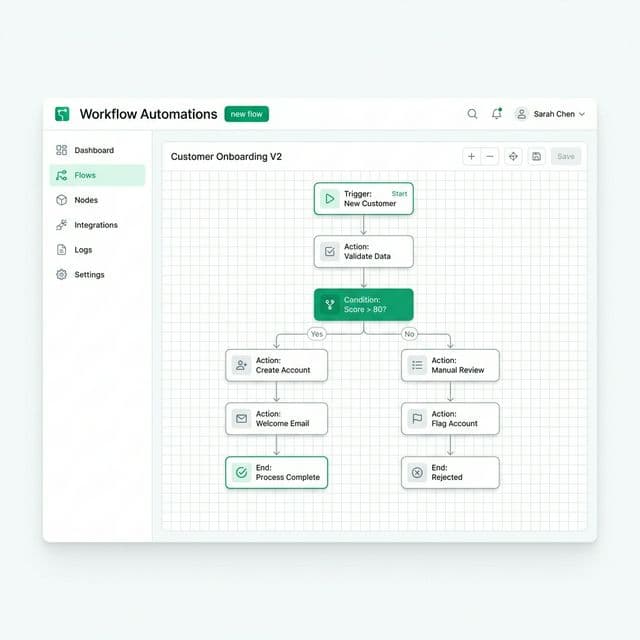
Connecting to the OpenAI API is the single most important step for anyone moving from basic prompting to building a scalable AI business. While ChatGPT is a manual interface for individuals, the API is the engine that allows different software programs to communicate and perform tasks automatically.
By the end of this guide, you will be able to link OpenAI’s language models to your favorite apps like Google Sheets, Slack, or email—without writing a single line of code.
What is an API and Why Do You Need One?
An API (Application Programming Interface) acts as a bridge that sends data from your workspace to OpenAI’s servers and brings back a generated response. Instead of manually copying and pasting text into a chat box, you use the API to tell a computer program exactly when and where to generate content.
For those running an AI side hustle, this is how you automate high-volume tasks. Using an API allows you to process hundreds of requests simultaneously, such as generating product descriptions for an e-commerce store or drafting bulk social media posts.
Step 1: Generate Your OpenAI API Key
Your API key is a unique identifier that tells OpenAI which account is making the request and where to bill the usage costs.
- Create an Account: Navigate to platform.openai.com and sign up. Note that this developer account is separate from your standard ChatGPT Plus subscription.
- Access API Keys: In the left-hand navigation menu, look for the "Dashboard" or the "API Keys" icon (usually a lock symbol).
- Create a New Key: Click "Create new secret key." Give it a descriptive name like "Content Automation" so you can track where it is being used.
- Save Securely: Copy the key immediately. OpenAI only displays the full string once. If you lose it, you will have to generate a new one.
To activate the key, you must add a payment method under the "Billing" section. Unlike the flat $20 monthly fee for ChatGPT Plus, the API uses a "pay-as-you-go" model where you only pay for the specific amount of data processed.
Step 2: Setting Up Your Automation Hub
To use the OpenAI API without coding, you need a visual automation platform. These tools act as the "middleman" that connects your API key to other applications.
Make.com is currently the industry standard for this type of work because of its visual drag-and-drop interface and affordable entry point. Once you create an account, you can build "Scenarios" where data flows from one app to another.
For more complex data handling, many users also integrate CustomGPT.ai, which can index your private documents in under 60 seconds and provide the API with specific context that general models might lack.
Step 3: Building an Automated Content Workflow
Let’s walk through a practical example: building a tool that automatically writes a blog summary every time you add a link to a Google Sheet.
The Trigger (Google Sheets)
First, you need a starting point. In Make.com, add a Google Sheets module and select "Watch Rows." This tells the system to look for new data in a specific spreadsheet. Every time you type a topic into Column A, the automation starts.
The Action (OpenAI API)
Add a second module for OpenAI and select "Create a Chat Completion." Here, you will paste the API key you generated in Step 1.
- Model Selection: Choose
gpt-4ofor high-quality reasoning orgpt-4o-minifor fast, low-cost tasks. - The Prompt: In the message field, write: "Summarize this topic into a 100-word paragraph: [Map the data from your Google Sheet here]."
The Output (Update Sheet)
Add a final Google Sheets module and select "Update a Row." Map the response from the OpenAI module back into Column B of your spreadsheet. Now, the AI’s response is automatically saved exactly where you need it.
Step 4: Monitoring Costs and Usage
Managing your budget is vital when working with automated systems. OpenAI provides a detailed usage dashboard that shows your spending in real-time.
A common practice for beginners is to set a "Hard Limit" in the billing settings. For instance, setting a $5.00 limit ensures that even if an automation runs into an infinite loop, you will never be charged more than your specified budget. According to OpenAI’s pricing documentation, using the "mini" models allows you to process millions of words for just a few cents.
Essential Tools for Your AI Stack
As you become more comfortable with API connections, you can start stacking tools to create more sophisticated outputs.
- Hosting AI Agents: If you want to host specialized agents that run 24/7, Ampere.sh provides dedicated hosting for AI-driven workflows.
- Voice Automation: You can send text from your OpenAI API workflow to Murf.ai to turn written content into professional voiceovers automatically.
- Video Generation: For those looking to scale social media channels, connecting your API output to TryHolo.ai allows for the creation of AI avatars that speak your generated text.
By mastering the API, you are no longer just a user of AI; you are a builder. You can find more ideas on how to monetize these skills in our guide on selling AI services.
Frequently Asked Questions
What is the difference between ChatGPT Plus and the API?
ChatGPT Plus is a monthly subscription for a chat interface. The API is a pay-as-you-go tool for developers and automators to connect AI to other software.
Do I need to know Python to use the OpenAI API?
No. Tools like Make.com and Zapier allow you to use the API through a visual interface. You only need to copy and paste your API key to connect the services.
How much does it cost to use the OpenAI API?
Costs are based on "tokens" (units of text). For most beginners, running a few dozen automations per day using efficient models like gpt-4o-mini costs less than $1 per month.
Is the OpenAI API secure?
Yes, provided you keep your API key private. Never share your key or upload it to public sites like GitHub. OpenAI uses industry-standard encryption to protect data sent via the API.
Can I set a spending limit on my API usage?
Yes. Inside the OpenAI billing dashboard, you can set both "soft limits" (to receive an email alert) and "hard limits" (to stop all requests once a budget is reached).

Alex the Engineer
•Founder & AI ArchitectSenior software engineer turned AI Agency owner. I build massive, scalable AI workflows and share the exact blueprints, financial models, and code I use to generate automated revenue in 2026.
Related Articles

How to Start an AI-Assisted Resume Writing Side Hustle in 2026 (Beginner's Guide)
A step-by-step guide to using AI resume tools to offer a paid resume and cover letter writing service — what to charge, which tools to use, and how to find your first clients.

How to Build and Sell AI Voice Receptionists to Local Businesses in 2026
A beginner's guide to building AI voice agents that answer business phone calls — the tools to use, what to charge, and how to find your first client.

How to Make Money on Fiverr with AI Tools in 2026: 7 Gigs You Can Start This Week
Discover 7 real Fiverr gigs you can launch using free and low-cost AI tools in 2026 — no experience required. Real pricing data, step-by-step setup, and tools that actually work.