
Onyx: The Open Source AI Platform You Can Self-Host (Setup Guide)
Step-by-step guide to installing Onyx — the open source AI platform with RAG, agents, web search, and code execution. Self-host in minutes or use the free cloud trial.
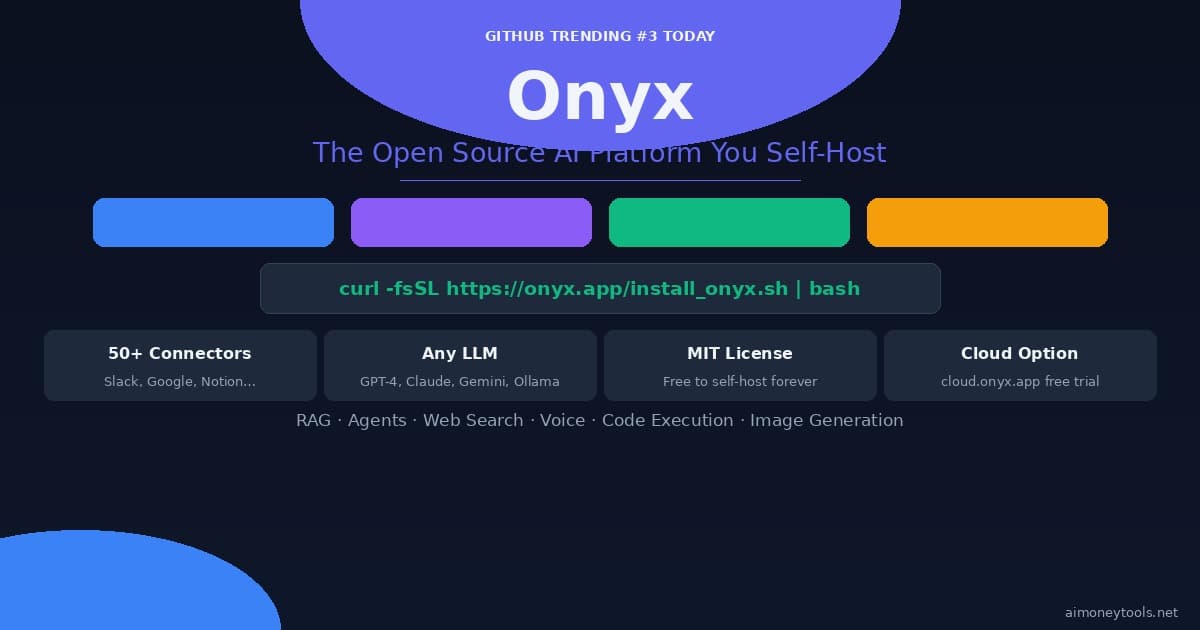
What if you could run a private AI assistant with RAG, web search, custom agents, code execution, and voice mode — entirely on your own server, for free?
That's Onyx. It's an open source AI platform that hit #3 on GitHub Trending today, and it's genuinely one of the most capable self-hosted AI stacks available right now. This guide walks you through getting it running in under 10 minutes.
What Is Onyx?
Onyx is an open source application layer for LLMs. Think of it as a self-hosted alternative to ChatGPT Team or Perplexity Pro — but you control everything: the data, the models, the infrastructure.
At its core, Onyx is a knowledge-aware AI chat platform. You connect it to your documents, Slack, Notion, Google Drive, and 50+ other sources, and it builds a searchable knowledge base that your AI assistant can query in real time. This is called Retrieval-Augmented Generation (RAG) — instead of the AI guessing from training data, it retrieves actual facts from your own sources.
Key capabilities:
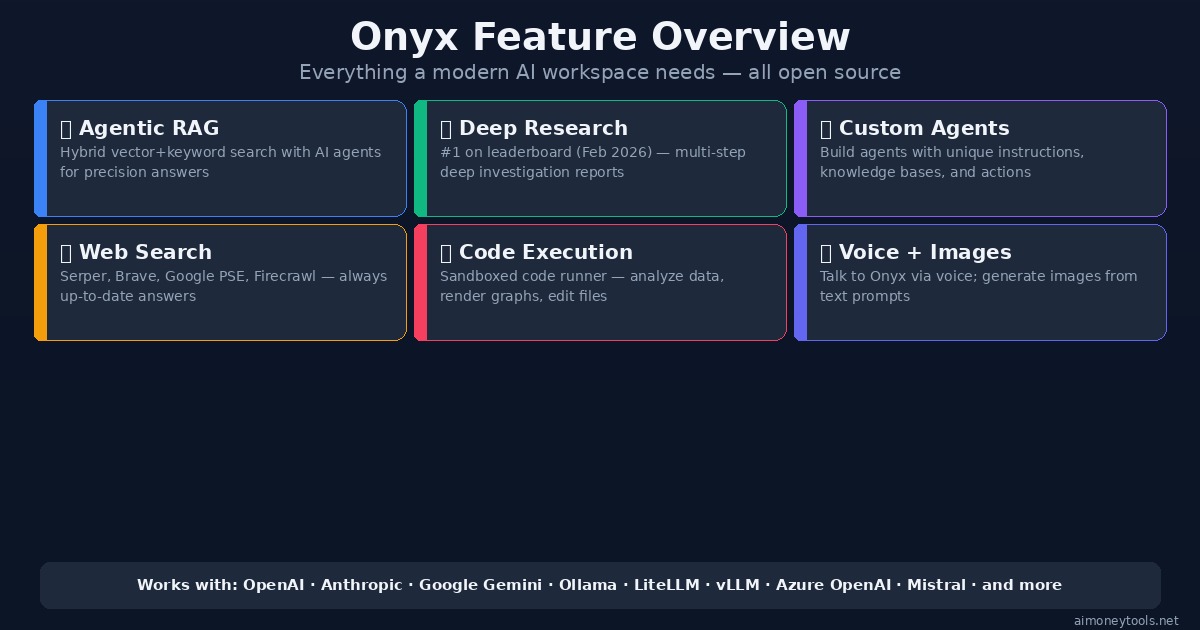
- Agentic RAG — hybrid vector + keyword search with AI agent orchestration
- Deep Research — multi-step research reports (ranked #1 on the deep research leaderboard as of Feb 2026)
- Custom Agents — build AI assistants with specific instructions, knowledge, and action sets
- Web Search — connects to Serper, Brave, Google PSE, Firecrawl, or Exa for real-time information
- Code Execution — run code in a sandbox to analyze data and render charts
- Voice Mode — text-to-speech and speech-to-text for hands-free chat
- Image Generation — generate images from text prompts
- MCP Support — connect agents to external apps via the Model Context Protocol
- Document Artifacts — generate downloadable files from AI conversations
It supports every major LLM: OpenAI, Anthropic Claude, Google Gemini, Mistral, and self-hosted models via Ollama, LiteLLM, or vLLM.
The Community Edition is MIT-licensed — free to self-host forever.
Three Ways to Run Onyx
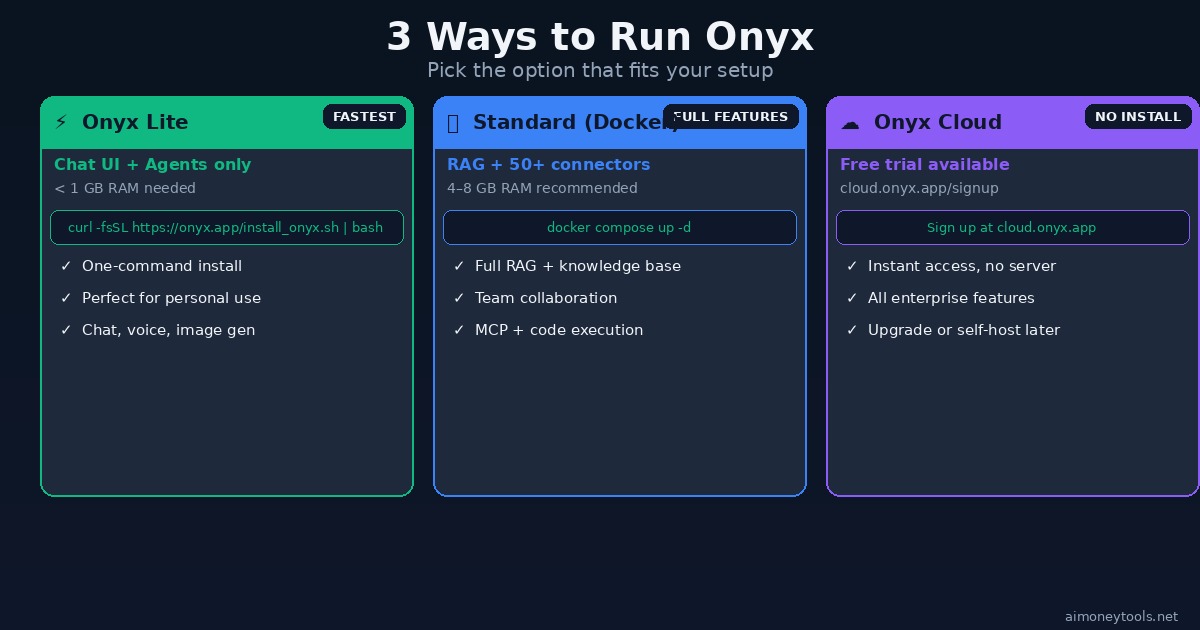
Option 1: Onyx Lite (Fastest — Under 5 Minutes)
Onyx Lite is the lightweight version: just the chat UI plus agents. It needs less than 1GB RAM and runs as a single Docker container.
Requirements:
- Docker installed on any machine (Mac, Linux, Windows with WSL2)
- 1GB+ RAM
Install with one command:
curl -fsSL https://onyx.app/install_onyx.sh | bash
This pulls and starts the Onyx Lite container. Once running, open your browser to http://localhost:3000 and create your account.
Onyx Lite gives you:
- Chat with any LLM provider (OpenAI, Anthropic, Gemini, Ollama)
- Custom agents with instructions
- Voice mode
- Image generation
- Web search
If you don't have a server and just want to try it immediately, skip to Option 3: Cloud.
Option 2: Standard Onyx (Full Feature Stack)
For RAG, the 50+ knowledge connectors, and the full enterprise-grade feature set, you need Standard Onyx.
Requirements:
- Docker + Docker Compose
- 4–8GB RAM (8GB+ recommended for serious use)
- 20GB+ disk space (for model inference + vector index)
Clone and launch:
git clone https://github.com/onyx-dot-app/onyx.git
cd onyx/deployment/docker_compose
docker compose -f docker-compose.dev.yml up -d
Standard Onyx adds:
- Vector + Keyword Index — hybrid RAG for high-accuracy retrieval
- 50+ Knowledge Connectors — Slack, Notion, Google Drive, Confluence, GitHub, Jira, and more
- Background Workers — continuous sync so your knowledge base stays up to date
- AI Model Inference Servers — run local embedding and reranking models
- Redis + MinIO — in-memory cache and object store for scale
- Team Collaboration — share agents and knowledge bases across your organization
The first startup takes 5–10 minutes as containers pull. After that, http://localhost:3000 gives you the full Onyx interface.
Option 3: Onyx Cloud (No Install)
Not ready to run your own server? Onyx offers a hosted cloud version with a free trial at cloud.onyx.app/signup.
You get the full feature set immediately — no Docker, no server setup. Useful if you want to evaluate Onyx before committing to self-hosting.
The cloud version includes all enterprise features (SSO, RBAC, analytics, query history). If you later decide to self-host, you can export and migrate.
Connecting Your LLM Provider
After installation, navigate to Settings → LLM Providers to connect your model.
Using OpenAI:
- Go to Settings → LLM Providers → Add Provider
- Select OpenAI, paste your API key
- Choose a default model (GPT-4o or GPT-4o-mini for most use cases)
Using Ollama (free, fully local):
- Install Ollama on the same machine:
curl -fsSL https://ollama.com/install.sh | sh - Pull a model:
ollama pull llama3.2orollama pull qwen2.5 - In Onyx: Settings → LLM Providers → Add Provider → Custom → URL:
http://localhost:11434
Running Ollama locally alongside Onyx means your entire AI stack — chat, RAG, and inference — runs on your hardware. Nothing leaves your machine.
If you need more compute than your local machine offers for larger models, Ampere cloud GPU instances are worth looking at — you can run both Onyx and Ollama together on an A100 or H100 without managing physical servers.
Adding Knowledge Sources (RAG Connectors)
This is where Onyx gets powerful. Navigate to Settings → Connectors and connect your tools.
Available connectors include:
- Google Drive / Docs / Sheets
- Slack (search your message history)
- Notion pages and databases
- Confluence wikis
- GitHub repositories and issues
- Jira tickets
- Linear, Asana, Trello
- Web crawl — point it at any URL or sitemap
- File upload — PDFs, Word docs, CSVs
- Gmail / Outlook
- YouTube (transcript indexing)
- 50+ more via MCP
Once connected, Onyx continuously syncs and re-indexes your sources. When you ask a question, it retrieves the most relevant chunks and cites exact sources in its answer — you can click through to the original document.
Feature Overview
Building a Custom Agent
Agents in Onyx are AI assistants with a specific purpose, knowledge set, and toolset.
To create an agent:
- Navigate to Agents → New Agent
- Set a name and system prompt (e.g., "You are a support agent with access to our product docs")
- Attach a knowledge set (the indexed connector data you want it to search)
- Enable tools: Web Search, Code Execution, Image Generation as needed
- Set sharing permissions (personal, team, or org-wide)
- Save and start chatting
You can build a customer support agent that searches your docs, a research agent that combines web search with your internal notes, or a developer agent that reads your GitHub repos and can run code snippets.
Onyx vs ChatGPT / Claude
| Feature | Onyx (self-hosted) | ChatGPT Team | Claude for Work |
|---|---|---|---|
| Cost | Free (MIT) | $25/user/mo | $30+/user/mo |
| Data privacy | ✅ Stays on your server | ❌ Sent to OpenAI | ❌ Sent to Anthropic |
| Model choice | Any (GPT, Claude, Gemini, Ollama) | OpenAI only | Claude only |
| RAG on your docs | ✅ 50+ connectors | Limited | Limited |
| Deep Research | ✅ #1 on leaderboard | ✅ | ✅ |
| Code Execution | ✅ Sandboxed | ✅ | ❌ |
| Voice Mode | ✅ | ✅ | ❌ |
| Self-hostable | ✅ | ❌ | ❌ |
| Setup complexity | 1 command (Lite) | None | None |
The main tradeoff is setup complexity vs. privacy and cost. For teams handling sensitive data, Onyx's privacy posture is a significant advantage over sending everything to a third-party API.
Performance Tips
1. Start with Lite, upgrade to Standard when needed. Lite handles most individual use cases. Add Standard when you need RAG over company knowledge.
2. Use a quantized local model for inference. If running Ollama locally, qwen2.5:7b-q4_K_M or llama3.2:3b give good speed on 16GB RAM machines. Bigger isn't always better for everyday chat tasks.
3. Schedule connector syncs during off-hours. For large knowledge bases (thousands of documents), set Slack and Drive connectors to sync overnight to avoid indexing overhead during peak hours.
4. Enable Redis in Standard mode if you're running a team — it dramatically speeds up repeated queries on the same knowledge base.
Frequently Asked Questions
Is Onyx completely free? The Community Edition (MIT license) is free forever. Onyx Enterprise Edition adds SSO, advanced RBAC, analytics, and white-labeling for larger organizations — pricing on their website.
Do I need GPU hardware? No. Onyx uses API-based LLMs by default (OpenAI, Anthropic, etc.), which don't require local GPUs. GPUs are only needed if you want to run fully local inference via Ollama or vLLM.
How is this different from Open WebUI? Open WebUI is primarily a frontend for Ollama. Onyx is a full knowledge platform — it adds RAG with real connectors, deep research, multi-step agents, MCP, and team collaboration on top of chat. They're different product categories.
Can I use multiple LLMs in the same Onyx instance? Yes. You can configure multiple providers and select the model per conversation — switch between GPT-4o for complex reasoning and a local Ollama model for quick questions.
Is my data safe on Onyx Lite? Onyx Lite runs locally — your conversations and documents never leave your machine unless you're using a cloud LLM provider (OpenAI, Anthropic, etc.). If full privacy is required, pair Onyx with a local Ollama model.
The Bottom Line
Onyx gives you a production-grade AI workspace that's fully under your control. The one-command Lite install is the easiest entry point to self-hosted AI available right now — and the full Standard stack competes directly with expensive proprietary tools.
If you're serious about keeping your data private or running AI for a team without recurring API costs, Onyx is worth 10 minutes to set up today.
Start here → curl -fsSL https://onyx.app/install_onyx.sh | bash

Alex the Engineer
•Founder & AI ArchitectSenior software engineer turned AI Agency owner. I build massive, scalable AI workflows and share the exact blueprints, financial models, and code I use to generate automated revenue in 2026.
Related Articles

How to Start an AI-Assisted Resume Writing Side Hustle in 2026 (Beginner's Guide)
A step-by-step guide to using AI resume tools to offer a paid resume and cover letter writing service — what to charge, which tools to use, and how to find your first clients.

How to Build and Sell AI Voice Receptionists to Local Businesses in 2026
A beginner's guide to building AI voice agents that answer business phone calls — the tools to use, what to charge, and how to find your first client.

How to Make Money on Fiverr with AI Tools in 2026: 7 Gigs You Can Start This Week
Discover 7 real Fiverr gigs you can launch using free and low-cost AI tools in 2026 — no experience required. Real pricing data, step-by-step setup, and tools that actually work.