
How to Use Claude in Google Sheets: Automate Tasks Without Code (2026)
Use Claude AI inside Google Sheets to write formulas, summarize data, and automate reports — no coding required. Three methods, step-by-step, with real examples.
If you use Google Sheets for work, you can automate most of the repetitive parts using Claude AI — without writing a single line of code. Summarizing data, generating formulas, categorizing rows, writing email drafts from a spreadsheet — all possible today, with three different methods depending on how you want to set it up.
This guide covers the three easiest approaches for 2026, who each one is best for, and exactly how to get started.
Why Use Claude with Google Sheets?
Google Sheets is already the most widely used spreadsheet tool for freelancers, small businesses, and side hustlers. The problem is the manual work: copy-pasting data, writing complex formulas, formatting reports, analyzing rows of customer responses.
Claude handles text-heavy tasks exceptionally well. Combined with Google Sheets, it can:
- Write and explain formulas from a description
- Summarize entire columns of text (reviews, feedback, notes)
- Categorize and tag data automatically
- Generate content per row (subject lines, product descriptions, replies)
- Analyze patterns and surface insights from a dataset
The result: tasks that took hours take minutes. No Python, no Google Apps Script, no complex setup required for the methods below.
Method 1: GPT for Sheets Add-On (Use Claude Directly in Cells)
This is the most powerful method if you want Claude integrated directly into your spreadsheet — write a formula in a cell and Claude responds inline.
Who this is for: Anyone who processes data in bulk — customer reviews, product descriptions, lead lists, content ideas.
Step-by-Step Setup
1. Install the add-on Open any Google Sheet → click Extensions → Add-ons → Get add-ons. Search "GPT for Sheets" and install it (it supports multiple AI models including Claude).
2. Get your Claude API key Go to console.anthropic.com, create an account, and generate an API key under API Keys. Copy it.
3. Enter your API key in the add-on In your Google Sheet: Extensions → GPT for Sheets → Open sidebar → Select Claude as the model → Paste your API key → Save.
4. Use Claude formulas
=CLAUDE("Summarize this customer review in one sentence", A2)
=CLAUDE("Write a product description for " & A2 & " targeting small business owners", B2)
=CLAUDE("Classify this support ticket as: billing, technical, general", C3)
Drag any formula down to apply it to every row in your spreadsheet. A sheet with 200 customer reviews can be summarized in under two minutes.
Real use cases:
- Review sentiment analysis (positive / neutral / negative per row)
- Lead personalization — generate a custom first line for cold emails
- Product tagging — automatically categorize SKUs from a description
- FAQ generation — turn raw user questions into polished FAQ entries
Method 2: Windsor MCP — Live Data Analysis (No Formulas)
If you want to ask Claude questions about your data in plain English — without formulas — Windsor's Model Context Protocol (MCP) connector is the fastest setup.
Who this is for: Analysts, marketers, and business owners who want to query their spreadsheet like a conversation.
Step-by-Step Setup
1. Connect your sheet to Windsor Go to onboard.windsor.ai/app/googlesheets, paste your Google Sheet ID (the long string in the URL), and authorize access.
2. Install the Windsor connector in Claude In Claude.ai, open the Claude Directory and search "Windsor.ai". Click Connect and follow the authorization flow. This gives Claude real-time read access to your sheet.
3. Start asking questions
Once connected, open a new Claude conversation and ask:
- "Which rows have a revenue above $5,000 this month?"
- "Summarize the feedback in column D"
- "Which products are getting the most complaints?"
- "Create a short report on the top 3 trends in this data"
Claude reads your live sheet and responds with analysis. No formulas, no downloads — just conversation.
Advantage over Method 1: Windsor connects to 345+ sources (Google Ads, Salesforce, Stripe, Meta Ads), so you can ask cross-platform questions. "How does our best-selling product's ad spend compare to its revenue in the sheet?"
Method 3: Claude + n8n Workflow Automation
For repeating tasks that need to run on a schedule — weekly reports, daily data pulls, automated summaries — n8n is the best option. It connects Claude to Google Sheets in a flow that runs automatically.
Who this is for: Side hustlers and small businesses who want hands-off automation.
Setup Overview (No Code Required)
- Create a free account at n8n.io and start a new workflow
- Add a Google Sheets node — select your spreadsheet and the trigger (new row, schedule, or manual)
- Add a Claude node — connect your API key and write your instruction prompt
- Add another Google Sheets node to write Claude's response back into a new column
- Activate the workflow
Example automation: Every Monday at 8am → Read new rows in "Customer Feedback" sheet → Claude classifies each as positive/negative and suggests a response → Writes results in columns E and F
Once activated, it runs without any human input. You check the sheet; the work is done.
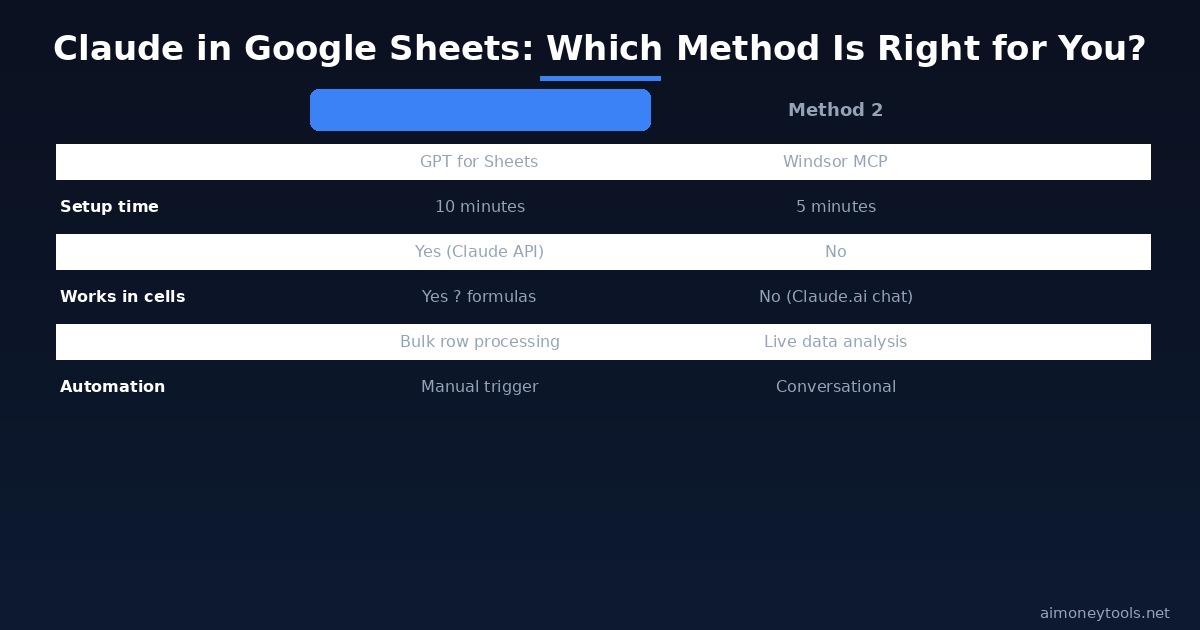
Which Method Should You Use?
| GPT for Sheets | Windsor MCP | n8n | |
|---|---|---|---|
| Setup time | 10 minutes | 5 minutes | 20 minutes |
| Needs API key | Yes (Claude API) | No | Yes (Claude API) |
| Works inside the sheet | Yes | No (Claude.ai chat) | No |
| Best for | Bulk processing | Live data queries | Scheduled automation |
| Cost | Claude API usage | Windsor free tier | n8n free tier |
| No-code | Yes | Yes | Yes (visual builder) |
For most beginners: start with Method 1 (GPT for Sheets). It requires the least setup beyond getting a Claude API key, and the formula-in-cell approach is the most intuitive if you already use Sheets regularly.
Cost: What Does It Actually Run You?
Claude API pricing as of June 2026:
- Claude 3.7 Sonnet: $3 per million input tokens / $15 per million output tokens
- Claude 3.5 Haiku: $0.80 / $4 per million tokens (for lighter tasks)
For most spreadsheet tasks, you are processing short text per row — usually 50–200 tokens of input per cell. Processing 1,000 rows of reviews costs roughly $0.15–$0.30 using Haiku, or $0.60–$1.50 using Sonnet. For a monthly recurring task, that is under $2 for the entire automation.
Common Questions
Do I need to know how to code? No. All three methods are fully no-code. Method 1 uses spreadsheet formulas (same style as standard Sheets formulas). Methods 2 and 3 use visual connectors and plain English.
Can I use Claude 3.5 Haiku in Google Sheets to keep costs low? Yes. In the GPT for Sheets add-on, you can select the model. Haiku is 4–5x cheaper than Sonnet and works well for short text tasks like categorization, sentiment, and one-sentence summaries. Use Sonnet when you need nuanced long-form responses.
What is the difference between using ChatGPT and Claude in Google Sheets? Both work via similar add-ons. Claude has a larger context window (200K tokens on Sonnet, 2M on 3.5 Pro) — which matters if you are passing long documents or multiple columns as context. For most row-by-row cell tasks, the output quality is comparable.
Can Claude write Google Sheets formulas for me? Yes — and this is one of the most underrated uses. Just ask Claude in regular chat: "Write a Google Sheets formula that sums column B for all rows where column A says 'Completed'". It generates the formula, you paste it. No add-on needed.
Is the Windsor MCP free? Windsor has a free tier that covers basic Google Sheets connections. It is sufficient for most small business use cases. Paid plans unlock additional data sources and higher refresh rates.
Can I process an entire sheet with 5,000 rows? Yes, in batches. Most add-ons process rows individually — 5,000 rows will take a few minutes and cost a few dollars in API fees. For very large datasets, n8n with scheduled batches is the better approach.
Does this work on mobile? The GPT for Sheets add-on works on Google Sheets in a browser on mobile, though the sidebar may be small. For analysis, Windsor via Claude.ai on mobile works cleanly. n8n automations run in the background regardless of your device.

Alex the Engineer
•Founder & AI ArchitectSenior software engineer turned AI Agency owner. I build massive, scalable AI workflows and share the exact blueprints, financial models, and code I use to generate automated revenue in 2026.
Related Articles

How to Start an AI-Assisted Resume Writing Side Hustle in 2026 (Beginner's Guide)
A step-by-step guide to using AI resume tools to offer a paid resume and cover letter writing service — what to charge, which tools to use, and how to find your first clients.

How to Build and Sell AI Voice Receptionists to Local Businesses in 2026
A beginner's guide to building AI voice agents that answer business phone calls — the tools to use, what to charge, and how to find your first client.

How to Make Money on Fiverr with AI Tools in 2026: 7 Gigs You Can Start This Week
Discover 7 real Fiverr gigs you can launch using free and low-cost AI tools in 2026 — no experience required. Real pricing data, step-by-step setup, and tools that actually work.