
Goose AI Agent: How to Set Up the Free Open Source Agent by Block
Learn how to install and use Goose, the free open source AI agent from Block (Jack Dorsey's company) that automates coding, research, and workflow tasks — no cloud subscription required.
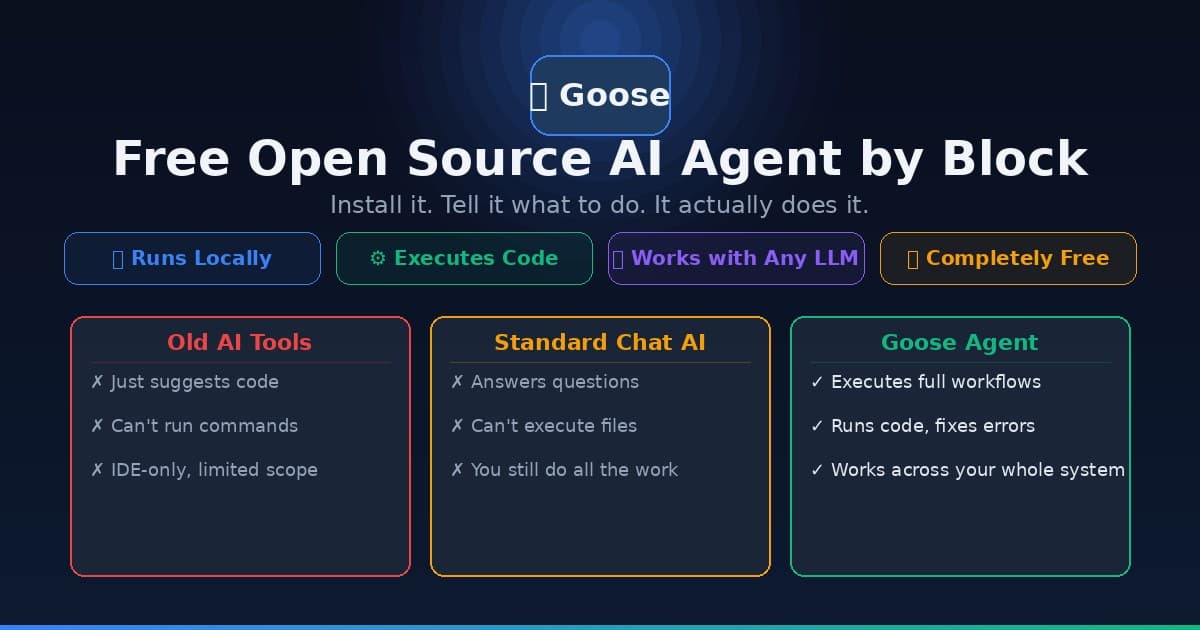
If you follow AI tools on GitHub, you probably noticed Goose trending hard today. Built by Block — the company behind Cash App, Square, and Bitcoin infrastructure — Goose is a fully open source AI agent that runs locally on your computer and can automate complex tasks end-to-end.
Think of it as a free alternative to paid coding agents like Devin or GitHub Copilot Workspace. Instead of just suggesting code, Goose actually executes it. It can write files, run terminal commands, call APIs, install packages, debug errors, and string together entire workflows — all from a plain English instruction.
It's trending on GitHub for a reason. Let's get you set up.
What Is Goose and Who Makes It?
Goose is maintained by Block Open Source — the same engineering org behind the Square payment platform and TBD (Block's Bitcoin/Web5 division). It's a legitimately well-resourced project, not a weekend experiment.
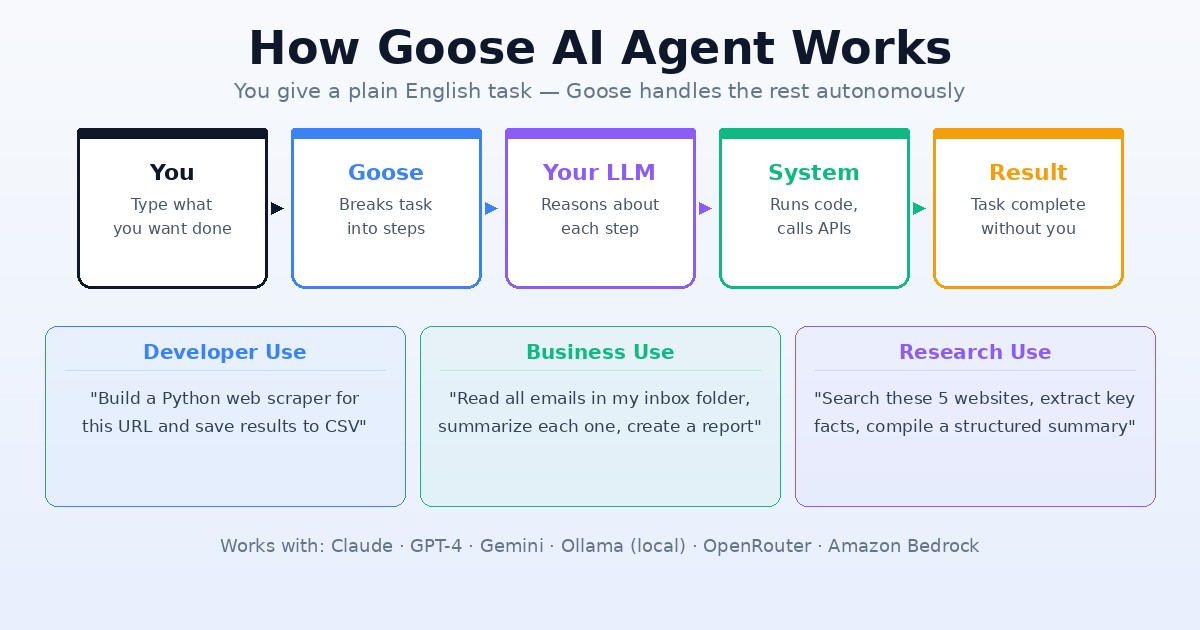
What makes Goose different from standard AI chat tools:
- It runs code, not just suggests it. Goose can open a terminal, run commands, and respond to errors in real time.
- Works with any LLM. Connect your Anthropic, OpenAI, Google, or local Ollama model. It's model-agnostic.
- MCP-compatible. If you're familiar with Model Context Protocol (MCP), Goose supports MCP servers as extensions — meaning it can control browsers, databases, and external APIs.
- Desktop + CLI. Pick your interface. The desktop app has a GUI; the CLI version works directly in your terminal.
- 100% free and open source. No subscription. No vendor lock-in. Check the code yourself on GitHub.
According to Block's own docs, Goose works best with Claude 4 models — it's been optimized for tool-calling, which is what makes autonomous agent loops possible.
System Requirements
Before installing, confirm your setup:
| Component | Minimum |
|---|---|
| OS | macOS 12+, Windows 10/11, Linux (Ubuntu 20.04+) |
| RAM | 8 GB (16 GB recommended for heavy tasks) |
| Disk | 500 MB for the app; 10+ GB if running local models |
| Network | Required for cloud LLM providers |
| LLM | API key (Anthropic, OpenAI, etc.) or local Ollama install |
You do not need a powerful GPU unless you're running the AI models locally. If you connect Goose to a cloud API like Claude or GPT-4, a standard laptop handles it fine.
If you plan to run local models with Ollama (fully private, no API costs), you'll want 16 GB RAM or more. For GPU-accelerated local inference, check out Ampere.sh — they offer affordable GPU cloud instances optimized for AI workloads.
Installation: Step-by-Step
Option 1: Desktop App (Recommended for Beginners)
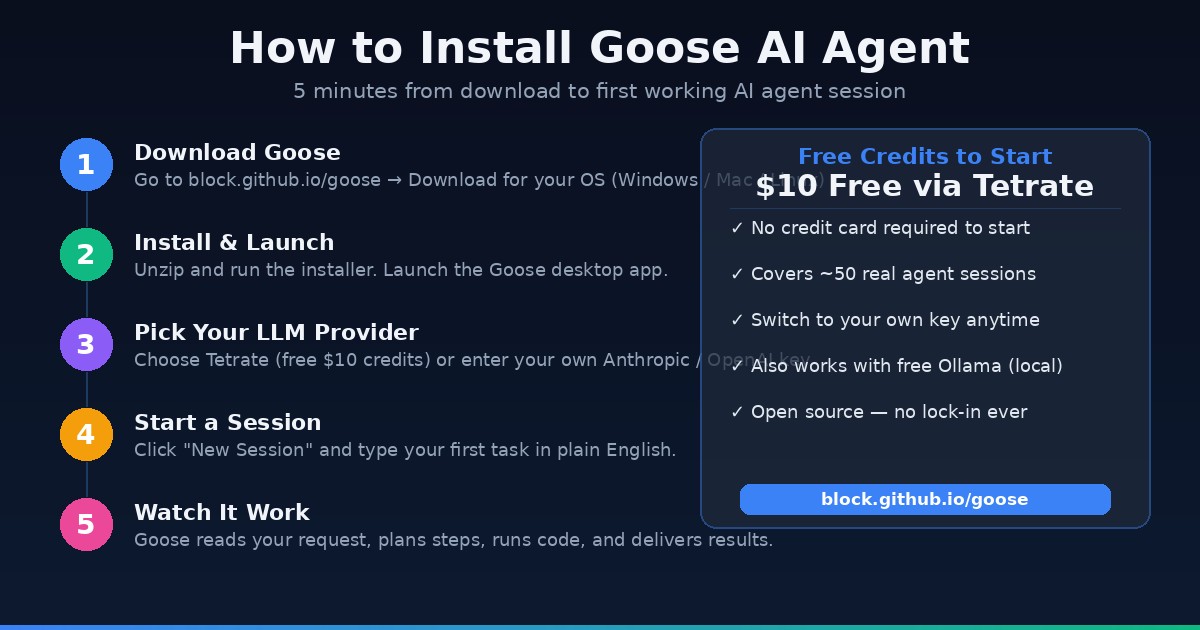
- Go to block.github.io/goose and click Download
- Choose your OS (macOS, Windows, Linux)
- Unzip the downloaded file and run the installer/executable
- On first launch, you'll see the provider setup screen
Option 2: CLI (For Terminal Users)
macOS / Linux:
curl -fsSL https://github.com/block/goose/releases/latest/download/install.sh | bash
Windows (PowerShell):
irm https://github.com/block/goose/releases/latest/download/install.ps1 | iex
Then verify:
goose --version
Configuring Your LLM Provider
Goose needs a brain — an LLM to do the thinking. On first launch, you'll be prompted to choose one.
The easiest free start: Tetrate Agent Router
Block partners with Tetrate to offer automatic multi-model access. When you connect via Tetrate, you get $10 in free credits automatically — enough to run dozens of real tasks without entering a payment method.
- On the welcome screen, click Agent Router by Tetrate
- A browser window opens — create a Tetrate account (free, takes 90 seconds)
- Return to Goose — you're ready to start your first session
Using Your Own API Key:
If you already have an Anthropic or OpenAI key:
- On the welcome screen, choose Quick Setup with API Key
- Paste your API key — Goose detects the provider automatically
- Claude 4 Sonnet is the recommended model for best tool-calling performance
Using Local Models with Ollama (Zero Cost, Private):
- Install Ollama separately
- Pull a model:
ollama pull llama3.2orollama pull qwen2.5-coder - In Goose settings, select Ollama as your provider
- Point to
http://localhost:11434
For local inference with large models (70B+), you'll want dedicated GPU memory. See our guide on how to check your VRAM for AI to pick the right hardware.
Your First Session with Goose
Once your provider is configured, click New Session (desktop) or run goose session (CLI).
Goose treats each session as a continuous conversation. You speak to it in plain English.
Example prompts to try:
"Look at all the Python files in my /projects folder and write me a summary of what each script does."
"Create a simple web scraper in Python that pulls the title and price from the first 10 results on this page: [URL]"
"I have a CSV file at /Downloads/data.csv. Read it, find duplicates, clean the data, and save the result as cleaned_data.csv"
Goose will literally open your terminal, run commands, read the error messages, fix them, and iterate — without you touching the keyboard again.
5 Ways to Use Goose to Save Time (or Earn Money)
1. Automate Your Data Workflows Feed Goose a folder of reports and tell it to extract, clean, and summarize the data. Instead of spending 3 hours on spreadsheets, you're done in 10 minutes.
2. Build Internal Tools Fast Goose can scaffold entire projects. Give it a product spec in plain English and it builds a working prototype. Freelancers can deliver client tools faster and bill the same.
3. Write + Test Scripts for Clients If you do any freelance Python, JavaScript, or shell scripting, Goose lets you prototype 3x faster — write the brief, let Goose draft and debug, you review and deliver.
4. Content Pipeline Automation Goose can read your existing content, call APIs, generate drafts, and organize files. Pair it with local models for zero-cost content research.
5. Personal Research Agent Tell Goose to research a topic, fetch URLs, extract key points, and compile a structured document. Replaces hours of manual reading.
For tasks requiring significant compute (large model inference, data processing), cloud GPU instances via Ampere.sh give you Arm-based cloud servers at a fraction of NVIDIA pricing — a solid backend for Goose + local LLM combos.
Advanced: Adding MCP Extensions
One of Goose's standout features is native MCP (Model Context Protocol) support. MCP servers let Goose control external tools — browsers, databases, APIs, file systems.
To add an MCP server in the desktop app:
- Go to Settings → Extensions
- Click Add Extension
- Enter the MCP server URL or command
- Restart your session — Goose now has access to that tool
Example use: add the Playwright MCP server and Goose can automate browser tasks (fill forms, scrape JavaScript-heavy sites, run UI tests).
The MCP ecosystem is exploding — hundreds of integrations exist for GitHub, Google Drive, Slack, databases, and more.
Frequently Asked Questions
Is Goose completely free? Yes — the Goose software itself has no cost. You pay only for LLM API usage (Anthropic, OpenAI, etc.) or nothing if you use Ollama locally. The Tetrate free credits cover your first ~50 sessions.
Can I use Goose on Windows? Yes. Windows 10 and Windows 11 are both supported. The desktop app installer handles everything.
How does Goose compare to Cursor or GitHub Copilot? Cursor and Copilot are IDE-focused — they work inside your code editor. Goose is a standalone agent that works across your entire system: terminal, browser, APIs, files. Think of Goose as more autonomous and system-wide; Cursor as more tightly integrated with your editor.
Is my code sent to the cloud? Only if you use a cloud LLM provider (Anthropic, OpenAI, etc.). If you use Ollama with a local model, everything stays on your machine. No data leaves your computer.
What models work best with Goose? Block's documentation recommends Claude 4 models for the best tool-calling performance. GPT-4 and GPT-4o also work well. For local inference, Qwen2.5-Coder and Llama 3.2 are popular choices.
Can non-developers use Goose? Increasingly yes. The desktop GUI removes most of the CLI friction. If you're comfortable installing an app and typing plain English instructions, you can get value from Goose — especially for research, file organization, and data tasks.
Bottom Line
Goose is the rare AI tool that doesn't lock you into a subscription, doesn't limit which models you use, and actually executes tasks rather than just chatting about them. For developers and power users who want a free, local-first AI agent with real autonomy, this is currently the best option available.
Install it, connect Tetrate for your $10 in free credits, and give it a real task. You'll understand immediately why it's trending.
If you need cloud GPU compute for running larger models alongside Goose, Ampere.sh offers the most cost-efficient Arm GPU instances available right now.
For setting up the terminal on Windows or Mac before running Goose, see our Terminal Beginner's Guide.

Alex the Engineer
•Founder & AI ArchitectSenior software engineer turned AI Agency owner. I build massive, scalable AI workflows and share the exact blueprints, financial models, and code I use to generate automated revenue in 2026.
Related Articles

How to Start an AI-Assisted Resume Writing Side Hustle in 2026 (Beginner's Guide)
A step-by-step guide to using AI resume tools to offer a paid resume and cover letter writing service — what to charge, which tools to use, and how to find your first clients.

How to Build and Sell AI Voice Receptionists to Local Businesses in 2026
A beginner's guide to building AI voice agents that answer business phone calls — the tools to use, what to charge, and how to find your first client.

How to Make Money on Fiverr with AI Tools in 2026: 7 Gigs You Can Start This Week
Discover 7 real Fiverr gigs you can launch using free and low-cost AI tools in 2026 — no experience required. Real pricing data, step-by-step setup, and tools that actually work.