
Run Gemma 4 on Windows: Full Setup Guide (2026)
Step-by-step guide to running Google's Gemma 4 locally on Windows. Covers LM Studio, Ollama, and llama.cpp — with NVIDIA GPU acceleration and CPU-only options.

Google's Gemma 4 runs fully offline on Windows — no subscription, no cloud, no data leaving your machine. This guide covers three setup methods (LM Studio for beginners, Ollama for developers, llama.cpp for maximum control), how to enable NVIDIA GPU acceleration, and what to expect performance-wise on different hardware.
Mac user? See the Gemma 4 Mac setup guide instead. iPhone? See the Gemma 4 on iPhone guide.
What You Need
Minimum specs:
- Windows 10 or 11 (64-bit)
- 8 GB RAM (runs E2B Q4; 16 GB recommended for E4B)
- 4 GB free storage (for E2B Q4); 6 GB for E4B Q4
Recommended for good performance:
- 16 GB RAM
- NVIDIA GPU with 6 GB+ VRAM (GTX 1060 6GB minimum; RTX 3060+ ideal)
- 20+ GB free storage if you want multiple model variants
CPU-only (no GPU): Works on any modern Windows PC with 8+ GB RAM. Inference will be slower (8–15 tok/s for E2B Q4), but fully functional.
Need to check your VRAM? → How to check your VRAM on Windows
Method 1: LM Studio (Recommended for Most Users)
LM Studio is the easiest way to run Gemma 4 on Windows — a desktop GUI that handles everything from model download to GPU setup.
Install LM Studio
Go to lmstudio.ai → download the Windows installer → run it. No terminal required.
Download Gemma 4
- Open LM Studio → click the 🔍 Search tab (magnifying glass icon)
- Search:
google/gemma-4orbartowski/google_gemma-4-E2B-it-GGUF - Select the model:
- E2B Q4_K_M (3.46 GB) — for most Windows PCs
- E4B Q4_K_M (5.41 GB) — for PCs with 6 GB+ VRAM or 16 GB+ RAM
- Click Download — LM Studio handles everything automatically
Enable GPU Acceleration
Once the model is downloaded:
- Click Load Model → in the loading panel, scroll to GPU Offload
- Set the slider to 100% (moves all layers to GPU) — if you have enough VRAM
- If you see an out-of-memory error, reduce to 75% or 50% (runs partially on GPU, partially CPU)
- Click Load
You'll see tokens/second in the bottom bar — with a GPU you should get 25–80+ t/s depending on your card.
Start Chatting
Click the 💬 Chat tab → select your loaded Gemma 4 model → start typing. Works completely offline once downloaded.
LM Studio also has a local API server: Click Local Server → Start Server → it exposes an OpenAI-compatible API at localhost:1234. Use this to connect Gemma 4 to other tools like Obsidian, VS Code extensions, or your own scripts.
Method 2: Ollama (Best for Developers)
Ollama runs as a background service and lets you use Gemma 4 from any terminal, IDE, or app that supports the Ollama API.
Install Ollama
Download from ollama.com → run the Windows installer. It installs as a system service and runs in the background.
Pull Gemma 4
Open Command Prompt or PowerShell and run:
ollama pull gemma4:e2b
For the E4B (better quality, needs more RAM/VRAM):
ollama pull gemma4:e4b
Ollama downloads the GGUF automatically from its registry. Wait for the pull to complete.
Run Gemma 4
Interactive chat in terminal:
ollama run gemma4:e2b
Type your message and press Enter. Type /bye to exit.
Via API (for developers):
curl http://localhost:11434/api/generate -d '{
  "model": "gemma4:e2b",
  "prompt": "Explain the difference between MoE and dense models"
}'
Ollama's API is OpenAI-compatible, so any tool that supports OpenAI's chat completion API will work by pointing it to http://localhost:11434/v1.
GPU auto-detection: Ollama automatically uses NVIDIA CUDA if it detects an NVIDIA GPU with appropriate drivers. Install the latest NVIDIA driver from nvidia.com if you haven't already.
Method 3: llama.cpp (Advanced — Maximum Control)
llama.cpp is the underlying inference engine that powers both LM Studio and Ollama. Running it directly gives you the most control over quantization, batch sizes, and threading — and it's the fastest option if tuned correctly.
Download Pre-Built llama.cpp for Windows
Go to: github.com/ggml-org/llama.cpp/releases
Download the latest release that matches your hardware:
llama-XXXX-bin-win-cuda-cu12.4.0-x64.zip— for NVIDIA GPUs (CUDA 12.4)llama-XXXX-bin-win-vulkan-x64.zip— for AMD GPUs or any GPU via Vulkanllama-XXXX-bin-win-avx2-x64.zip— CPU only (AVX2 instructions)
Extract the zip to a folder, e.g. C:\llama.cpp.
Download the Model
Download the GGUF file from Hugging Face:
- E2B Q4:
https://huggingface.co/bartowski/google_gemma-4-E2B-it-GGUF - E4B Q4:
https://huggingface.co/bartowski/google_gemma-4-E4B-it-GGUF
On the Hugging Face page, click Files and versions → download google_gemma-4-E2B-it-Q4_K_M.gguf (or the E4B equivalent). Save it to C:\models\.
Run Inference
Open PowerShell, navigate to your llama.cpp folder, and run:
cd C:\llama.cpp

# CPU only
.\llama-cli.exe -m C:\models\google_gemma-4-E2B-it-Q4_K_M.gguf -p "Hello, how are you?" -n 200

# NVIDIA GPU (offload all layers to GPU)
.\llama-cli.exe -m C:\models\google_gemma-4-E2B-it-Q4_K_M.gguf -ngl 99 -p "Hello, how are you?" -n 200
Key flags:
-ngl 99— number of GPU layers (99 = all layers on GPU; reduce if out-of-memory)-n 200— max tokens to generate-c 4096— context window size (increase for longer conversations)-t 8— threads for CPU inference (match your CPU core count)
For interactive chat mode:
.\llama-cli.exe -m C:\models\google_gemma-4-E2B-it-Q4_K_M.gguf -ngl 99 -i --chat-template gemma
Enabling NVIDIA GPU Acceleration
All three methods benefit from NVIDIA GPU acceleration, but they set it up differently:
| Method | GPU Setup |
|---|---|
| LM Studio | Set GPU Offload slider in the Load Model panel |
| Ollama | Automatic — detects NVIDIA CUDA; ensure latest driver is installed |
| llama.cpp | Use the CUDA build + -ngl 99 flag |
Required: NVIDIA driver 520+ (for CUDA 11.8) or 525+ (for CUDA 12). Download from nvidia.com/drivers.
If your GPU doesn't have enough VRAM to run the full model: All three methods support "split" inference — some layers on GPU, the rest on CPU RAM. For LM Studio, reduce the offload slider. For llama.cpp, use a lower -ngl value (e.g. -ngl 20 instead of 99). Performance is somewhere between pure CPU and pure GPU.
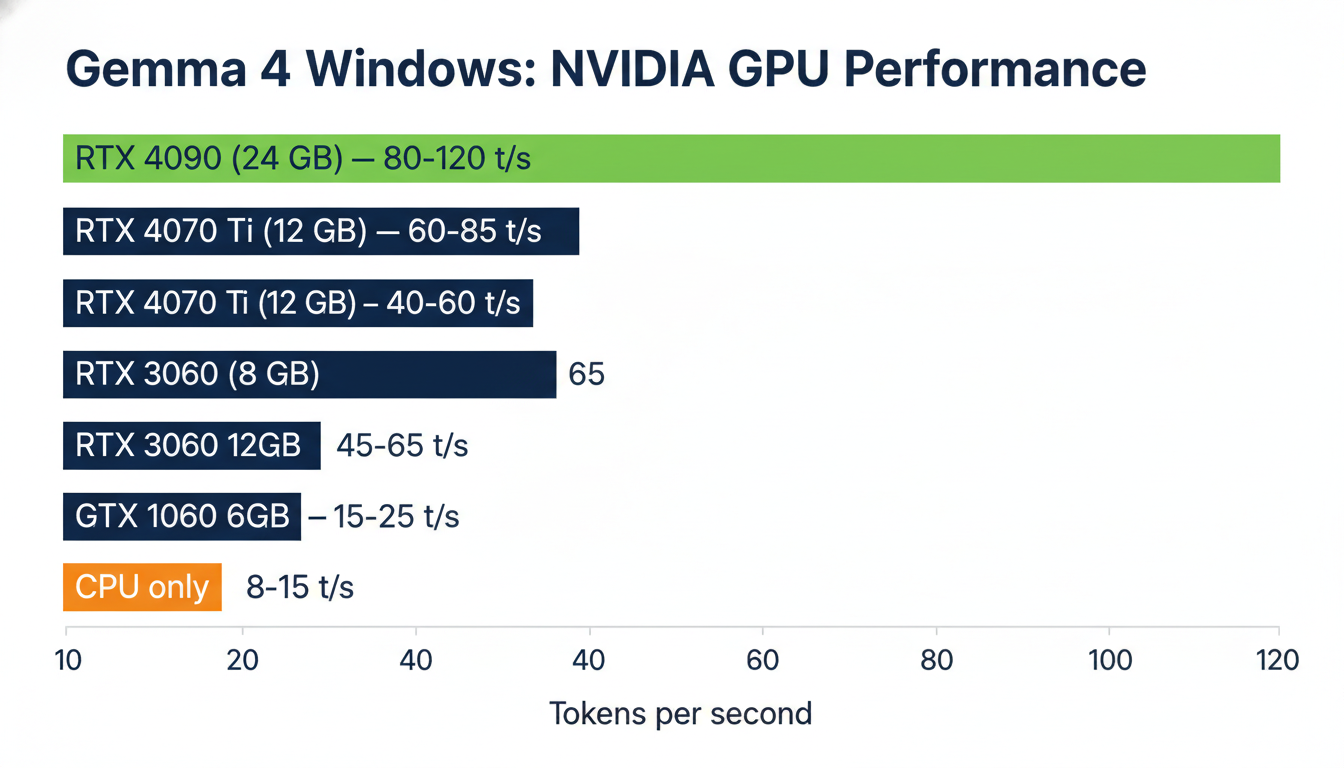
Performance Expectations on Windows
With NVIDIA GPU (E2B Q4_K_M):
| GPU | VRAM | Est. Tokens/sec |
|---|---|---|
| RTX 4090 | 24 GB | 80–120 t/s |
| RTX 4070 Ti | 12 GB | 60–85 t/s |
| RTX 4060 | 8 GB | 40–60 t/s |
| RTX 3060 | 12 GB | 45–65 t/s |
| RTX 3060 | 8 GB | 35–50 t/s |
| GTX 1060 6 GB | 6 GB | 15–25 t/s |
CPU only (E2B Q4_K_M):
| CPU | RAM | Est. Tokens/sec |
|---|---|---|
| Ryzen 9 7950X (32 GB) | 32 GB | 12–18 t/s |
| Intel i7-13700K (32 GB) | 32 GB | 10–16 t/s |
| Ryzen 5 5600X (16 GB) | 16 GB | 7–12 t/s |
At 10+ t/s, the experience is usable. At 20+ t/s, it feels fast. 40+ t/s and it's comparable to using a cloud API.
What Can You Do With Gemma 4 on Windows?
Once it's running, Gemma 4 is a fully capable local AI:
- Private chat: Ask anything — nothing leaves your machine
- Document Q&A: Paste text from Word docs, PDFs, or web pages and ask questions about the content
- Code help: Paste code snippets into chat for debugging or explanation
- Writing assistance: Drafting, editing, summarizing
- Translation: 140+ languages, no internet required
- LM Studio's local API: Connect Gemma 4 to VS Code, Obsidian, n8n, or any tool with OpenAI API support
For the full list of Gemma 4's capabilities (including multimodal image input), see the Gemma 4 setup guide.
Key Takeaways
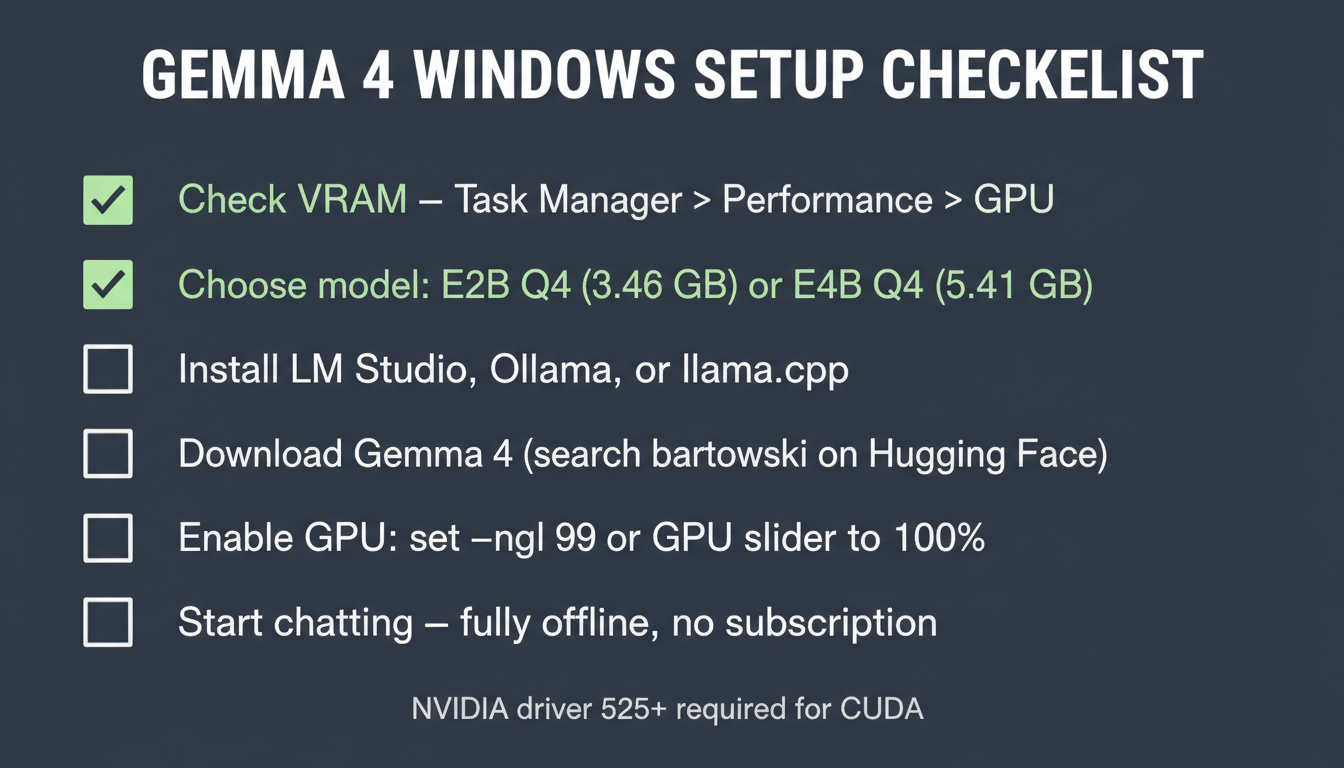
- Easiest: LM Studio — download, search for Gemma 4, set GPU slider, chat. No terminal.
- Best for devs: Ollama — background service, API at
localhost:11434, OpenAI-compatible - Most control: llama.cpp — direct inference, tunable flags, fastest with right settings
- GPU acceleration: Essential for 40+ t/s — use the CUDA build for llama.cpp, or let LM Studio/Ollama auto-detect
- No GPU? CPU-only works with E2B Q4 on 8 GB+ RAM — slower but fully functional
- E2B vs E4B: E2B Q4_K_M (3.46 GB) for most PCs; E4B Q4_K_M (5.41 GB) if you have 6+ GB VRAM
Full hardware requirements: Gemma 4 System Requirements | Need terminal help? Terminal Beginners Guide

Alex the Engineer
•Founder & AI ArchitectSenior software engineer turned AI Agency owner. I build massive, scalable AI workflows and share the exact blueprints, financial models, and code I use to generate automated revenue in 2026.
Related Articles

Gemma 4 on Mac: MacBook Air, Mac Mini & Pro Setup Guide (2026)
Run Gemma 4 locally on MacBook Air, Mac Mini, or MacBook Pro — M1/M2/M3/M4. Free, offline, step-by-step. System requirements, RAM tips, and benchmarks included.
Gemma 4 System Requirements: What You Need to Run It on PC, Mac, and Cloud
Exact VRAM and RAM requirements to run Gemma 4 E2B, E4B, 26B MoE, and 31B locally on Windows, Mac, or in the cloud — plus a step-by-step guide with Ollama.

How to Check Your VRAM for AI (Windows & Mac)
Before running Ollama or Llama 4 locally, you need to know your VRAM. Here's a simple, visual guide to finding your GPU's VRAM on Windows and macOS.