
DeepSeek Vision Guide 2026: How to Analyze Images with AI for Free
DeepSeek Vision lets you analyze images, extract text, read charts, and understand documents — completely free. Here's a practical guide to getting started, plus 8 real use cases beginners can apply today.
If you have been paying for ChatGPT Plus or Claude just to analyze images, you should know there is a free alternative that does the job surprisingly well.
DeepSeek Vision is an AI image analysis tool built on DeepSeek's open-source visual language models. You can upload a photo, screenshot, chart, document, or any image and ask questions about it — in plain English — and get a detailed, accurate response. No subscription required. No credit card.
This guide covers everything you need to know to start using it today: what it can actually do, how to access it, eight real use cases with examples, how it compares to the paid alternatives, and how to use the API if you want to build something on top of it.
What Is DeepSeek Vision?
DeepSeek is a Chinese AI research lab that has released a series of high-performance open-source models. Their vision-language models — most notably DeepSeek-VL2 — are designed to understand both text and images simultaneously.
In practical terms, this means you can:
- Upload an image and ask "What does this chart show?"
- Drop in a screenshot and ask "Extract all the text from this image"
- Share a photo of handwritten notes and ask "Summarize these notes as bullet points"
- Upload a product photo and ask "What are the key features visible here?"
- Paste a diagram and ask "Explain what this workflow describes"
The model was trained on a large dataset of image-text pairs, which gives it strong performance across document understanding, visual question answering, and optical character recognition (OCR) tasks.
Where to access it: chat.deepseek.com — free with a standard account. No Plus subscription needed for image uploads.
8 Real Use Cases for Beginners
1. Extract Text from Images (OCR)
One of the most immediately useful applications: upload any image containing text and ask DeepSeek to extract it. Business cards, screenshots of terms and conditions, photos of receipts, menus, signage — anything with text in it.
How it works: Upload the image → ask "Extract all text from this image and format it as a list."
This saves time over manual transcription and works reliably for most printed text. Handwritten text works too, though accuracy drops with poor handwriting.
2. Analyze Charts and Graphs
Paste a screenshot of any chart — from a research report, a competitor's website, a financial filing, or a news article — and ask DeepSeek to explain what it shows.
Prompt that works: "Describe the trend shown in this chart. What is the main takeaway?"
Useful for content creators who reference data, researchers summarizing reports, and anyone who needs to quickly understand visual data without reading surrounding text.
3. Understand Product Photos for E-commerce
Upload a product image and ask DeepSeek to generate a product description, identify visible features, or compare it to a competitor product.
Practical application: Drop in a product photo from AliExpress or a supplier catalog and ask: "Write a compelling product description for this item based on what you can see."
This is a legitimate time-saver for dropshipping, print-on-demand, or anyone who manages a lot of product listings.
4. Analyze Competitor Ads and Landing Pages
Screenshot a competitor's Facebook ad, Google ad, or landing page section and ask DeepSeek to break down what they are doing — what hook they are using, what the CTA is, what emotional triggers are present.
Prompt: "Analyze this advertisement. What problem does it address, what is the call to action, and what makes it compelling?"
This replaces manual competitor research and gives you structured competitive intelligence quickly.
5. Read and Summarize Documents
PDF documents are often shared as image files or scanned pages. Upload any page and ask DeepSeek to summarize it, extract key points, or identify action items.
Useful for: meeting notes photographed on a whiteboard, printed contracts you want to understand quickly, handouts from workshops, technical diagrams from manuals.
6. Identify and Research Objects
Upload a photo of any physical object and ask what it is, what it is worth, where to find it, or how to use it.
Example: Photo of a vintage item found at an estate sale → "What is this item, approximately when was it made, and what is its typical resale value?" This is a practical tool for resellers, antique hunters, and anyone who buys and sells physical goods.
7. Generate Alt Text for Images
Accessibility requirements and SEO both benefit from descriptive alt text on images. Upload each image and ask: "Write a concise, descriptive alt text for this image suitable for a website."
Content teams, bloggers, and web developers can use this to speed up a task that is easy to skip but matters for ranking and accessibility compliance.
8. Analyze Screenshots for Troubleshooting
When something breaks — in an app, a website, a software tool — take a screenshot of the error message or unexpected behavior and ask DeepSeek: "What does this error indicate and how would I fix it?"
This is especially useful for beginners who encounter error messages they do not understand. DeepSeek can often identify the problem from the screenshot alone and suggest a fix.
How to Get Started (Step by Step)

Step 1: Go to chat.deepseek.com and create a free account.
Step 2: Start a new chat. You will see a text input with an image upload icon (paperclip or image icon, depending on the interface version).
Step 3: Click the image icon and upload your photo, screenshot, or document page.
Step 4: Type your question in the text field. Be specific — "What does this show?" is less useful than "List the three main trends shown in this bar chart and state which year had the highest value."
Step 5: Review the response. If it missed something or you need more detail, follow up in the same conversation: "Now explain the second trend in more detail."
That is the full workflow. There is no technical setup required. It works in any browser.
DeepSeek Vision vs. the Paid Alternatives
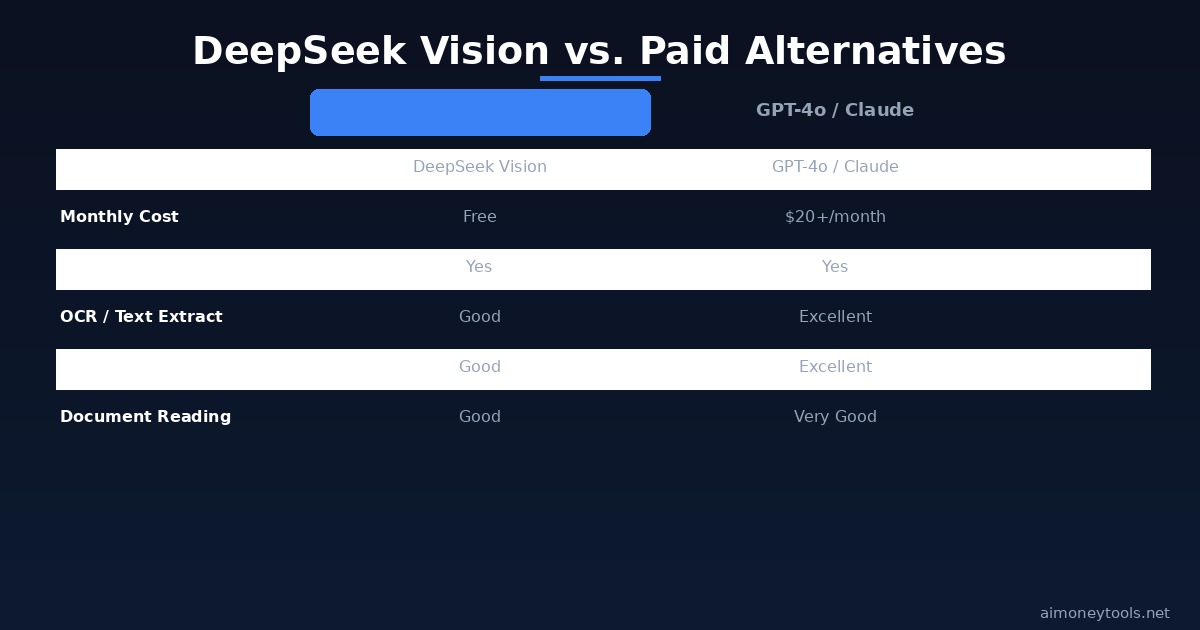
| DeepSeek Vision | GPT-4o Vision | Claude 4.6 (Sonnet) | |
|---|---|---|---|
| Cost | Free | $20+/month | $20+/month |
| Image uploads | Yes | Yes | Yes |
| OCR accuracy | Good | Excellent | Very good |
| Chart analysis | Good | Excellent | Very good |
| Document reading | Good | Very good | Very good |
| Handwriting | Moderate | Good | Good |
| Context window | 128K tokens | 128K tokens | 200K tokens |
| API access | Yes (cheap) | Yes (expensive) | Yes (expensive) |
For most beginner use cases — extracting text, summarizing documents, analyzing charts, describing images — DeepSeek Vision performs well enough that the free tier covers the task. The paid alternatives have an edge in complex multi-step reasoning over large documents and in challenging handwriting scenarios.
If you are already paying for ChatGPT Plus or Claude, you do not need to switch. But if you are not currently subscribed to anything, DeepSeek Vision is the best free starting point.
For voice-over and audio processing specifically (different from image analysis), Murf.ai remains the best free-to-start option.
DeepSeek Vision API: Building on Top of It
If you want to use DeepSeek Vision in your own applications, the API is available and significantly cheaper than OpenAI or Anthropic.
Basic setup (Python):
import openai  # DeepSeek uses OpenAI-compatible API format
import base64

client = openai.OpenAI(
    api_key="your-deepseek-api-key",
    base_url="https://api.deepseek.com"
)

# Encode image to base64
with open("your-image.jpg", "rb") as f:
    image_data = base64.b64encode(f.read()).decode("utf-8")

response = client.chat.completions.create(
    model="deepseek-vl2",
    messages=[
        {
            "role": "user",
            "content": [
                {"type": "image_url", "image_url": {"url": f"data:image/jpeg;base64,{image_data}"}},
                {"type": "text", "text": "What does this image show?"}
            ]
        }
    ]
)
print(response.choices[0].message.content)
API keys are available at platform.deepseek.com. Pricing is substantially lower than comparable OpenAI vision API calls — useful if you are building an app that processes large volumes of images.
If you are new to Python and AI APIs, start with our terminal beginners guide to get your environment set up first.
Running DeepSeek Vision Locally
If you have a GPU with at least 8GB VRAM, you can run a smaller DeepSeek vision model entirely offline using Ollama:
ollama pull deepseek-vl:7b
ollama run deepseek-vl:7b
This gives you a fully private, offline image analysis setup. No data leaves your machine. Useful for sensitive documents or high-volume processing where API costs would add up.
Check our how to check VRAM for AI guide if you are unsure whether your hardware can handle local models.
Frequently Asked Questions
Is DeepSeek Vision completely free? Yes. The web interface at chat.deepseek.com allows image uploads on the free tier without any subscription. The API is paid but is very cheaply priced compared to alternatives.
How many images can I upload per day for free? DeepSeek has not published a strict daily limit for the free tier as of 2026. In practice, casual use (5–20 images per day) has not triggered rate limiting for most users. Heavy API usage is subject to standard rate limits published at platform.deepseek.com.
What image formats does DeepSeek Vision support? JPG, PNG, and WEBP are reliably supported. The web interface accepts most common image formats. GIF files typically only process the first frame.
Is DeepSeek safe to use for private documents? For sensitive personal or business documents (medical records, contracts, financial data), review DeepSeek's privacy policy before uploading. For maximum privacy, run the open-source model locally via Ollama instead of using the web interface.
How does DeepSeek Vision compare to Google Lens? Google Lens is optimized for object identification, price comparisons, and translating text in photos. DeepSeek Vision is better at document summarization, chart analysis, and answering complex questions about image content. They serve somewhat different use cases.
Can DeepSeek Vision read handwritten text? Yes, with moderate accuracy. Clearly written block letters work well. Cursive handwriting with unusual letterforms may produce errors. For critical handwritten documents, always verify the output.
Can I use DeepSeek Vision for business applications? Yes. The API terms permit commercial use. Review the latest terms at platform.deepseek.com before deploying in a production application.
What is DeepSeek-VL2? DeepSeek-VL2 is DeepSeek's second-generation visual language model. It improves on the original DeepSeek-VL with better OCR accuracy, stronger document understanding, and improved performance on visual reasoning benchmarks. It is available as an open-source model (MIT/Apache license) as well as through the hosted API.

Alex the Engineer
•Founder & AI ArchitectSenior software engineer turned AI Agency owner. I build massive, scalable AI workflows and share the exact blueprints, financial models, and code I use to generate automated revenue in 2026.
Related Articles

How to Start an AI-Assisted Resume Writing Side Hustle in 2026 (Beginner's Guide)
A step-by-step guide to using AI resume tools to offer a paid resume and cover letter writing service — what to charge, which tools to use, and how to find your first clients.

How to Build and Sell AI Voice Receptionists to Local Businesses in 2026
A beginner's guide to building AI voice agents that answer business phone calls — the tools to use, what to charge, and how to find your first client.

How to Make Money on Fiverr with AI Tools in 2026: 7 Gigs You Can Start This Week
Discover 7 real Fiverr gigs you can launch using free and low-cost AI tools in 2026 — no experience required. Real pricing data, step-by-step setup, and tools that actually work.