
Deep-Live-Cam Setup Guide: Real-Time AI Face Swap with One Photo
Deep-Live-Cam lets you swap faces in real time on webcam, Zoom, Twitch, and OBS — using just one photo. This guide covers installation on Windows, Mac, and Linux, GPU acceleration, and the best legitimate use cases.
Real-time AI face swap used to require custom hardware, hours of training data, and a lot of luck. Deep-Live-Cam collapsed that into a single photo and a 5-step install.
It went viral when IShowSpeed used it live on stream in 2024. Ars Technica, CNN, Bloomberg, and Linus Tech Tips all covered it. The repo now sits at nearly 90,000 GitHub stars — and it's trending again this week with another surge of +7,300 stars in a single week.
This guide covers what it actually does, how to install it on Windows, Mac, or Linux, GPU acceleration options, and the real use cases that make it useful (not just viral).
What Deep-Live-Cam Does
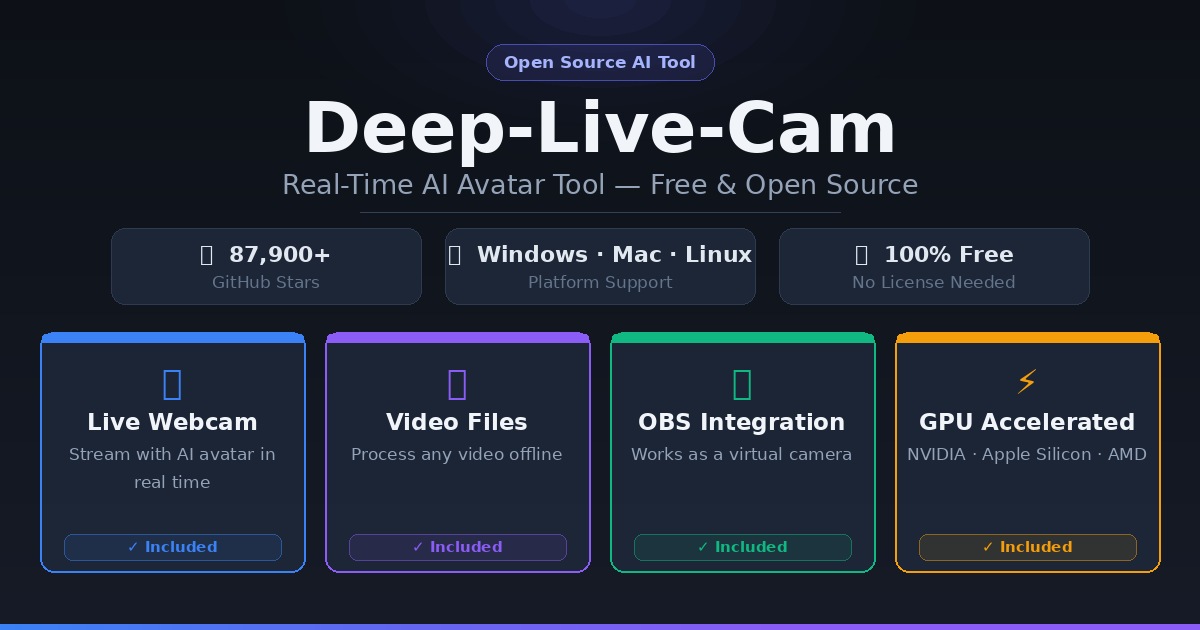
Deep-Live-Cam is an open-source Python application that performs real-time face swapping using a single reference image. No training. No dataset. No 8-hour render queue. Just a photo, a click, and your face becomes someone else's — or vice versa — live on camera.
It runs in two modes:
- Webcam mode — streams your face swap live, integrates with OBS as a virtual camera for Zoom, Teams, Twitch, or YouTube Live
- Video mode — processes a pre-recorded video or image file and outputs a face-swapped version
Two AI models power everything under the hood:
- inswapper_128_fp16.onnx — the face-swapping neural network, trained on millions of faces, capable of generalizing from a single 2D image to infer 3D facial structure, lighting, and expression matching
- GFPGANv1.4 — a real-time face enhancement model that cleans up artifacts and sharpens the swapped face
Both download automatically on first run (~300MB total).
System Requirements
You don't need a high-end machine to run Deep-Live-Cam, but what you have determines the quality and frame rate you'll get.
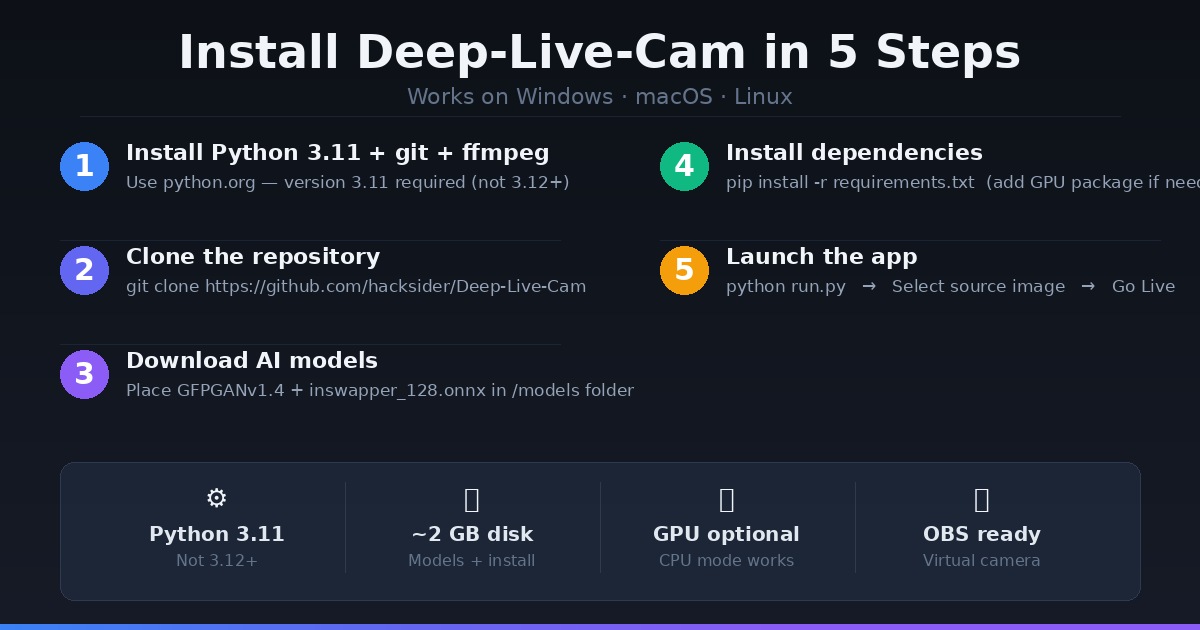
| Setup | FPS (approx.) | Best for |
|---|---|---|
| CPU only | 2–5 fps | Video files, not live |
| NVIDIA GPU (4GB+ VRAM) | 15–30 fps | Live webcam, Twitch |
| Apple Silicon M1/M2/M3 | Real-time | Live webcam, Mac |
| AMD GPU (DirectML) | 10–20 fps | Live webcam, Windows |
Minimum requirements:
- Python 3.11 (not 3.12+ — causes dependency errors)
gitandffmpeginstalled- ~2GB disk space for models + dependencies
- 8GB RAM minimum
No GPU? You can run Deep-Live-Cam on CPU for offline video processing, but live webcam mode at CPU speed is too slow to be useful. If you need a cloud GPU, Ampere offers on-demand NVIDIA instances you can spin up for a session and turn off — no monthly commitment.
Installation Guide
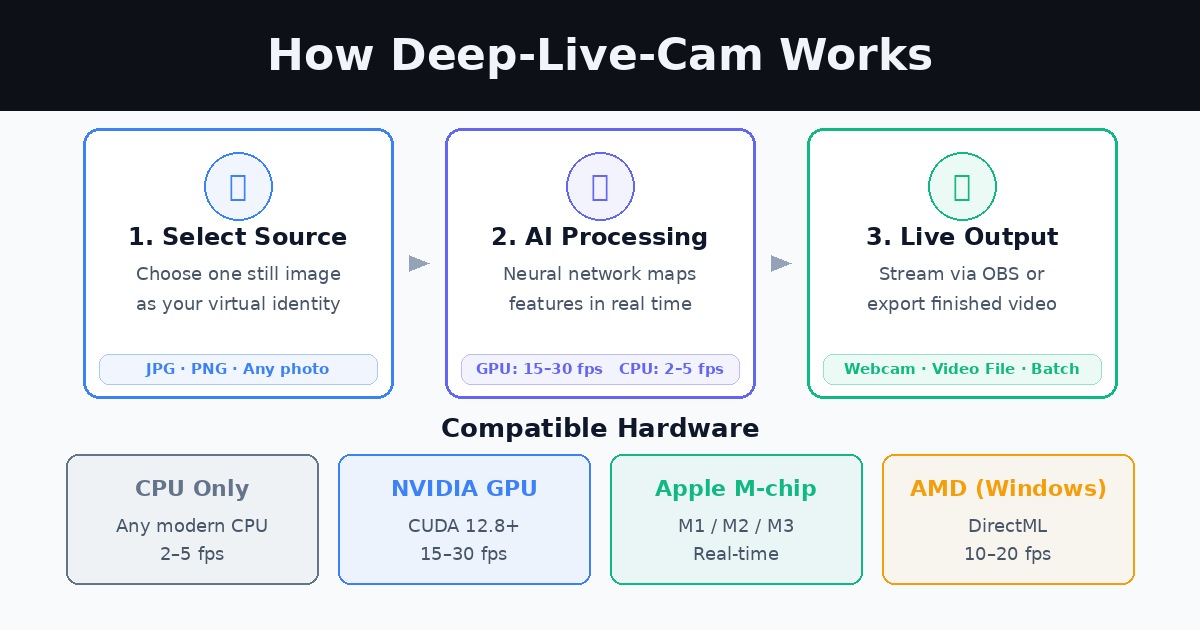
Step 1: Install Prerequisites
macOS:
brew install python@3.11 git ffmpeg python-tk@3.11
Windows:
- Download Python 3.11 from python.org (check "Add to PATH")
- Install git from git-scm.com
- Install ffmpeg: run
iex (irm ffmpeg.tc.ht)in PowerShell
Linux (Ubuntu/Debian):
sudo apt update && sudo apt install python3.11 python3.11-venv git ffmpeg -y
First time in a terminal? Our Terminal Beginner's Guide covers everything you need to get comfortable with command-line tools.
Step 2: Clone the Repository
git clone https://github.com/hacksider/Deep-Live-Cam.git
cd Deep-Live-Cam
Step 3: Download the AI Models
Download both model files and place them inside the /models folder of the cloned repo:
- GFPGANv1.4.pth — face enhancement model
- inswapper_128_fp16.onnx — core face-swap model
You can download both from the official Hugging Face link listed in the repo.
Step 4: Create a Virtual Environment and Install Dependencies
macOS / Linux:
python3.11 -m venv venv
source venv/bin/activate
pip install -r requirements.txt
Windows:
python -m venv venv
venv\Scripts\activate
pip install -r requirements.txt
If you hit a gfpgan or basicsr install error on macOS, run:
pip install git+https://github.com/xinntao/BasicSR.git@master
pip uninstall gfpgan -y
pip install git+https://github.com/TencentARC/GFPGAN.git@master
Step 5: Run It
python run.py
On first launch, it will download the models (~300MB) if you haven't placed them manually. The GUI opens. Select a source face image, then choose either Start (for video files) or Live (for webcam mode).
GPU Acceleration
Running on CPU gives you 2–5 fps — fine for offline video, unusable live. Here's how to unlock your GPU:
NVIDIA (CUDA)
- Install CUDA Toolkit 12.8
- Install cuDNN v8.9.7 for CUDA 12.x
- Then:
pip install -U torch torchvision torchaudio --index-url https://download.pytorch.org/whl/cu128
pip uninstall onnxruntime onnxruntime-gpu -y
pip install onnxruntime-gpu==1.21.0
python run.py --execution-provider cuda
Don't know your VRAM? Check our VRAM Guide for AI to see what your GPU can handle.
Apple Silicon (M1/M2/M3)
pip uninstall onnxruntime onnxruntime-silicon -y
pip install onnxruntime-silicon==1.13.1
python3.11 run.py --execution-provider coreml
Note: You must use python3.11 explicitly, not just python, if you have multiple Python versions installed.
AMD / Windows (DirectML)
pip uninstall onnxruntime onnxruntime-directml -y
pip install onnxruntime-directml==1.21.0
python run.py --execution-provider directml
Intel (OpenVINO)
pip uninstall onnxruntime onnxruntime-openvino -y
pip install onnxruntime-openvino==1.21.0
python run.py --execution-provider openvino
Key Features
Mouth Mask — Preserves your original mouth movements for accurate lip sync. Useful when you want natural-looking speech on a swapped face.
Face Mapping — Swap multiple faces simultaneously in the same frame. Useful for replacing characters in group videos.
Many Faces mode — Applies the face swap to every detected face in the video automatically.
OBS Integration — In webcam mode, capture the Deep-Live-Cam preview window in OBS as a virtual camera source, then use it in Zoom, Teams, Discord, or any streaming platform.
Live Mirror — Flips the webcam preview horizontally to feel more natural, like looking in a mirror.
Use Cases (Legitimate Ones)
Content Creation and VTubing
VTubers and faceless creators use Deep-Live-Cam to build a consistent visual identity without revealing their real appearance. Instead of an animated model requiring rigging, they use a static character portrait that moves and reacts in real time.
Live Streaming and Entertainment
Streamers use it for comedic bits — swapping into a celebrity face for a reaction segment, or swapping back and forth between characters. The IShowSpeed clip that made this viral was exactly this: chaos, comedy, and good content.
Historical or Educational Video
Teachers and educators can portray historical figures in explainer videos. Instead of expensive costume work, a single historical portrait plus Deep-Live-Cam achieves the same visual effect.
Meme and Short-Form Video
Swap a face onto a video clip, export it, post it. The turnaround is minutes, not days. This is the fastest path from a funny idea to a shareable video.
Video Production and Post-Production
Replace a placeholder actor in test footage. Protect the identity of interviewees. Animate brand mascots in live video. Deep-Live-Cam handles these in-session rather than requiring a full compositing pipeline.
Ethics and Responsible Use
Deep-Live-Cam built in content filters that block processing of nudity, graphic content, and sensitive material. The tool also ships with a clear disclaimer: it's intended for creative and research purposes.
That said, the responsibility sits with you:
- Get consent before using anyone else's face — living, public, or otherwise
- Label your output as AI-generated or deepfake when sharing publicly
- Don't use it to deceive — fraudulent impersonation, scam calls, or non-consensual content are illegal in most jurisdictions and deeply harmful
- Add watermarks if you're unsure whether your audience knows the content is synthetic
The technology is powerful. The legal and social norms around it are still forming. Using it well means thinking about the person whose face you're borrowing — not just whether you technically can.
Pre-Built Version (Non-Technical Users)
If the installation steps above feel like too much, the official Deep-Live-Cam project offers a pre-built version (v2.7 beta) for Windows, Mac Silicon, and CPU-only setups. It's a one-click install with 30+ extra features over the open-source build, targeted at non-technical users who want live deepfake without touching the terminal.
You can find it linked directly in the GitHub repo.
FAQ
Does Deep-Live-Cam work on Mac? Yes. Apple Silicon (M1/M2/M3) uses the CoreML execution provider and runs at real-time speeds. Use Python 3.11 and follow the macOS-specific setup steps above.
Do I need a GPU to use Deep-Live-Cam? Not for video file processing — CPU-only mode works fine. For live webcam mode, a GPU (NVIDIA, Apple Silicon, or AMD) is strongly recommended for usable frame rates.
Is Deep-Live-Cam free? The open-source version is completely free under its license. A pre-built beta with extra features is available for purchase from the developers directly.
How many stars does Deep-Live-Cam have on GitHub? Nearly 90,000 stars as of early April 2026 — it's one of the most-starred AI tools repos on GitHub. It gained 7,300+ stars in a single week recently.
Can I use Deep-Live-Cam on Zoom or Teams? Yes — use OBS to capture the Deep-Live-Cam preview window as a virtual camera, then select that virtual camera as your video source in Zoom, Teams, or any conferencing tool.
Is it legal to use Deep-Live-Cam? Using it on your own face, on consenting subjects, or on fictional characters is generally legal. Using it to impersonate someone without consent, for financial fraud, or to produce non-consensual intimate imagery is illegal in most countries. Always check your local laws.

Alex the Engineer
•Founder & AI ArchitectSenior software engineer turned AI Agency owner. I build massive, scalable AI workflows and share the exact blueprints, financial models, and code I use to generate automated revenue in 2026.
Related Articles

How to Start an AI-Assisted Resume Writing Side Hustle in 2026 (Beginner's Guide)
A step-by-step guide to using AI resume tools to offer a paid resume and cover letter writing service — what to charge, which tools to use, and how to find your first clients.

How to Build and Sell AI Voice Receptionists to Local Businesses in 2026
A beginner's guide to building AI voice agents that answer business phone calls — the tools to use, what to charge, and how to find your first client.

How to Make Money on Fiverr with AI Tools in 2026: 7 Gigs You Can Start This Week
Discover 7 real Fiverr gigs you can launch using free and low-cost AI tools in 2026 — no experience required. Real pricing data, step-by-step setup, and tools that actually work.