
AnythingLLM Setup Guide: Run Any AI Model Privately on Your Computer (2026)
Step-by-step AnythingLLM setup guide for beginners. Connect GPT, Claude, or run fully private local AI — no cloud required. Works on Windows, Mac, and Linux.
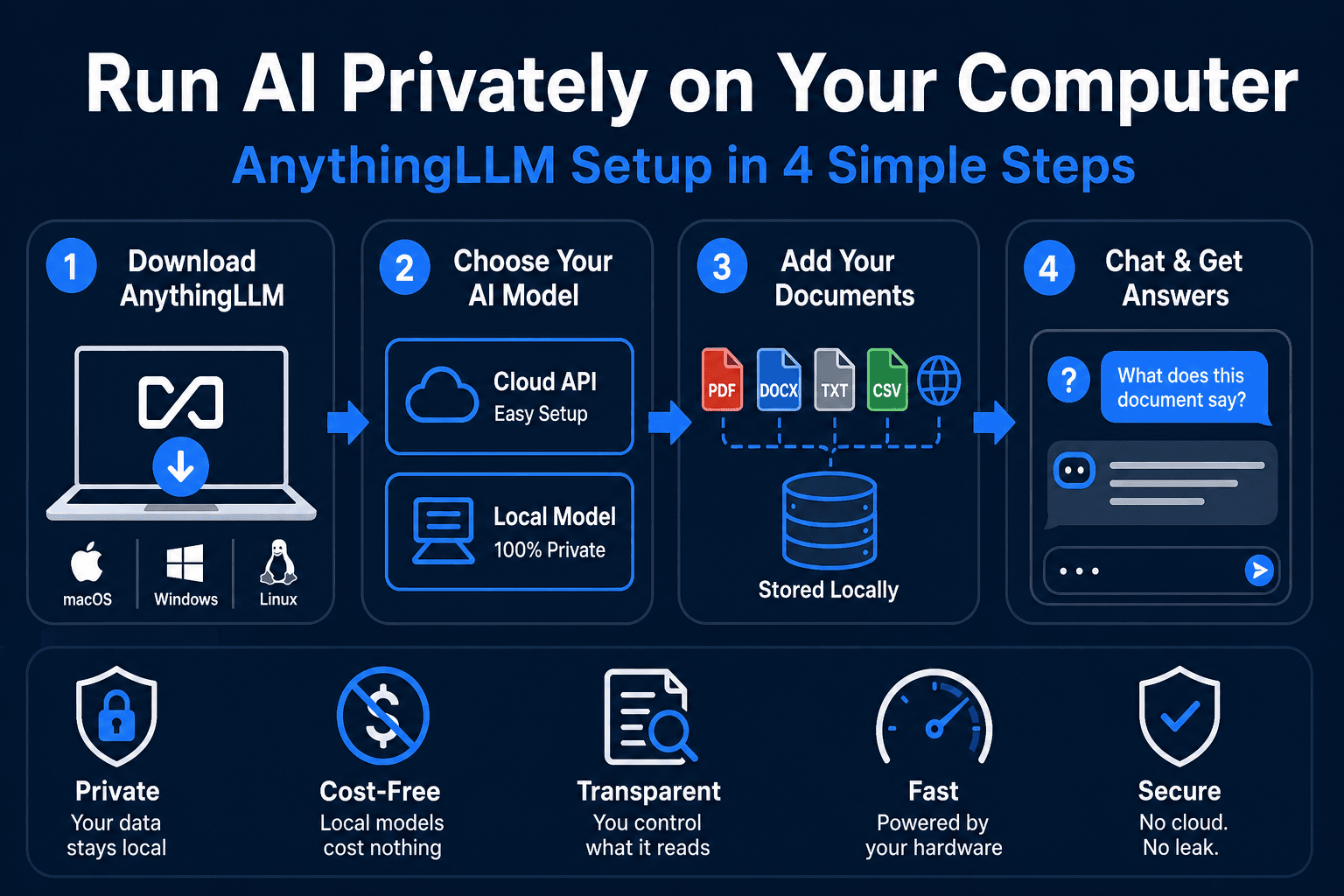
One of the most powerful AI use cases in 2026 is RAG — Retrieval-Augmented Generation. It means you can take your own documents (PDFs, notes, emails, financial records) and ask an AI model questions about them. No sending files to the cloud. No third-party storage.
AnythingLLM is the easiest way to do this on your own computer, and it works completely offline.
This guide walks you through installing it, loading your first document, and asking your first question. Should take 10 minutes start to finish.
What Is AnythingLLM?
AnythingLLM is a free, open-source desktop application that lets you:
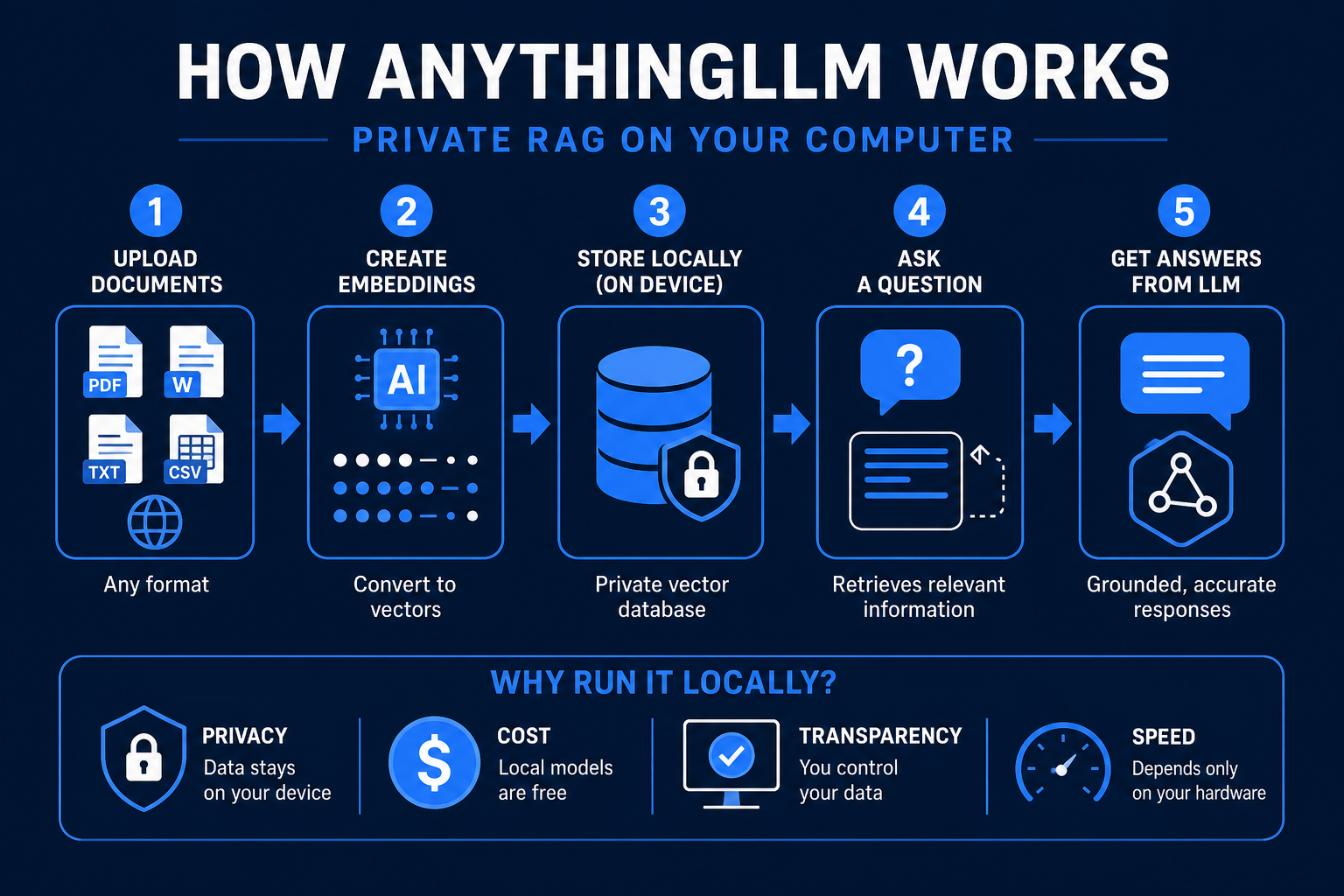
- Upload documents (PDF, DOCX, TXT, CSV, even web links)
- Store them in a local embedding database (all data stays on your machine)
- Chat with an AI model about those documents
- Switch between local models (Llama, Qwen, Mistral) or cloud APIs (Claude, OpenAI)
Think of it as your own private ChatGPT, except you choose which documents it has access to.
Why this matters:
- Privacy — no documents leave your computer
- Cost — local models cost nothing to run after setup
- Transparency — you control exactly which files the AI can read
- Speed — response time depends only on your hardware, not cloud API latency
Requirements
Hardware:
- RAM: 8 GB minimum (16 GB recommended for fast responses)
- Disk space: 2–5 GB for the app + local LLM (or just use cloud APIs)
- GPU (optional): Makes responses 3–10x faster, but AnythingLLM works fine on CPU
If you're not sure about your system specs, check how much VRAM your GPU has.
Software:
- Windows 10+, macOS 10.15+, or Linux
- Internet connection (for initial download; works offline after setup)
- A document to test with (PDF, DOCX, or plaintext)
Step 1: Download AnythingLLM
Go to anythingllm.com.
Click the Download button in the top right. The site auto-detects your OS and offers the right installer:
- macOS: .DMG file
- Windows: .EXE file
- Linux: AppImage or .deb
Download and run the installer. On macOS, drag the AnythingLLM icon to Applications. On Windows, run the .EXE and follow the setup wizard.
Launch the app. You'll see a dark interface with a chat window on the right and a sidebar on the left.
Step 2: Choose Your AI Model
When you first open AnythingLLM, it asks you to pick a model. You have two routes:
Option A: Use a Cloud API (easier, no setup)
- Claude 3.5 Sonnet (via Anthropic API)
- GPT-4 or GPT-4o (via OpenAI API)
- Gemini 2.0 (via Google API)
You'll need an API key from your chosen provider, but these are instant to set up.
Option B: Run a Local Model (free, slower)
- Ollama (manages local models automatically)
- LM Studio (manual model management)
- LocalAI (lightweight)
For beginners, I recommend starting with Claude if you have an API key. You'll see results faster and focus on learning RAG instead of hardware debugging.
Here's how to add Claude:
- Click Settings (gear icon, bottom left)
- Select LLM Preference
- Choose Claude (via Anthropic)
- Paste your Anthropic API key (get one free at console.anthropic.com)
- Click Update
(If you want to skip API costs and use local models, see the Local Model Setup section below.)
Step 3: Create a Workspace
A workspace in AnythingLLM is a container for one knowledge base. You can have multiple workspaces — one for work docs, one for personal notes, one for research.
- In the sidebar (left), click + New Workspace
- Give it a name (e.g., "My Docs" or "Work Files")
- Click Create
You'll see the workspace open with an empty chat window.
Step 4: Upload Your First Document
Click the + (upload) button in the chat area, or drag and drop a file.
Supported formats:
- PDF (.pdf)
- Word (.docx, .doc)
- Text (.txt, .md, .csv)
- Web links (paste a URL, AnythingLLM will fetch and index it)
Upload a file. AnythingLLM will process it — this usually takes 10–30 seconds depending on file size.
You'll see a notification: "Document embedded and added to workspace."
Step 5: Ask a Question
Now type a question in the chat box related to your document. For example:
- "What are the main topics covered?"
- "Summarize the key points"
- "What does the document say about [specific topic]?"
AnythingLLM will search your document for relevant sections and feed them to Claude (or your chosen model) to answer your question.
The first response might take 5–30 seconds depending on:
- Your internet (if using cloud API)
- Your hardware (if using local model)
- Document size
Step 6: Add More Documents
Click the upload button again and add more PDFs or documents. They all go into the same workspace and the model can cross-reference them in its answers.
Example: Upload 3 research papers, then ask "Compare the findings across all three." AnythingLLM will search all three and synthesize an answer.
Local Model Setup (Advanced)
If you want to avoid API costs and run everything locally, you need to:
-
Install Ollama (manages local LLMs):
- Download from ollama.ai
- Install and launch
-
Choose a model size that fits your RAM:
- 7B params (e.g., Llama 2 7B): ~4 GB RAM, runs on most machines
- 13B params (e.g., Mistral 7B): ~8 GB RAM, better quality
- 70B params (e.g., Llama 2 70B): ~48 GB RAM, requires serious hardware
-
Pull the model into Ollama:
ollama pull mistral -
Return to AnythingLLM settings:
- Settings → LLM Preference → Select "Ollama"
- Choose the model you just downloaded
- Click Update
Now AnythingLLM will use your local Mistral model. Responses will be slower than cloud APIs (expect 20–60 seconds per response on a 13B model), but your data never leaves your computer.
For more details on setting up local models, see our guide to running AI locally.
Frequently Asked Questions
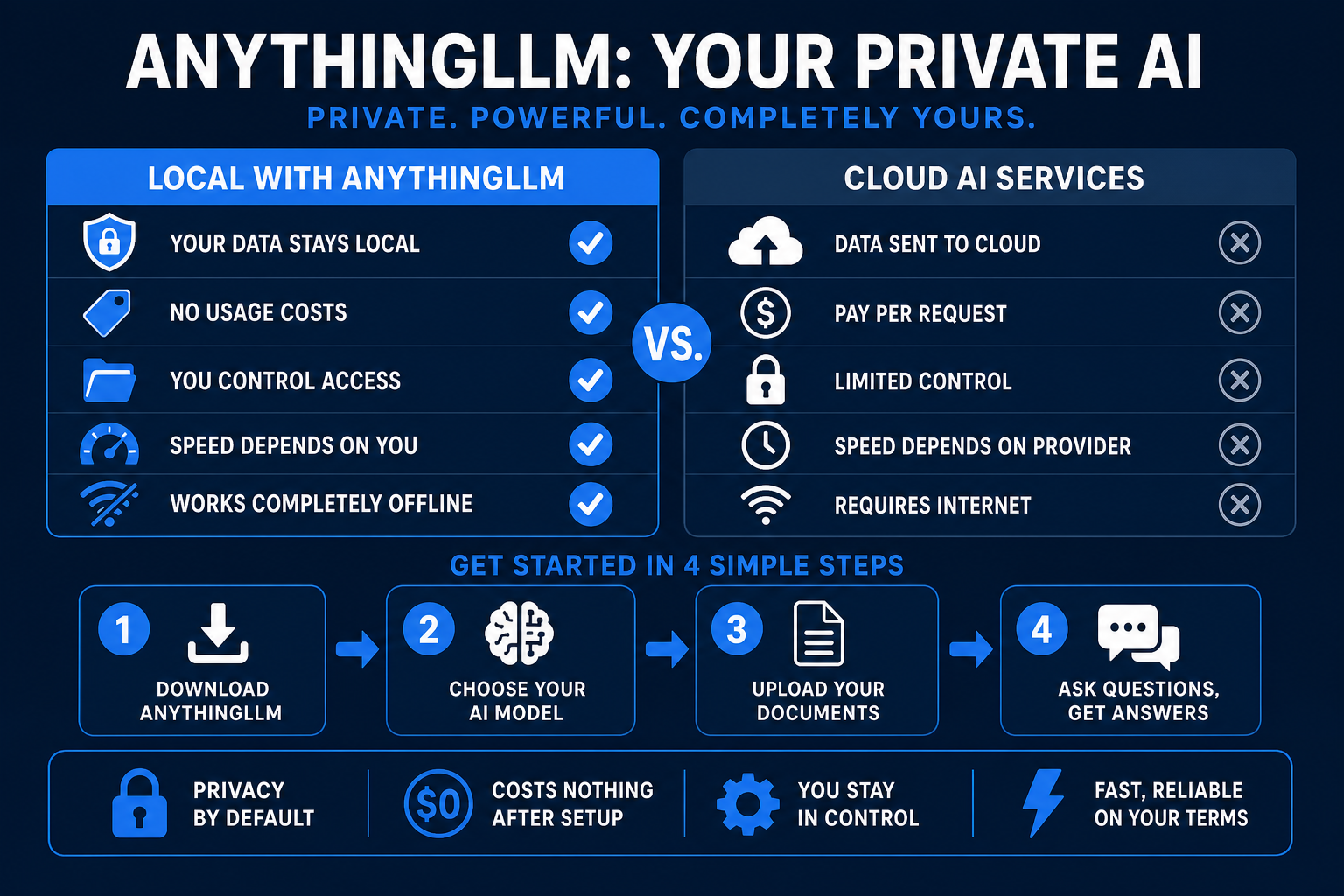
Does AnythingLLM send my documents to the cloud? No. If you use a local model (Ollama), everything stays on your machine. If you use a cloud API like Claude, only the questions and relevant document excerpts are sent to Anthropic—your full documents never leave your computer.
What file formats does AnythingLLM support? PDF, DOCX, DOC, TXT, CSV, Markdown, and web links. For other formats (XLSX, PPTX), convert to PDF first using Google Docs or Microsoft 365, then upload the PDF.
How much does AnythingLLM cost? The app is free. The only cost is:
- API fees (if using Claude/GPT) — charged per query
- Electricity (if using local models) — negligible
Can I export my chats? Yes. Click the menu (three dots) in any workspace and select Export Chat History. Exports as markdown.
Can I delete a document from a workspace? Yes. In the workspace sidebar, find the document and click the trash icon. It's immediately removed.
What's the largest document I can upload? AnythingLLM typically handles PDFs up to 100–200 MB comfortably. If you hit limits, split large files or compress them.
Does AnythingLLM work offline? Yes, if you use a local model + Ollama. Once the model is downloaded, you can close your internet and AnythingLLM will work without it.
Can I use AnythingLLM on my phone? Currently no — AnythingLLM is desktop-only (Windows, Mac, Linux). Web and mobile versions are planned for future releases.
Next Steps
Once you've got AnythingLLM running:
- Test with your own documents — upload a PDF you actually need to work with
- Try different models — if you use Claude, try switching to GPT-4 and see which responds better to your use case
- Build a workflow — organize workspaces by project (Work, Personal, Research)
- Explore plugins — AnythingLLM has extensions for web scraping, scheduled syncing, and custom models
For more AI tools and tutorials, check out our local AI guide to set up your development environment.
Bottom Line
AnythingLLM is the fastest way to go from zero to a working private knowledge base. It's free, beginner-friendly, and gives you full control over your data.
Try it today. You'll likely find yourself uploading more documents as soon as you realize what's possible.

Alex the Engineer
•Founder & AI ArchitectSenior software engineer turned AI Agency owner. I build massive, scalable AI workflows and share the exact blueprints, financial models, and code I use to generate automated revenue in 2026.
Related Articles

How to Start an AI-Assisted Resume Writing Side Hustle in 2026 (Beginner's Guide)
A step-by-step guide to using AI resume tools to offer a paid resume and cover letter writing service — what to charge, which tools to use, and how to find your first clients.

How to Build and Sell AI Voice Receptionists to Local Businesses in 2026
A beginner's guide to building AI voice agents that answer business phone calls — the tools to use, what to charge, and how to find your first client.

How to Make Money on Fiverr with AI Tools in 2026: 7 Gigs You Can Start This Week
Discover 7 real Fiverr gigs you can launch using free and low-cost AI tools in 2026 — no experience required. Real pricing data, step-by-step setup, and tools that actually work.